 Volition
Click Appointments in the main navigation to open the calendar. You can switch between day and week views and filter by location and practitioner.
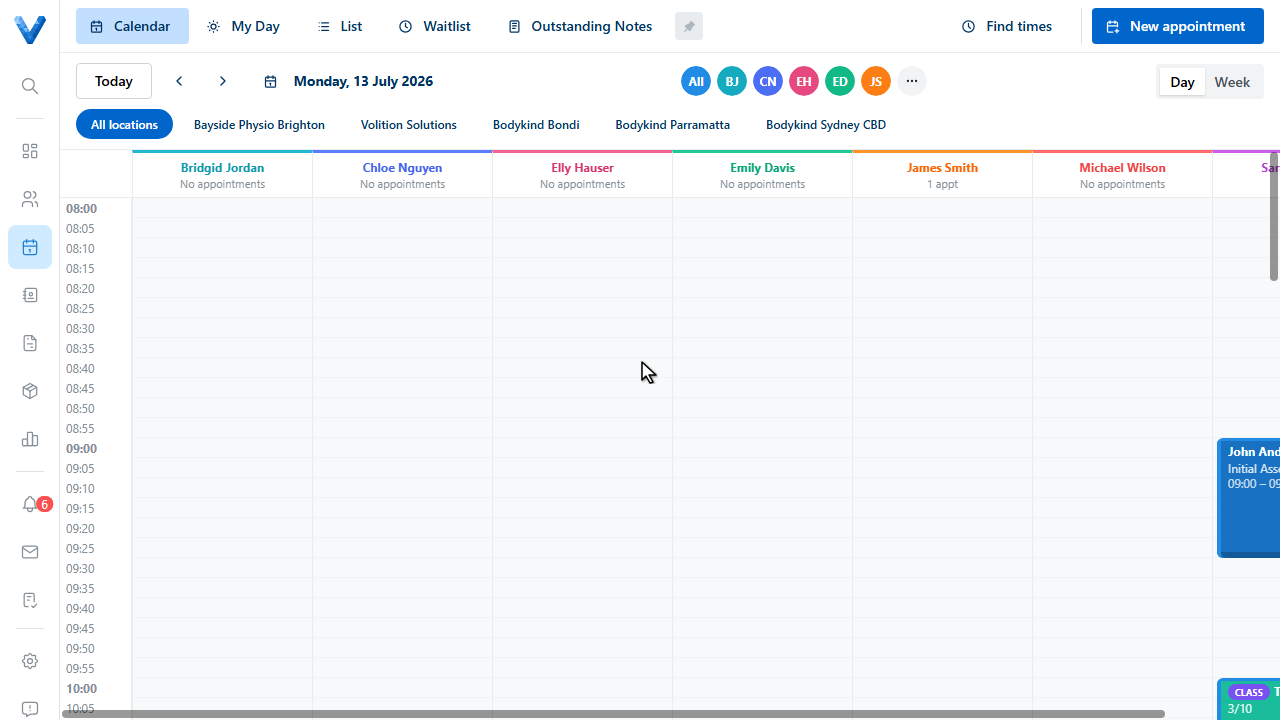
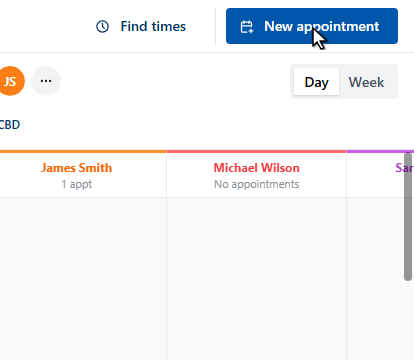
Click New appointment in the top right. You can also drag across an empty time slot to pre-fill the time and practitioner.
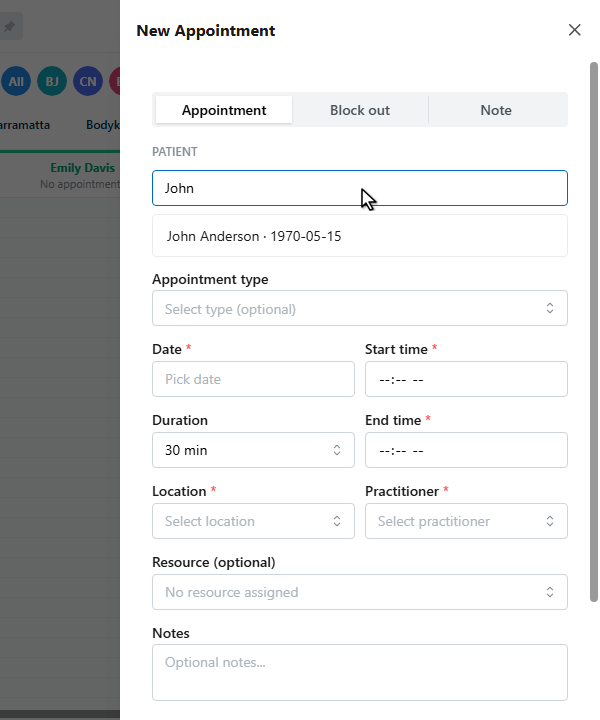
Search for the patient by name.
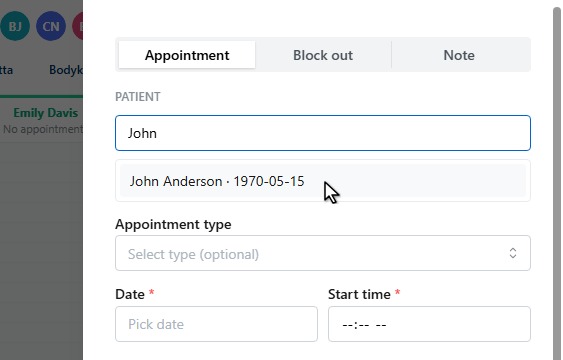
And select them from the results.
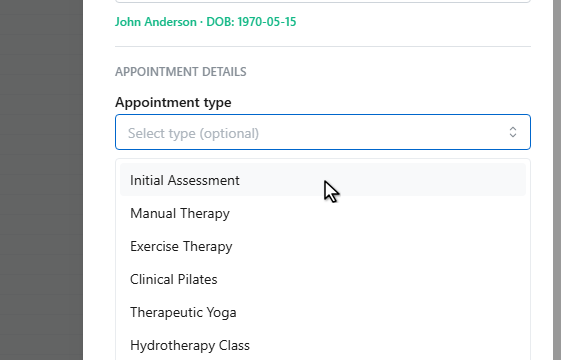
Choose an appointment type. It sets the duration and the invoice defaults.
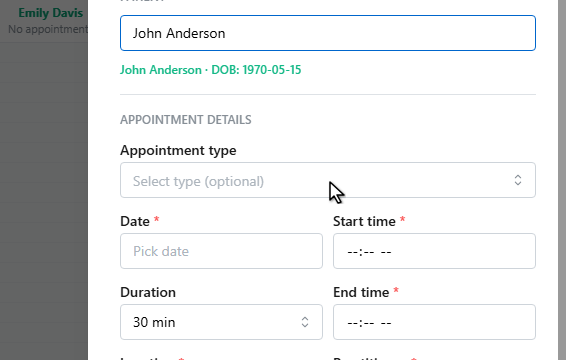
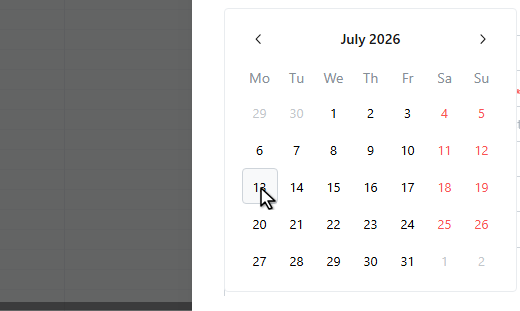
Pick the date.
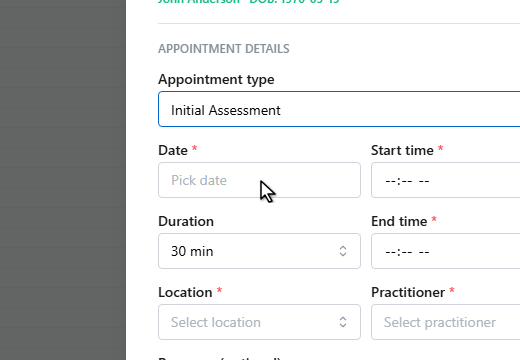
Set the start time. The end time fills in from the duration.
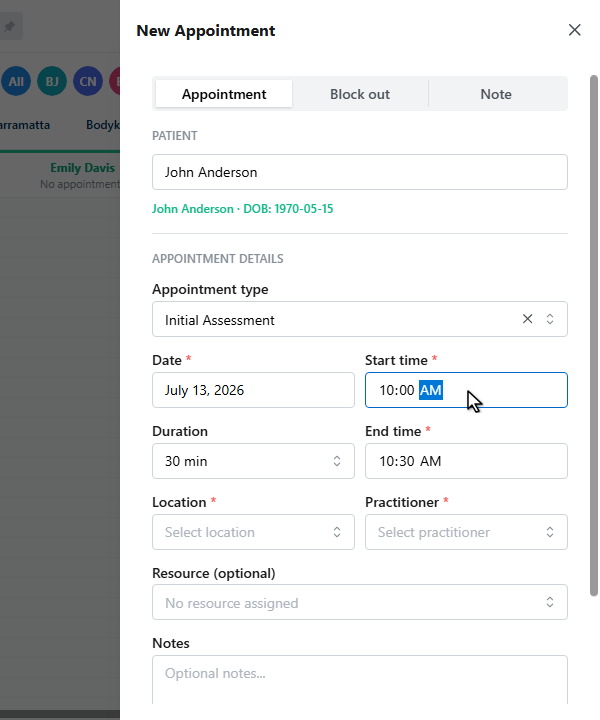
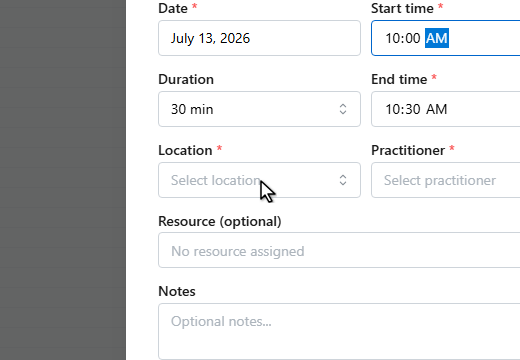
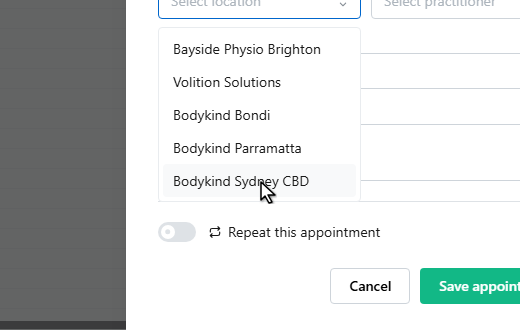
Select the location.
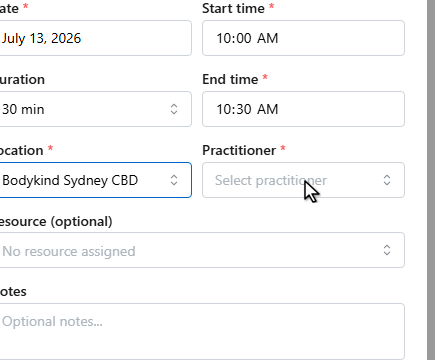
And the practitioner. A green Available badge confirms the time is free. A conflict is only a warning, so you can still double book deliberately.
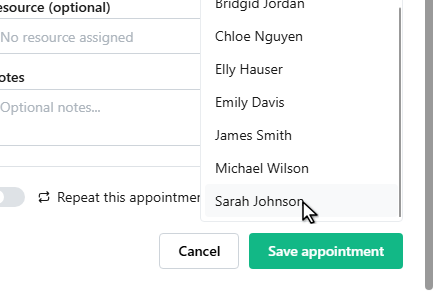
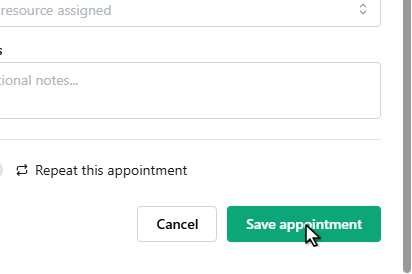
Click Save appointment. To make it recurring instead, switch on Repeat this appointment before saving.
The appointment appears on the calendar with the Booked status.
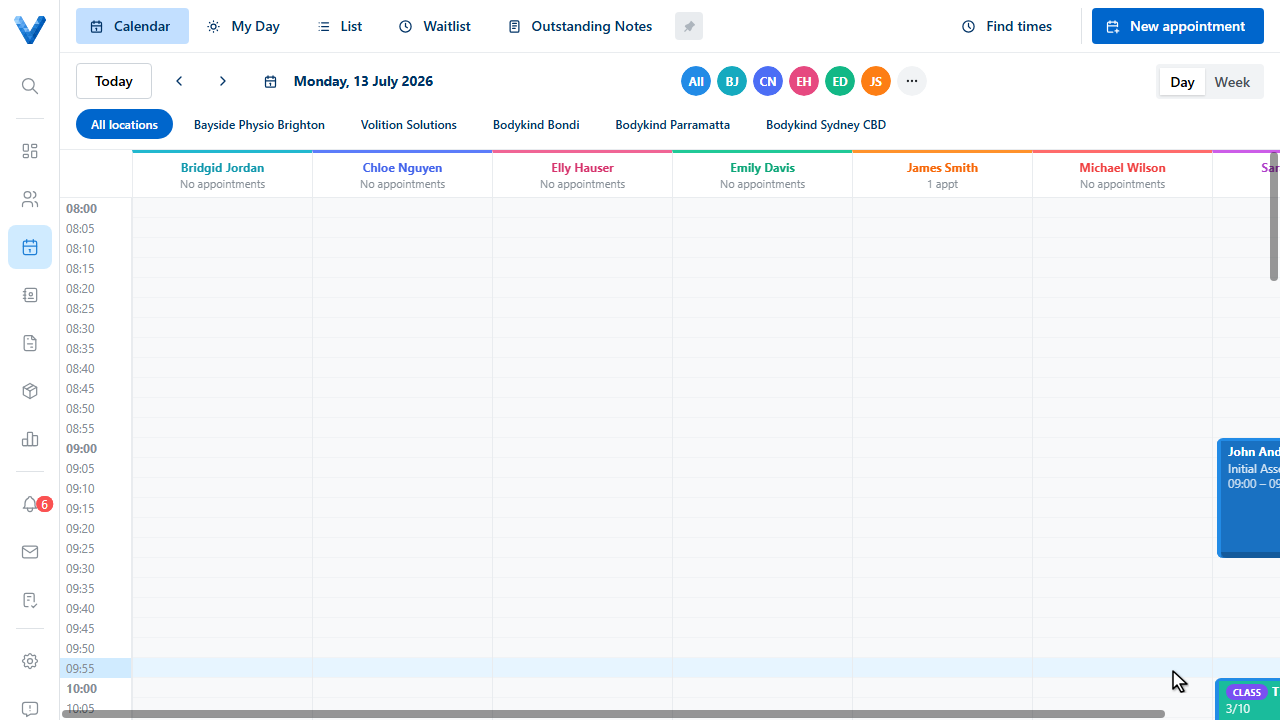
Use the Find times button next to New appointment. Pick the appointment type, a date range, and optionally practitioners, and it lists every available slot — click one to book it.