 Volition
1
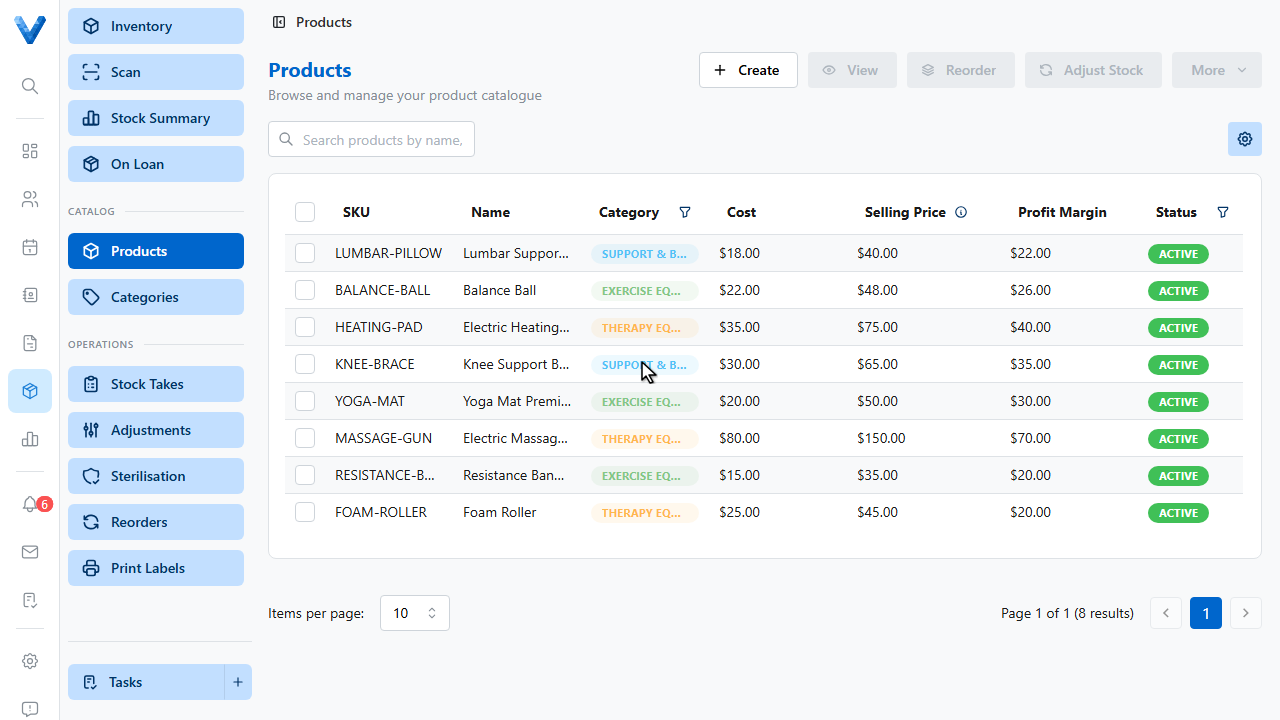
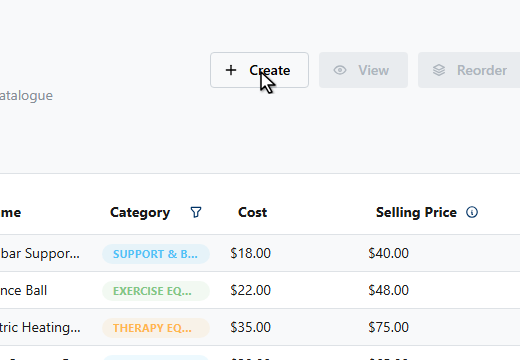
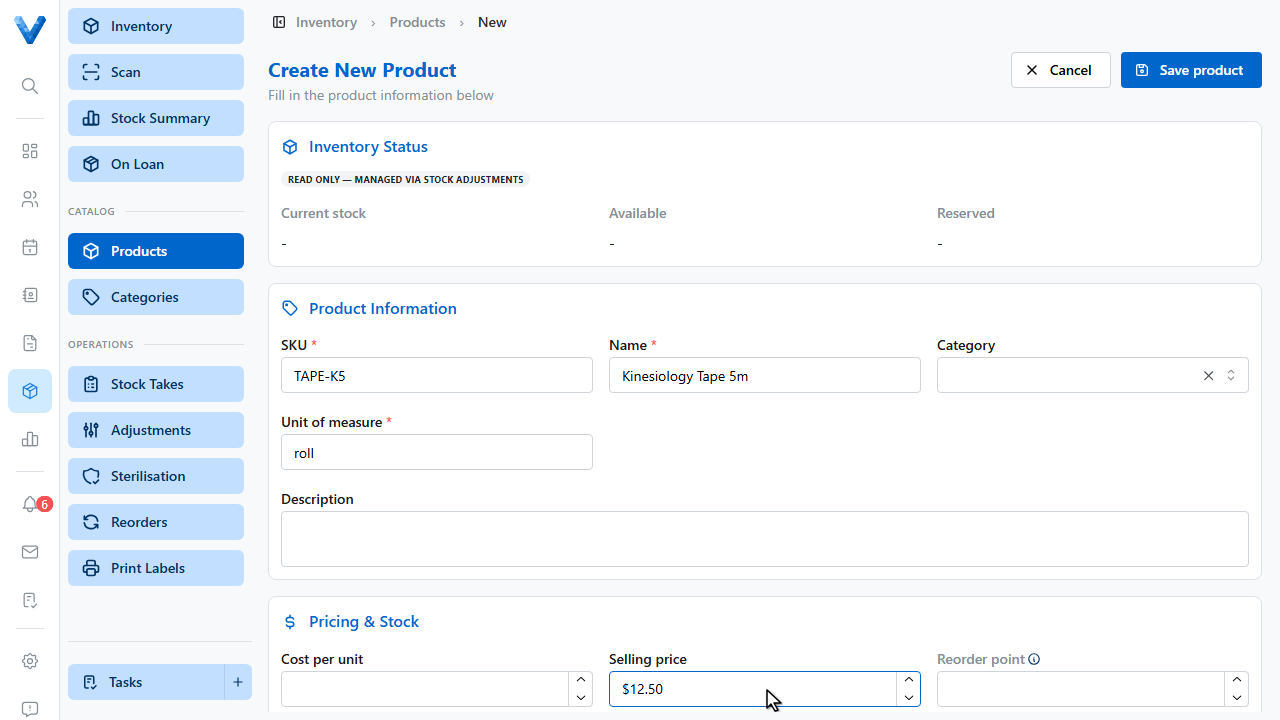
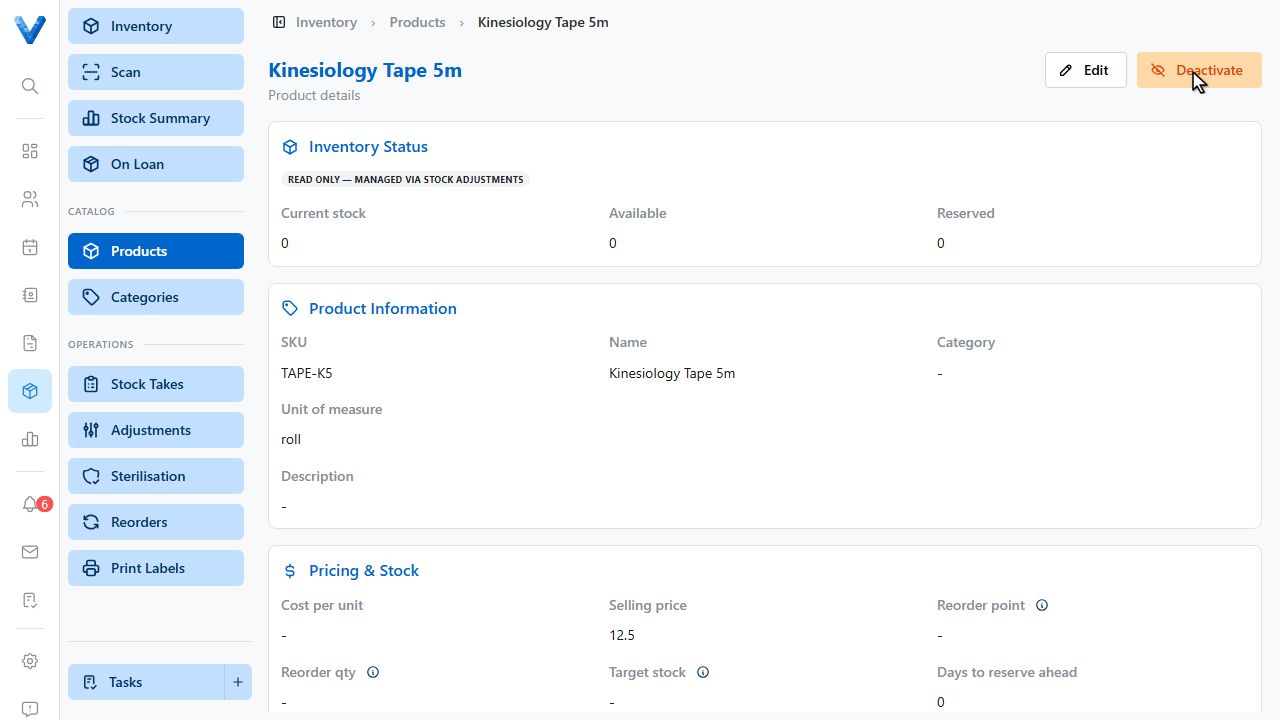
Open Inventory and go to Products, then click Create.
2
3
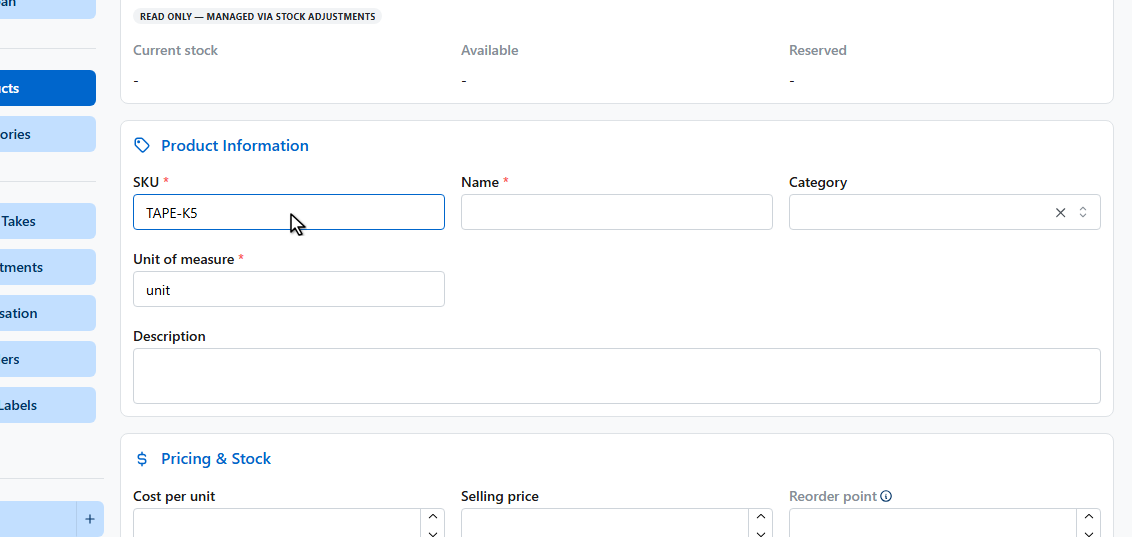
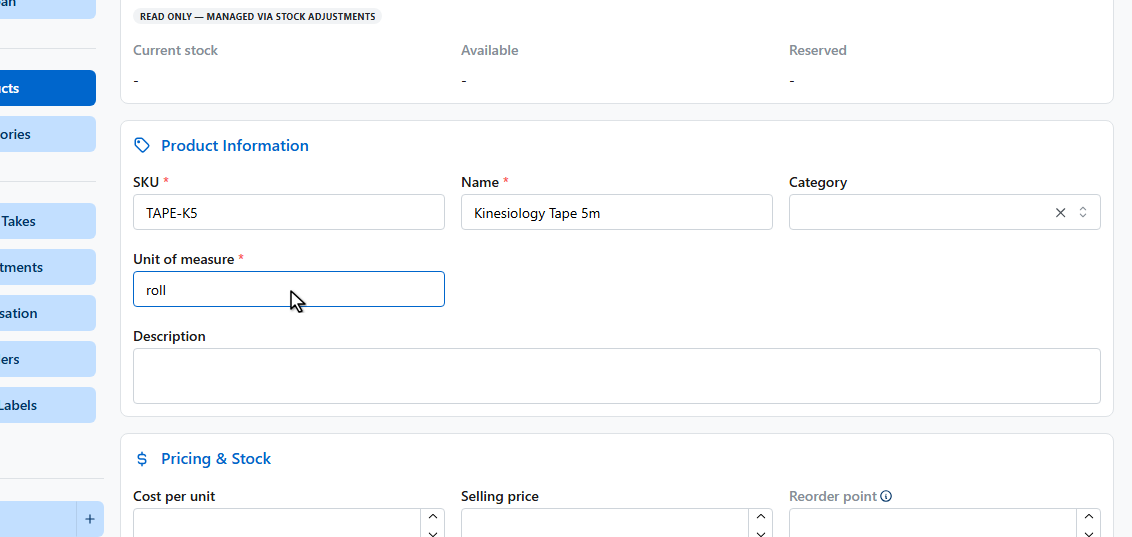
Give the product a unique S.K.U.
4
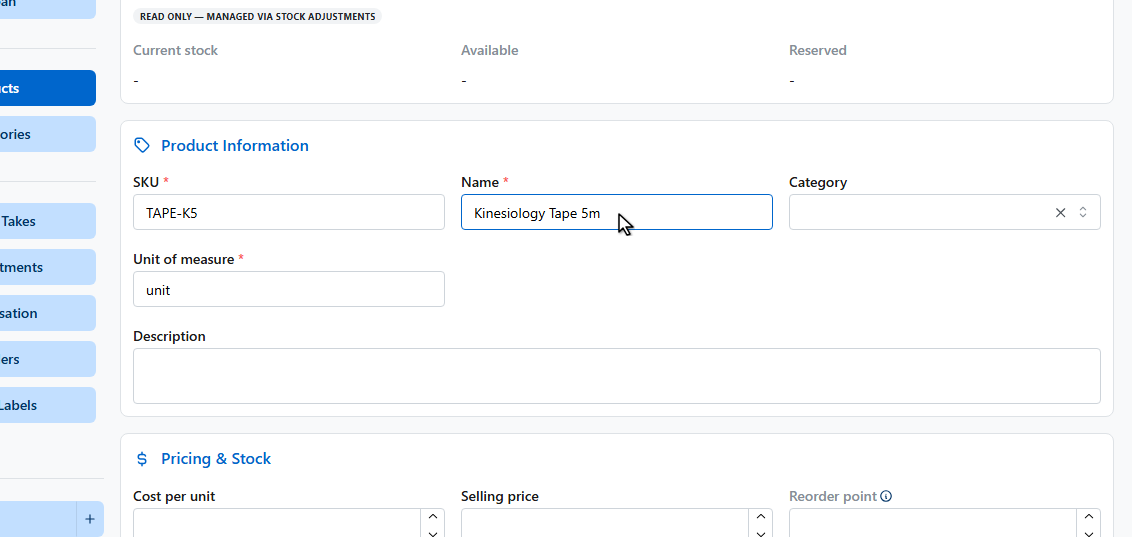
A name.
5
And the unit of measure it’s counted in.
6
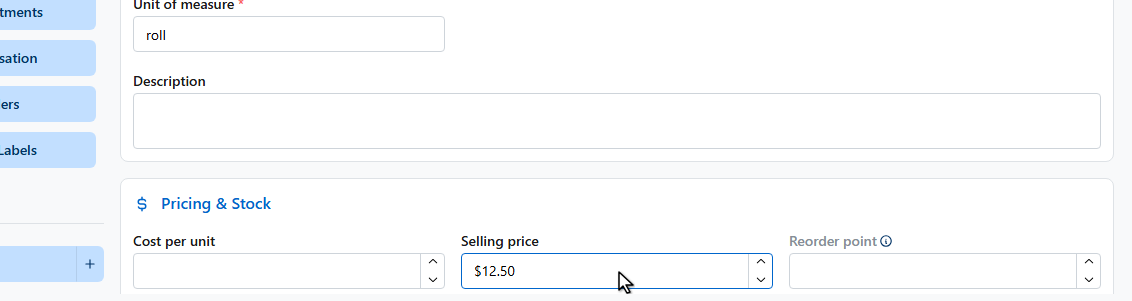
Set your cost and selling price, and the reorder point — when stock falls to this level, the product shows up in your low stock alerts.
7
You can also scan or enter a barcode, link a supplier with their S.K.U. and lead time, and record batch and expiry details.
8
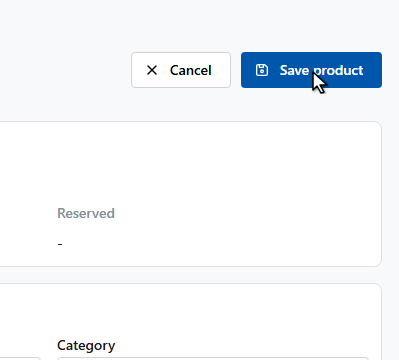
Click Save product.
9
The product is in your catalogue, ready to sell on invoices, track in stock takes, and reorder.
Barcodes speed everything up
Add a barcode to each product — scanning then works everywhere: quick stock adjustments, stock takes, and receiving deliveries. Unknown barcodes scanned in the Scan page can be paired to a product on the spot.