 Volition
1
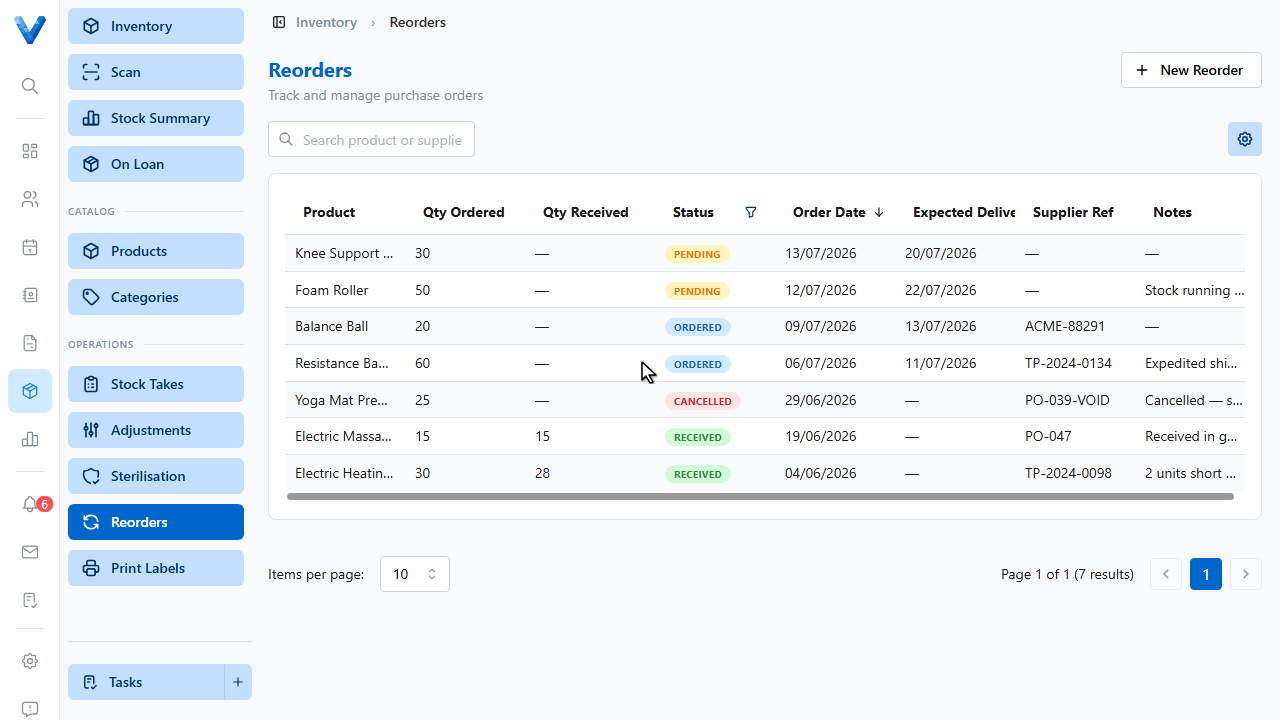
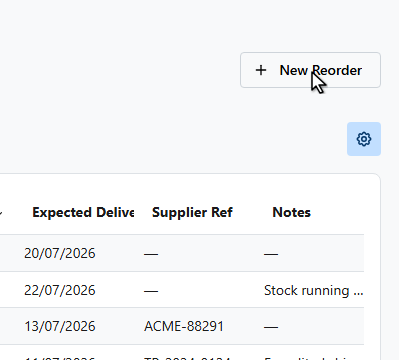
Open Inventory and go to Reorders, then click New Reorder.
2
3
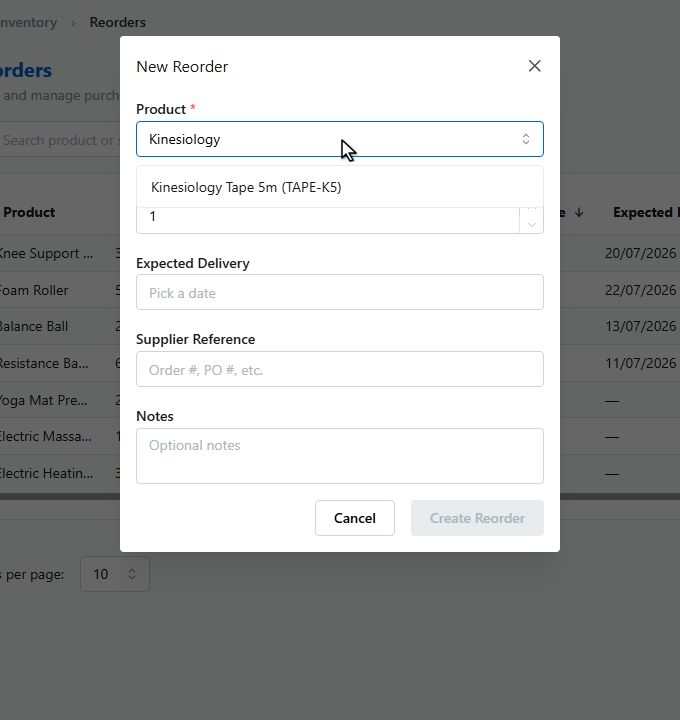
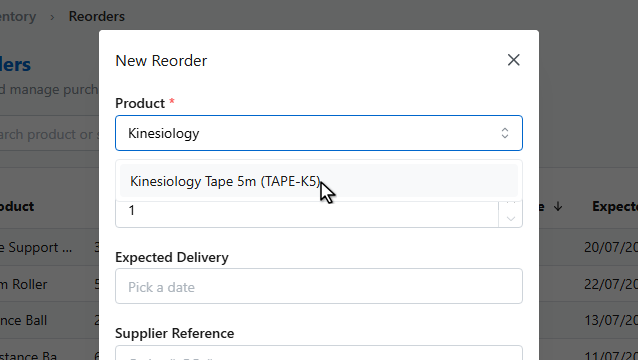
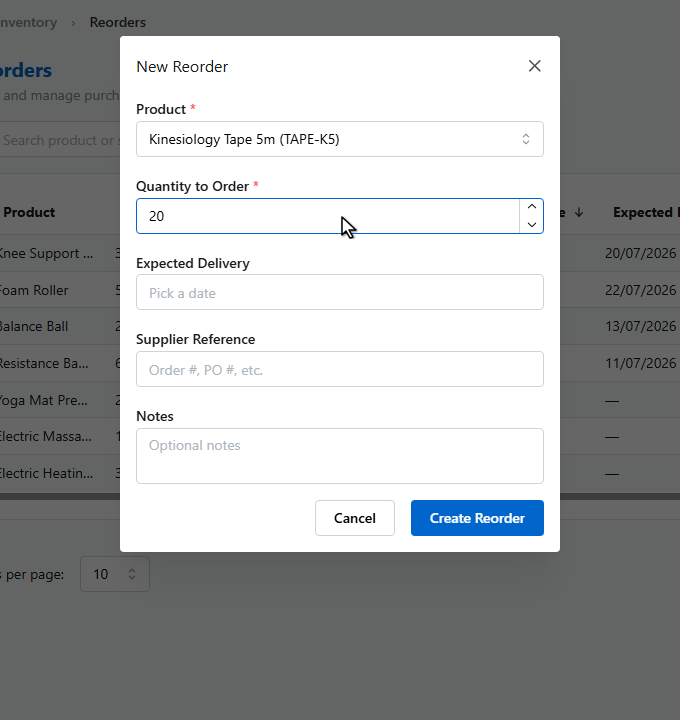
Pick the product.
4
5
Set the quantity to order, and optionally the expected delivery date and your supplier’s order reference.
6
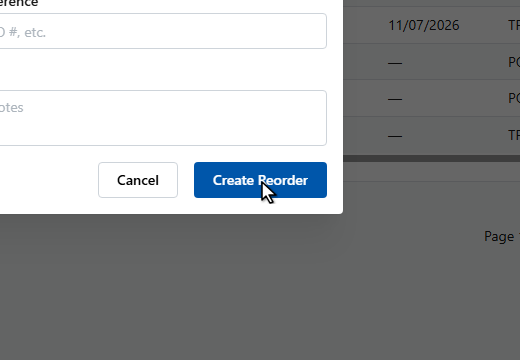
Click Create Reorder.
7
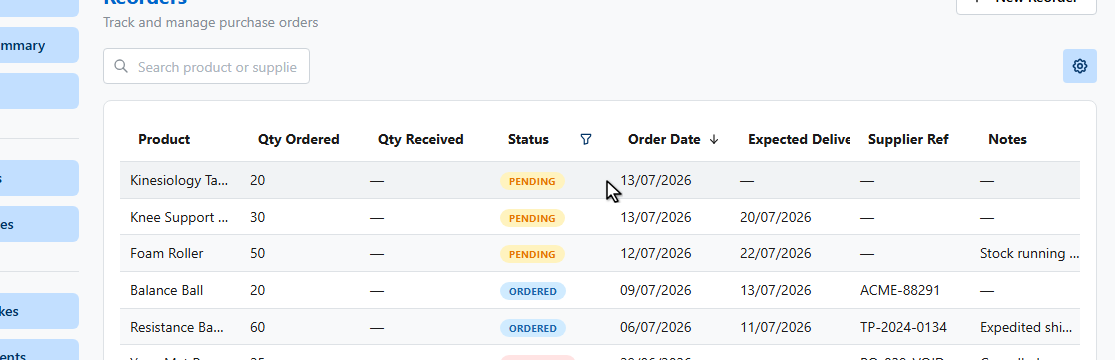
When the delivery arrives, open the reorder.
8
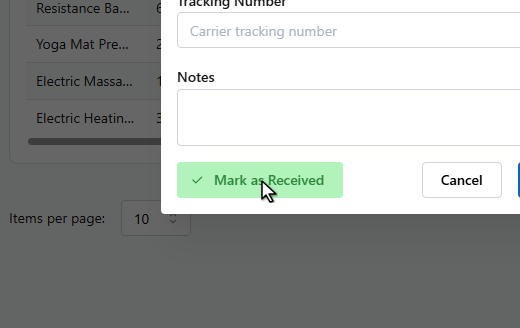
And click Mark as Received.
9
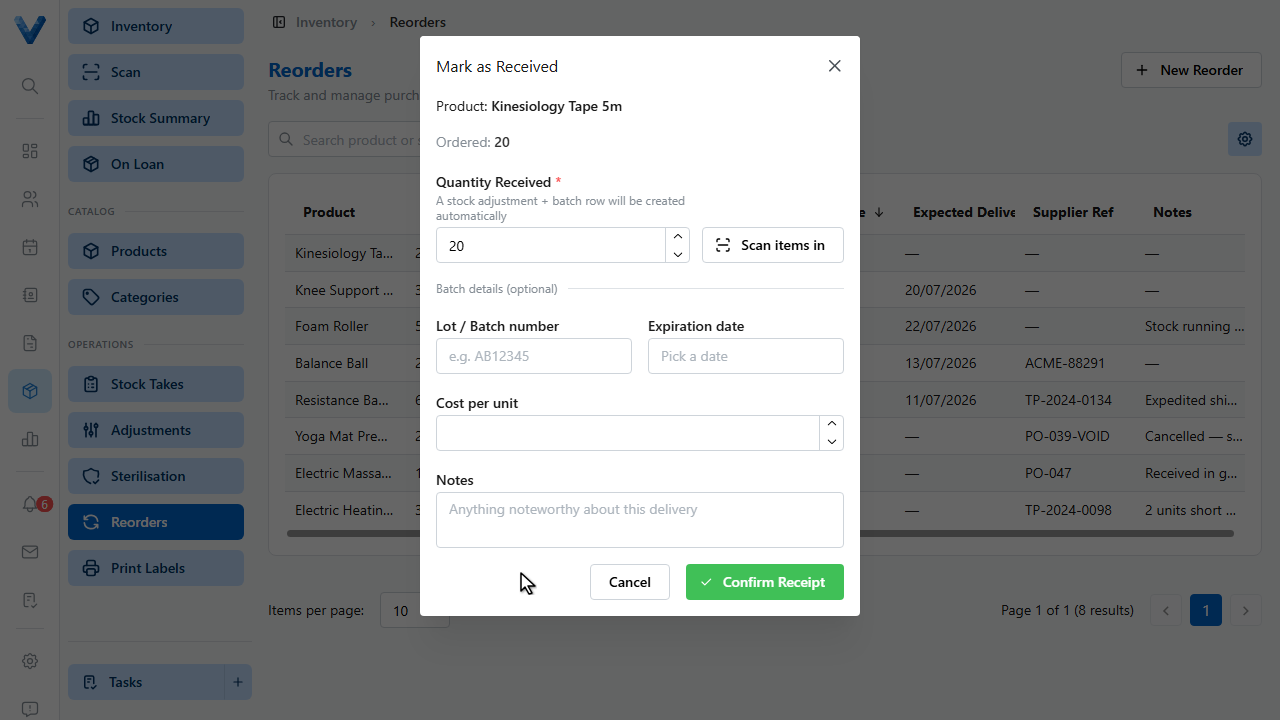
Confirm the quantity received — you can scan items in — and record the batch number, expiry date, and cost for full traceability.
10
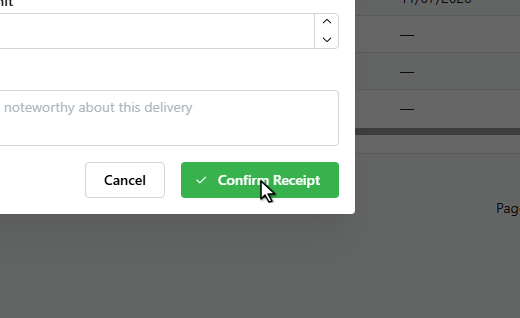
Click Confirm Receipt. Stock levels update immediately.
11
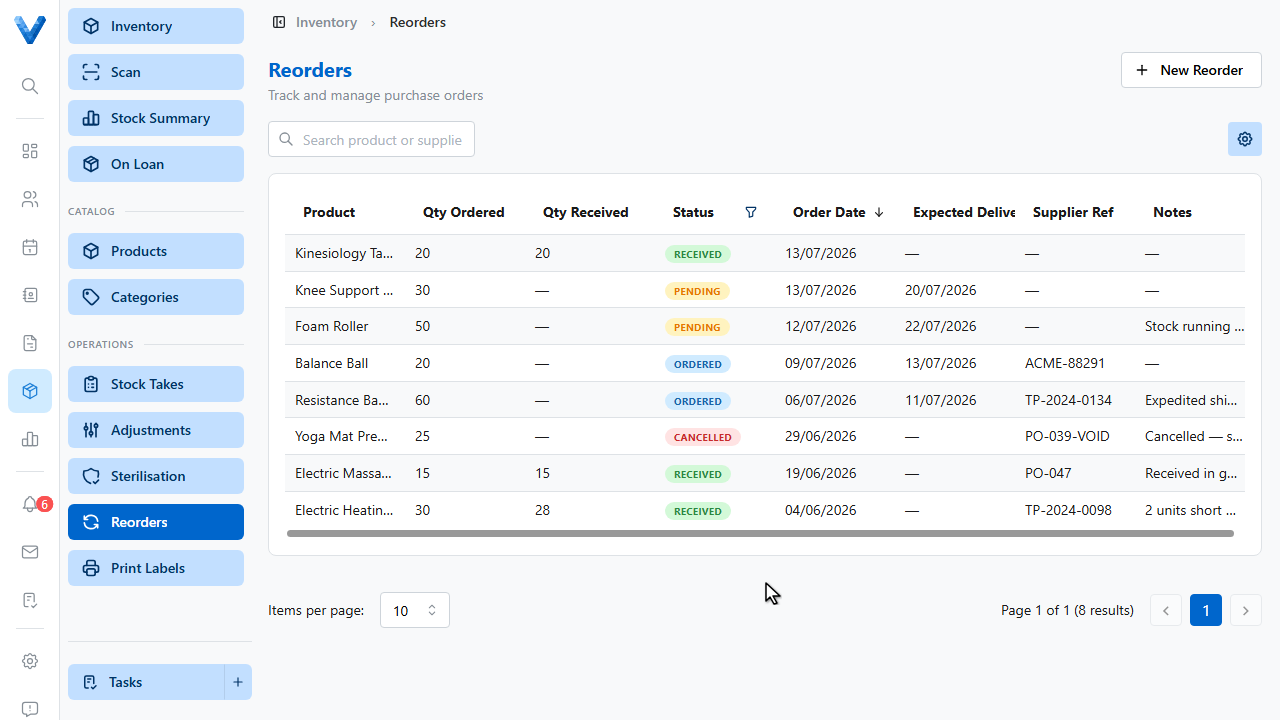
The reorder is complete, and the received batch is tracked against the product.
Let reorder points drive this
Set a Reorder point and Reorder qty on each product — low stock then surfaces on the dashboard and the Alerts inbox, so reorders start themselves.