 Volition
1
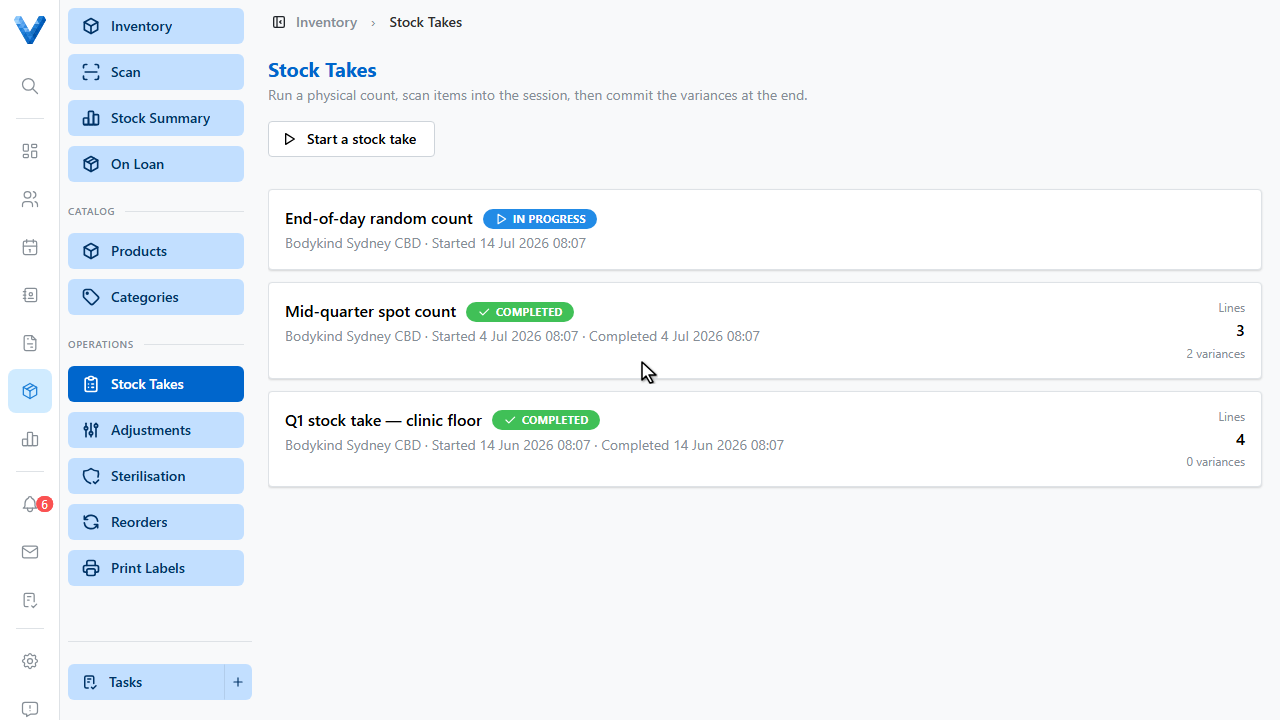
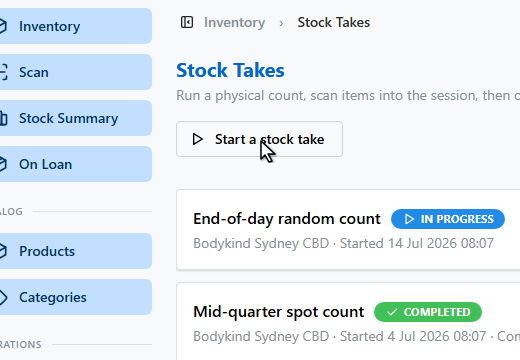
Open Inventory and go to Stock Takes, then click Start a stock take.
2
3
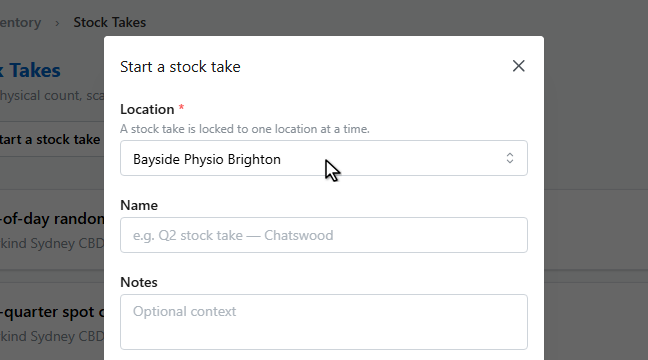
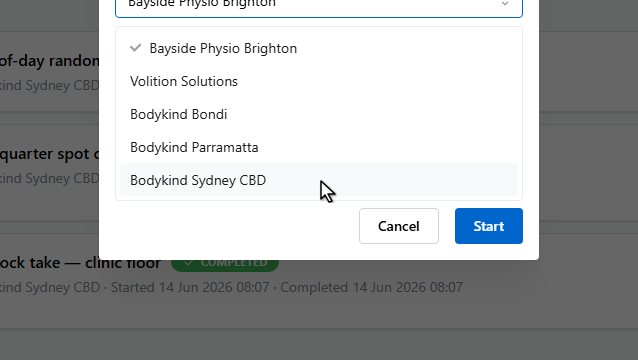
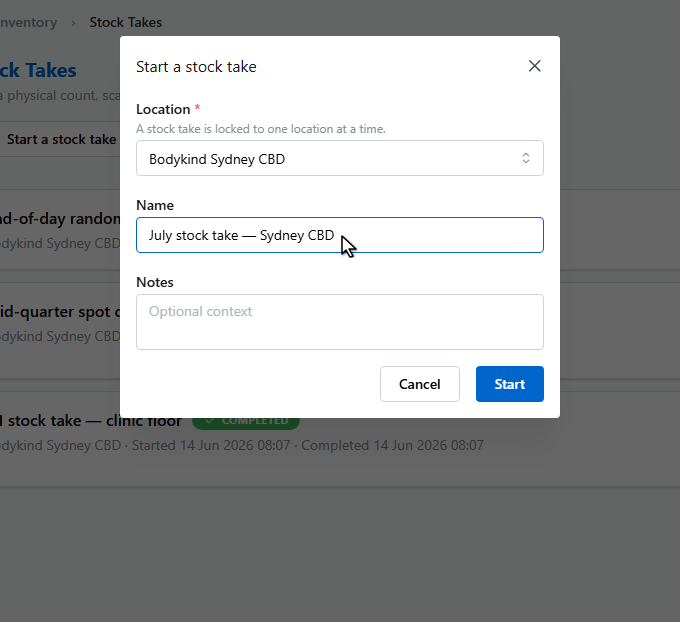
A stock take is locked to one location at a time. Pick the location you’re counting.
4
5
Name the session so it’s easy to find later.
6
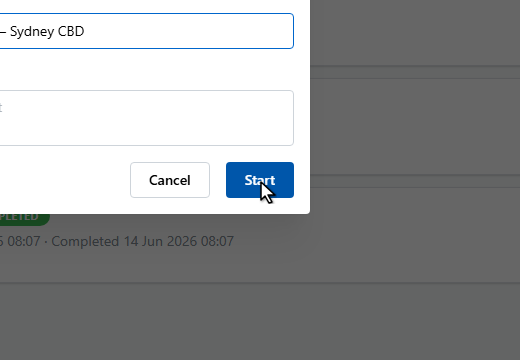
Click Start.
7
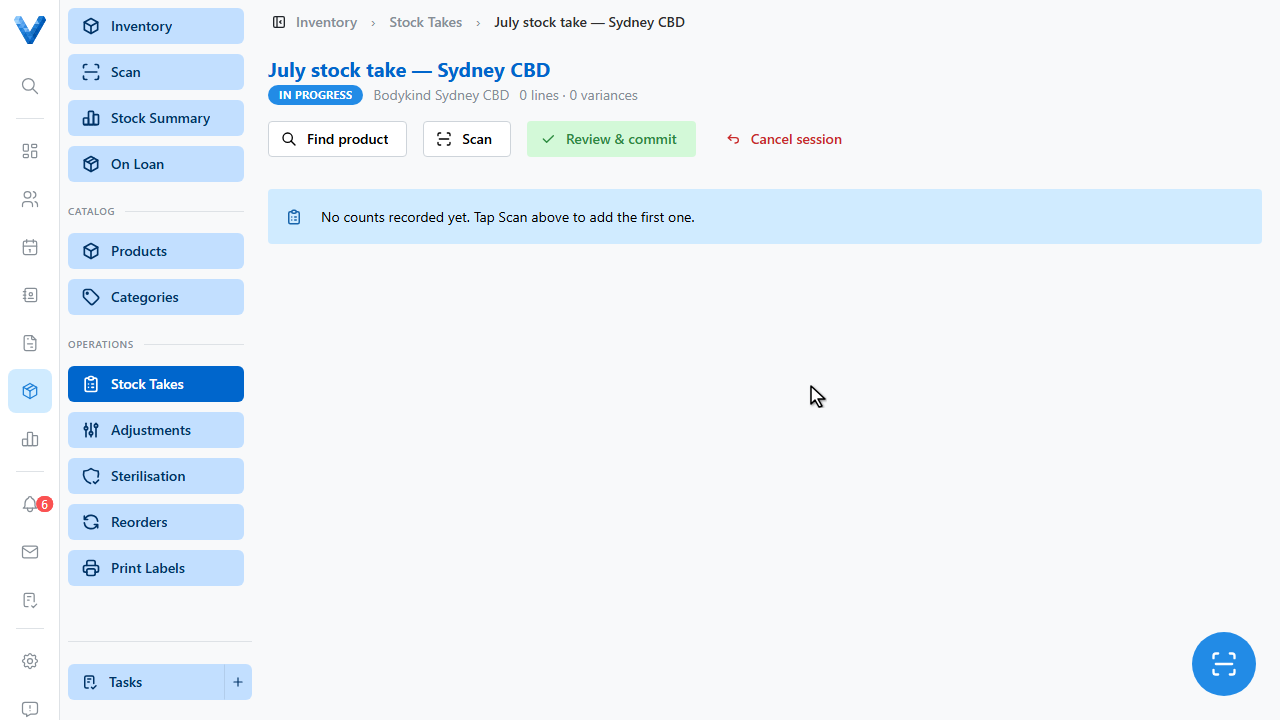
The session page is your counting workspace. Use Scan with a barcode scanner or the camera, or Find product to count manually — each count is recorded as a line.
8
When you’ve counted everything, Review and commit shows the variance between counted and expected stock, and applies the adjustments in one go. You can cancel the session at any time without touching stock levels.
Stock keeps moving
A stock take doesn’t freeze stock — sales and receipts continue during the session. Commit promptly after counting so the variances reflect reality.