 Volition
Go to Settings and open Email Identities. Identities control the sender name patients see, and where their replies land.
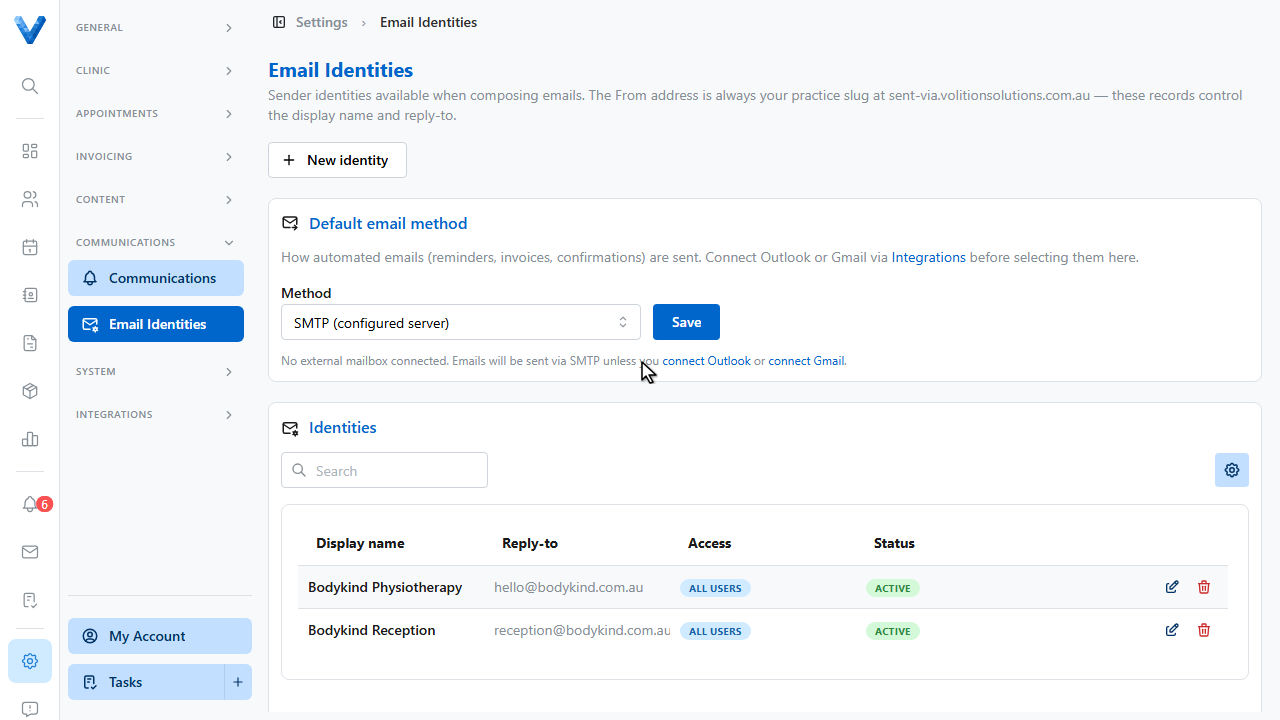
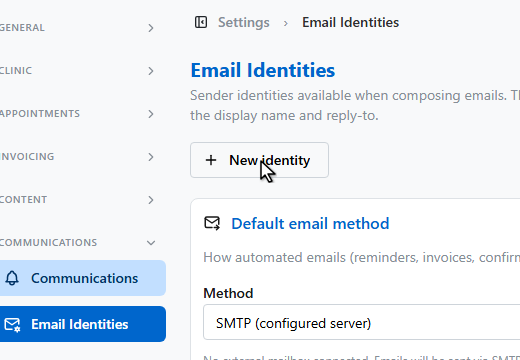
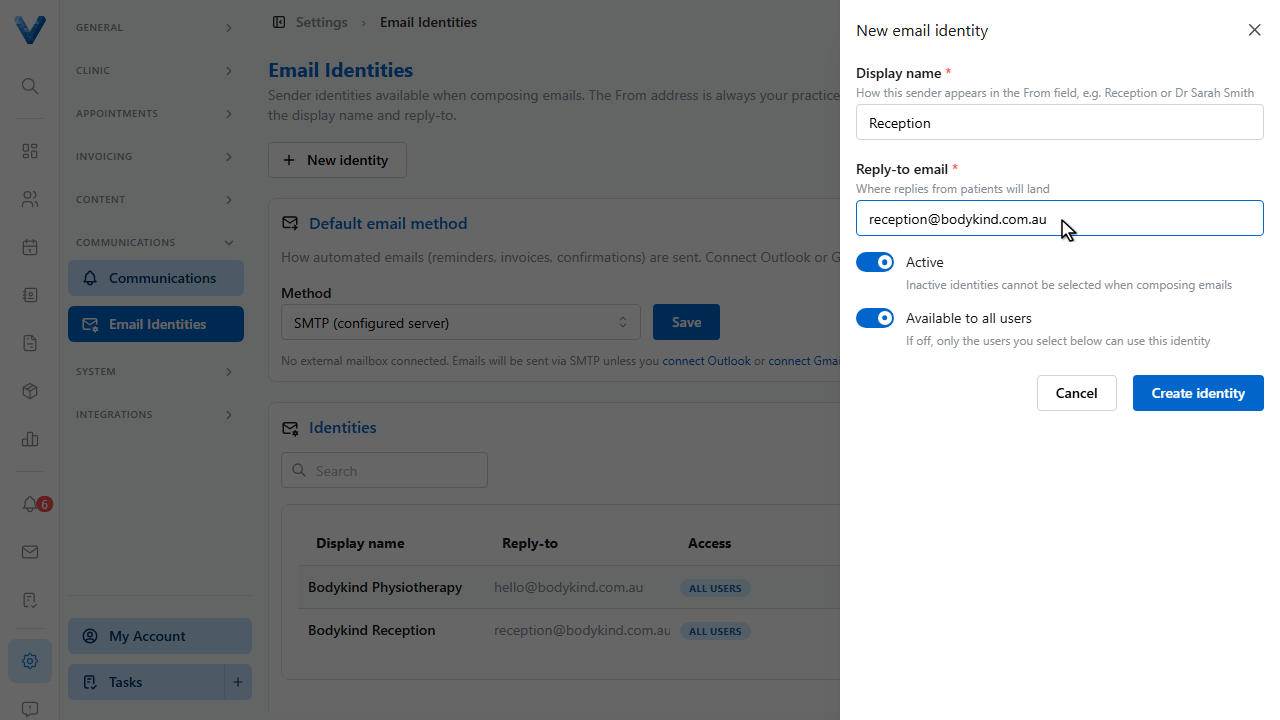
Click New identity.
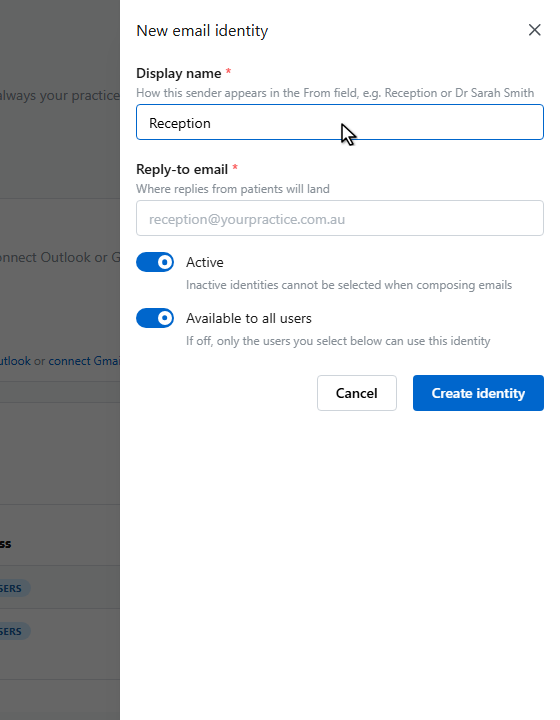
Set the display name — how the sender appears in the patient’s inbox.
And the reply to address, where patient replies are delivered.
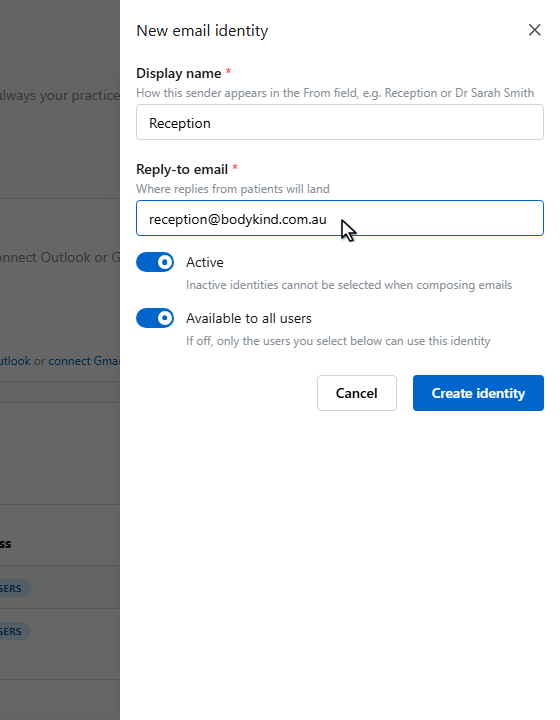
Identities can be available to everyone, or restricted to specific team members — useful for a practitioner’s personal identity.
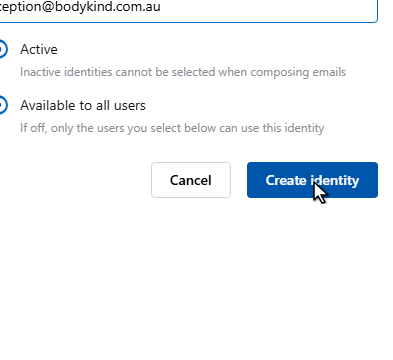
Click Create identity.
When composing an email, the From field now offers this identity. The default email method card above controls whether mail goes out via the built in server, Outlook, or Gmail.
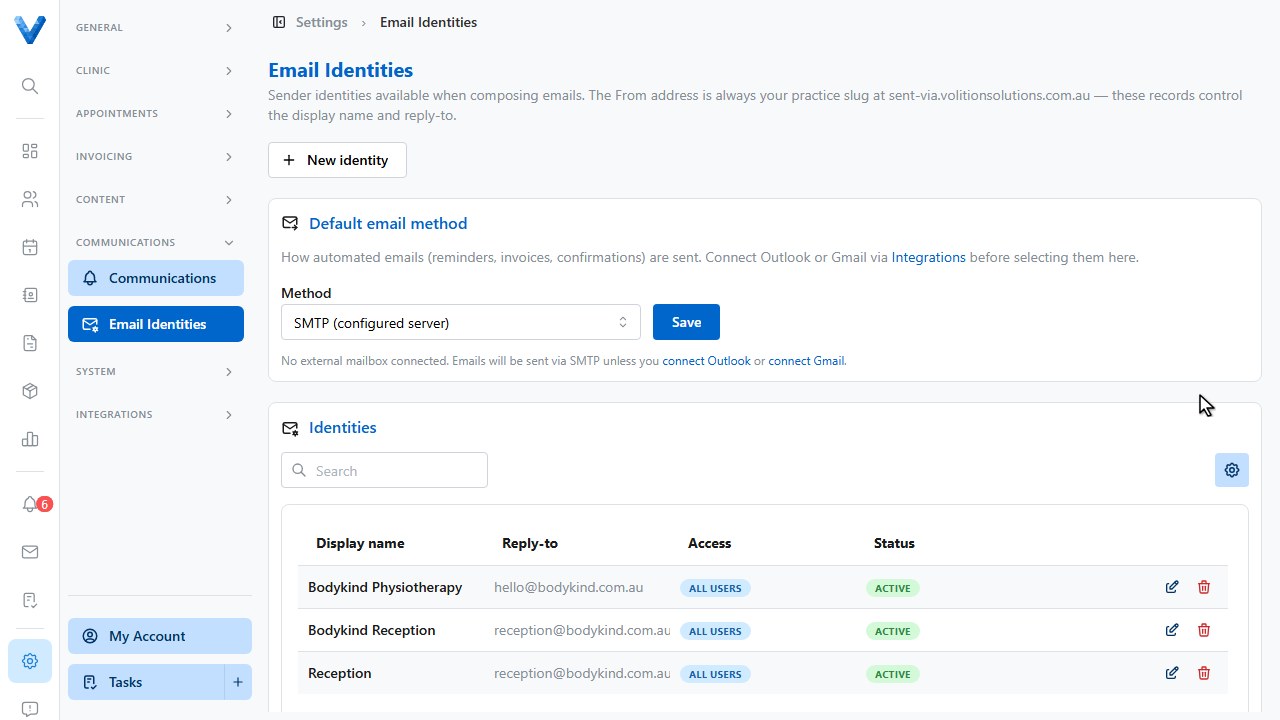
Emails always send from your practice’s verified sending address — the identity controls the display name patients see and where their replies go, so you don’t need to verify your own domain.