 Volition
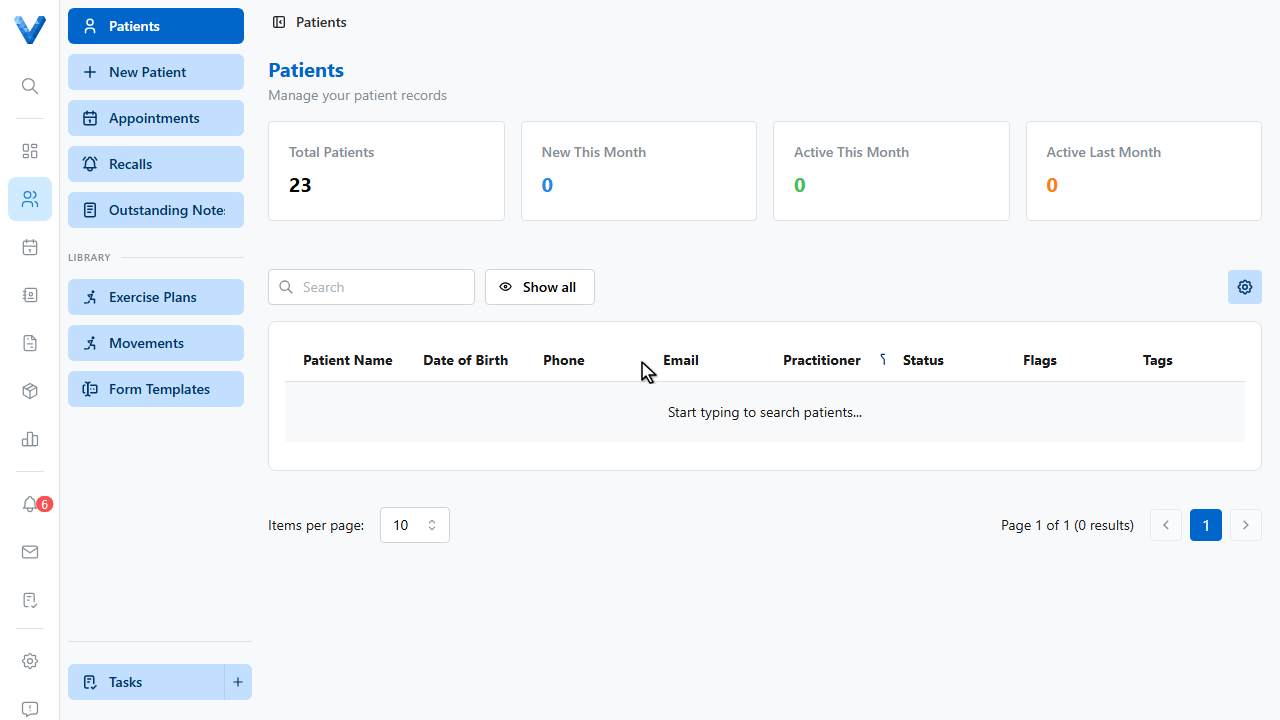
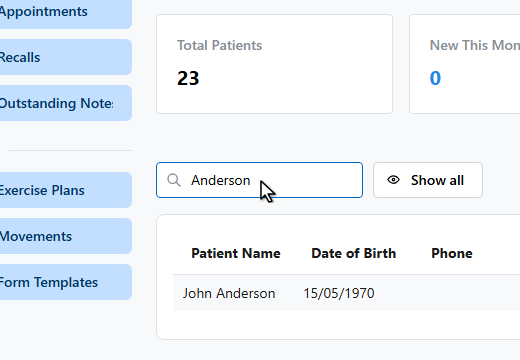
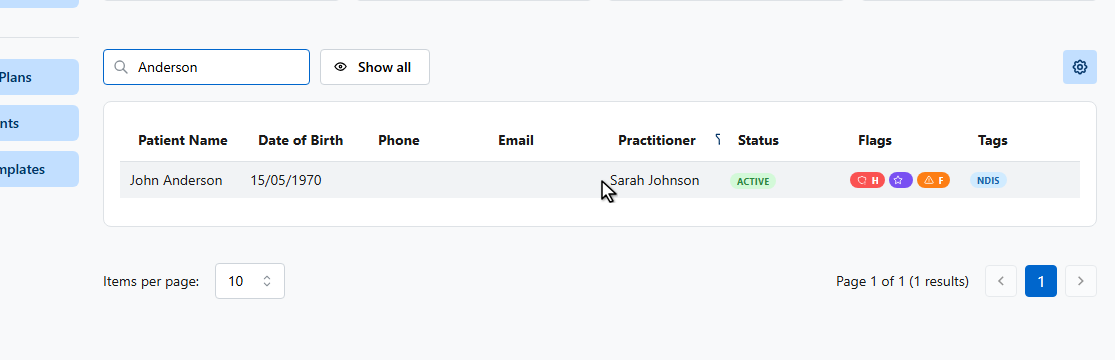
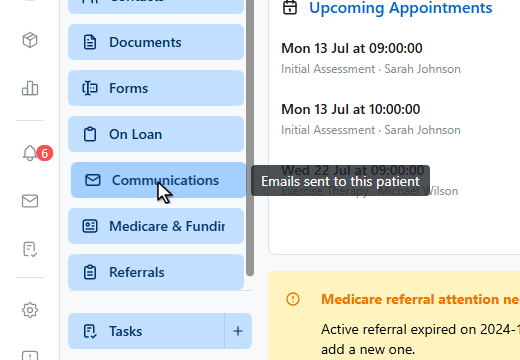
Open the patient, then go to Communications in their sidebar. Every email sent to the patient is logged here.
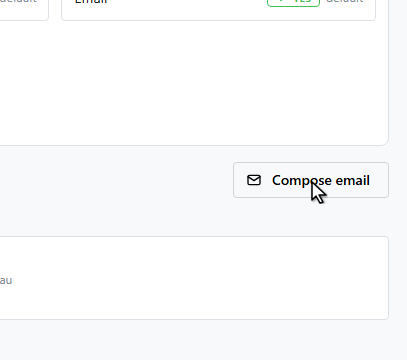
Click Compose email.
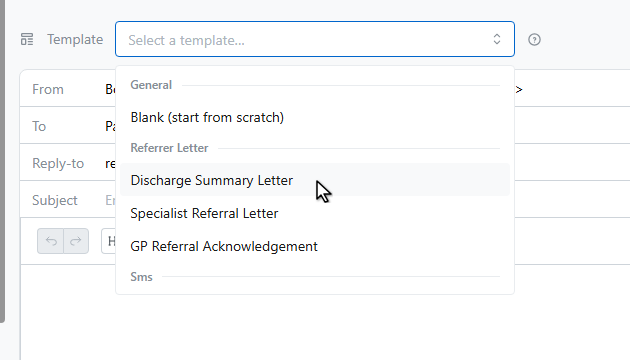
Pick a template — the patient’s details fill into the placeholders automatically, and you can edit freely before sending.
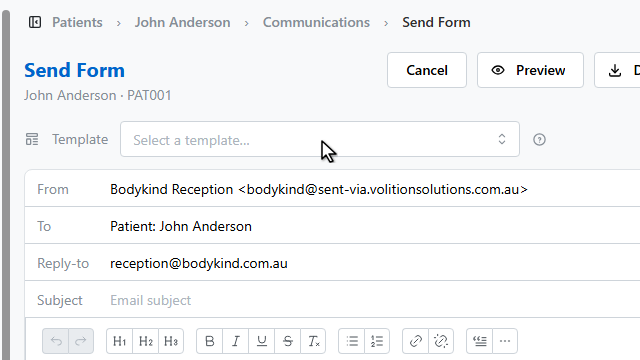
Choose who it’s from — one of your email identities — and who it goes to. Letters can go to the patient or their referrer.
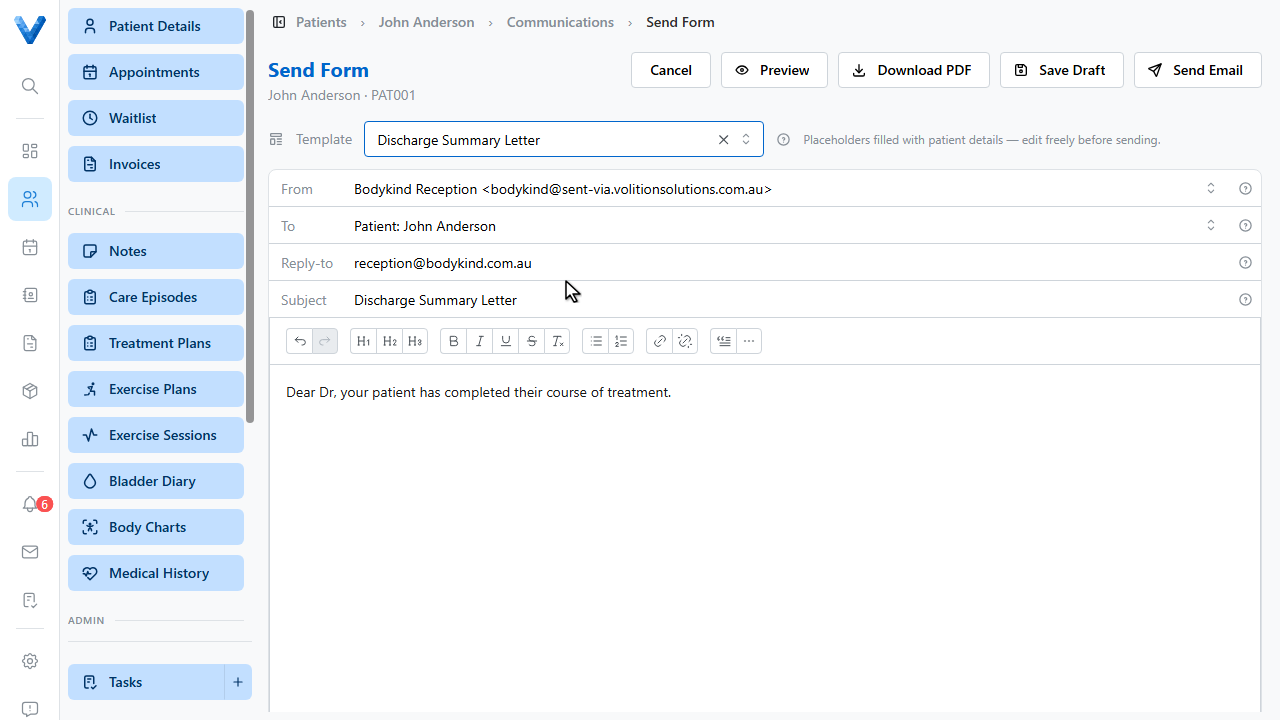
Set the subject.
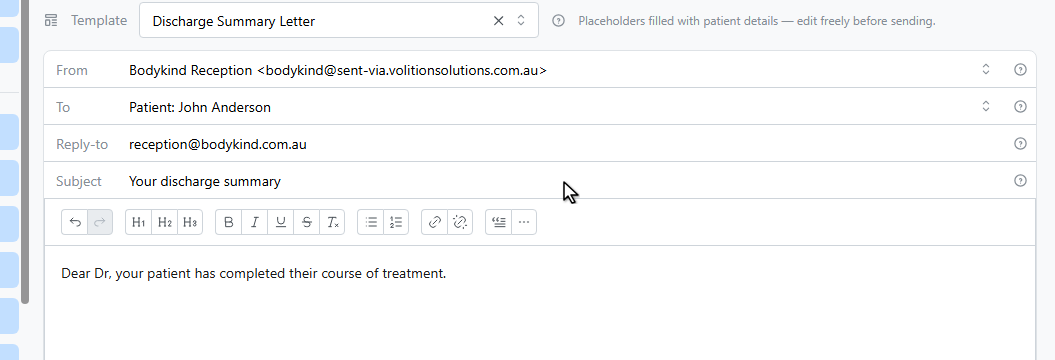
You can attach files from your computer or straight from the patient’s documents, and Download P.D.F. produces a printable letter instead.
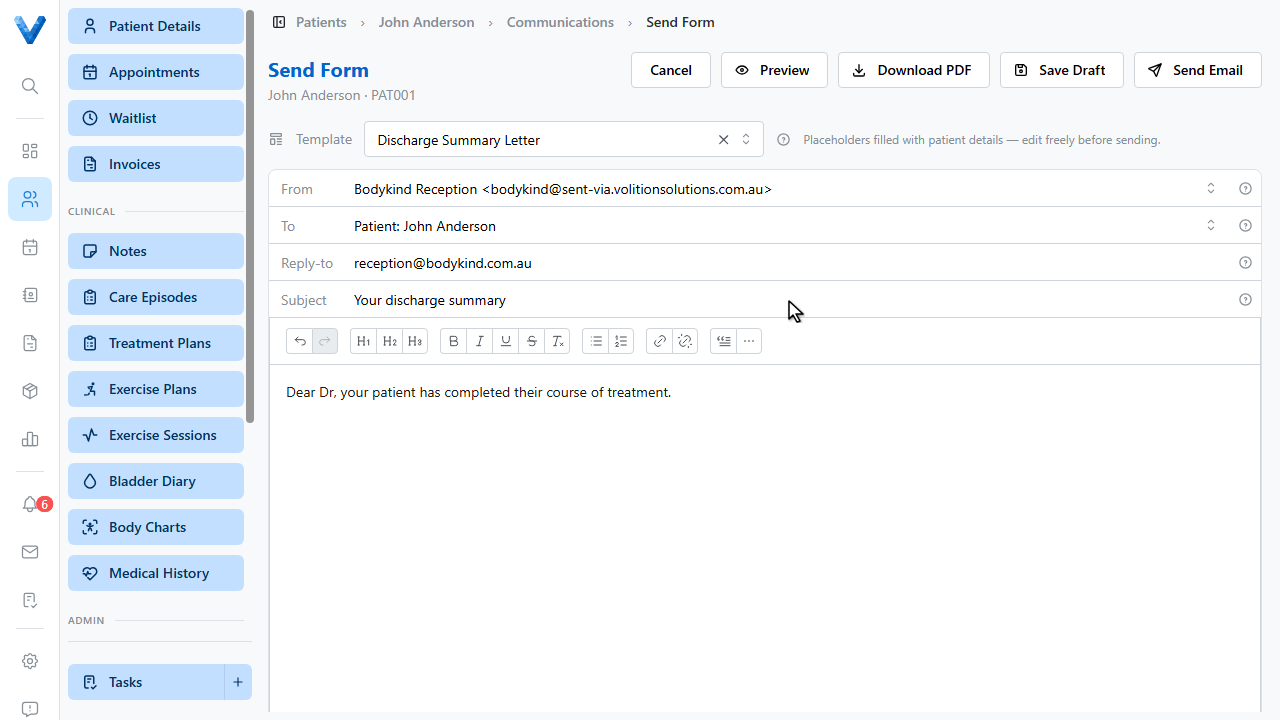
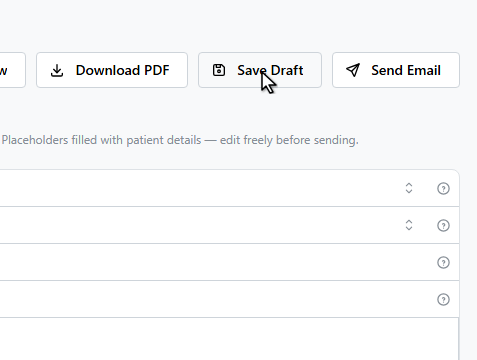
Click Send Email to send it — or Save Draft to come back later. Drafts are listed on the Communications page with a Resume button.
Sent emails appear in the patient’s communications log, with the full message viewable any time.
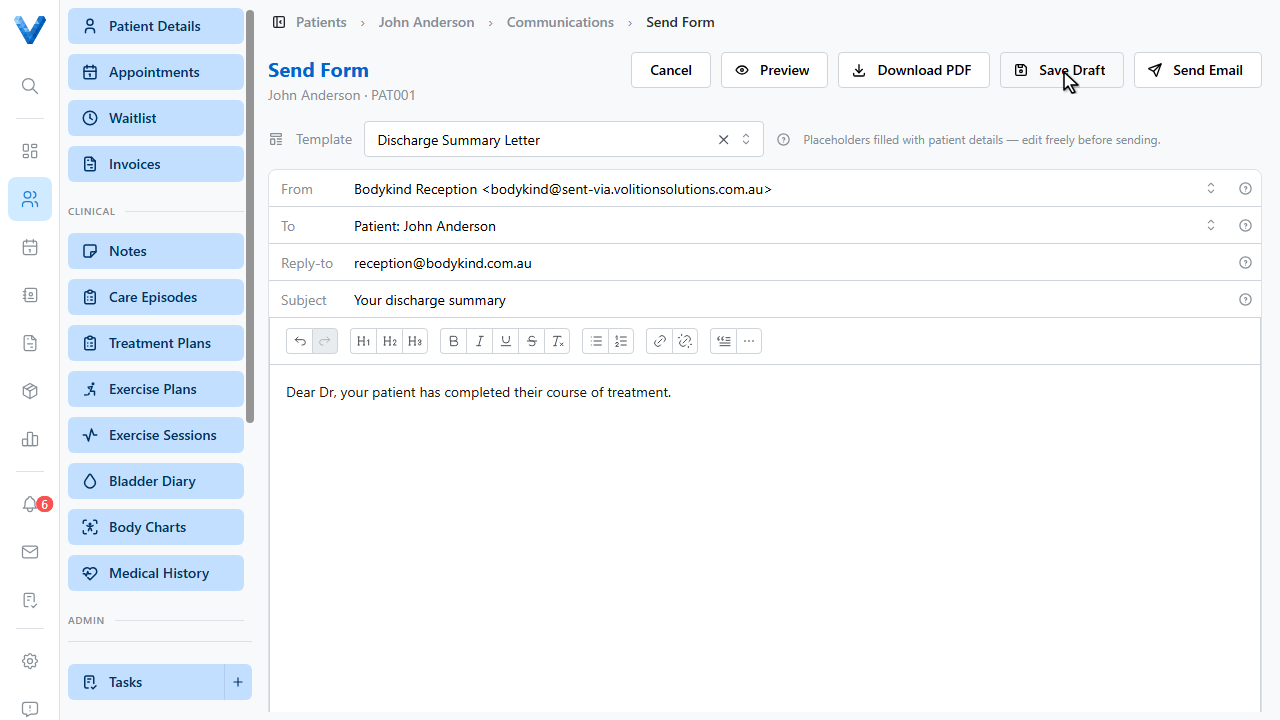
The To field can target the patient’s referrer as well as the patient — pick the referrer to send GP correspondence without leaving the patient’s record.