 Volition
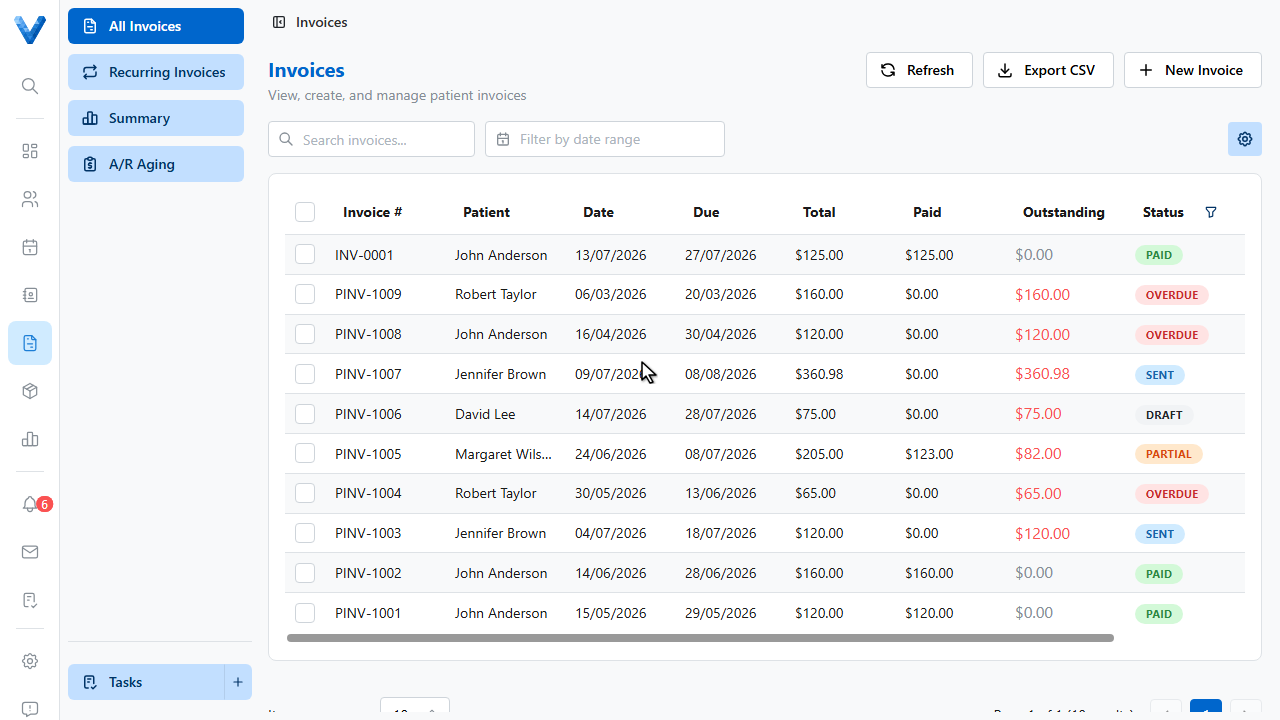
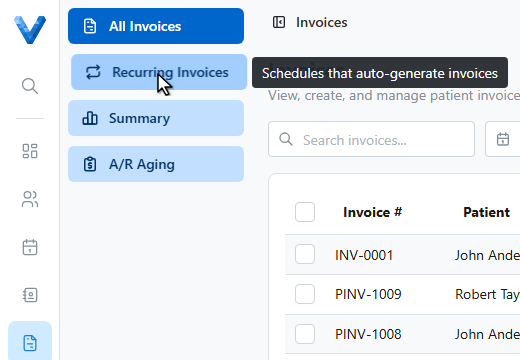
In the Invoices area, open the Recurring Invoices tab. Schedules here generate invoices automatically — ideal for memberships and payment plans.
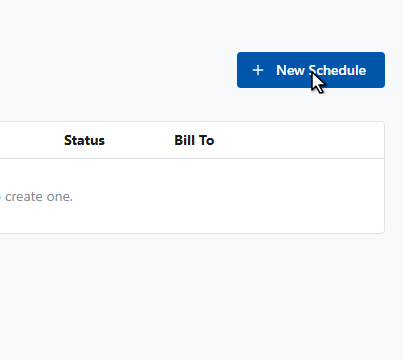
Click New Schedule.
Pick the patient the schedule belongs to.
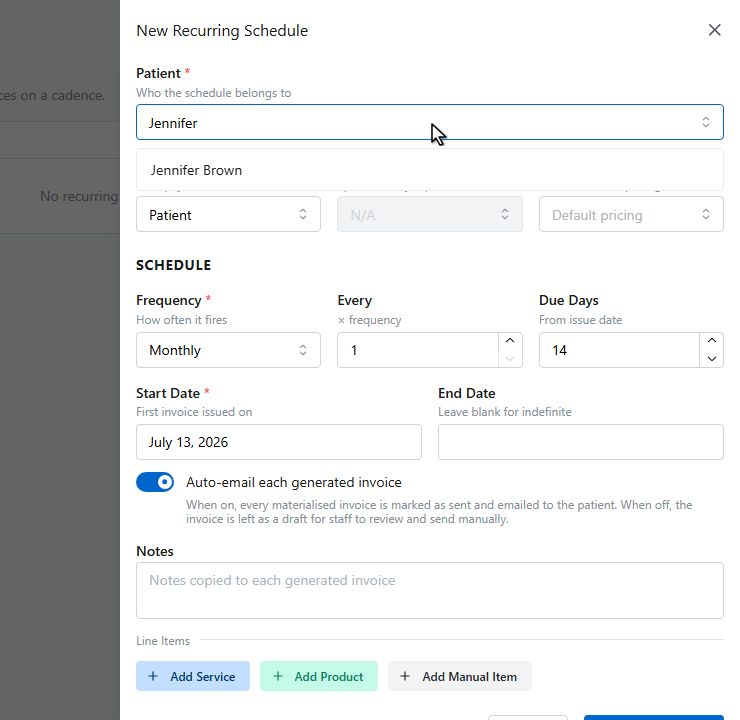
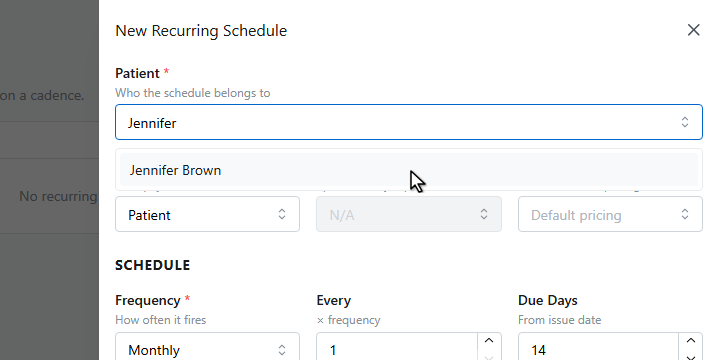
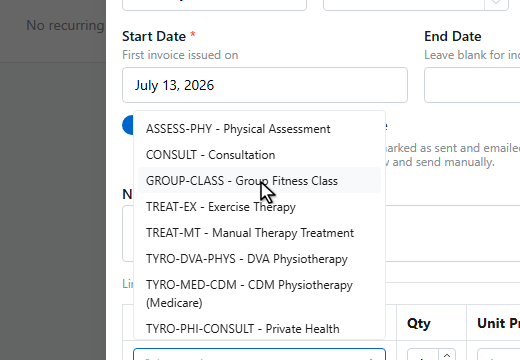
Set the schedule. Frequency can be weekly, fortnightly, monthly, quarterly, or yearly, and the start date is when the first invoice is issued. Leave the end date blank for an ongoing schedule.
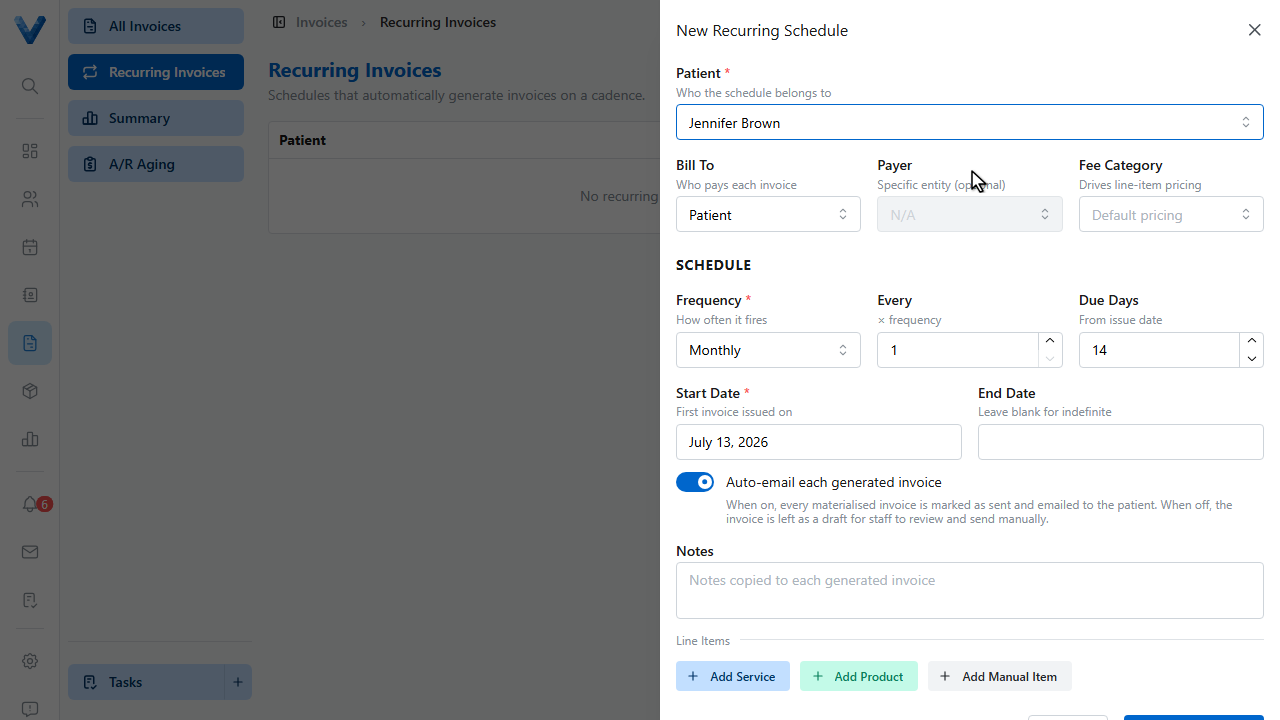
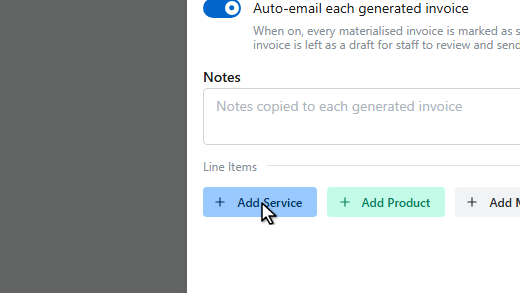
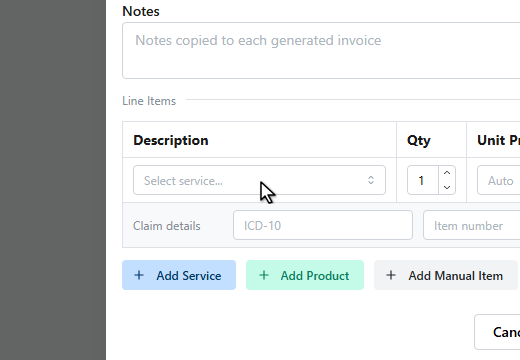
Add the line items each invoice will contain.
Each generated invoice can also be emailed automatically — the auto email switch is on by default.
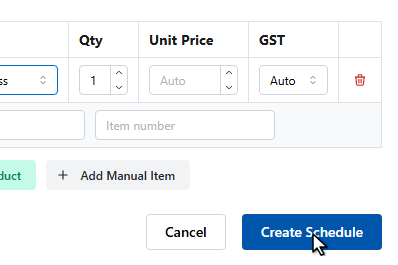
Click Create Schedule.
The schedule is live, showing its next run date. Use the play button to generate the next invoice immediately, or pause the schedule from its status.
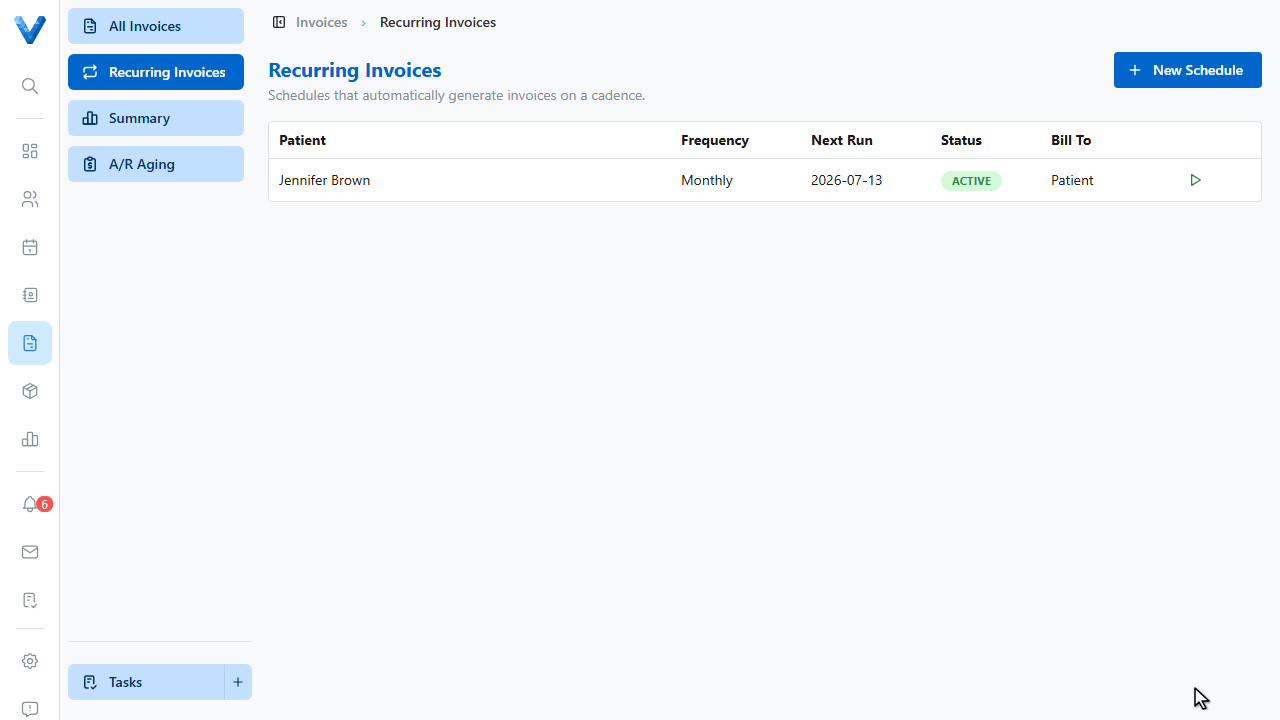
Need to skip a month? Edit the schedule and set its Status to Paused — the next run is skipped until you reactivate it. Run now generates the next invoice immediately without waiting for the schedule.