 Volition
1
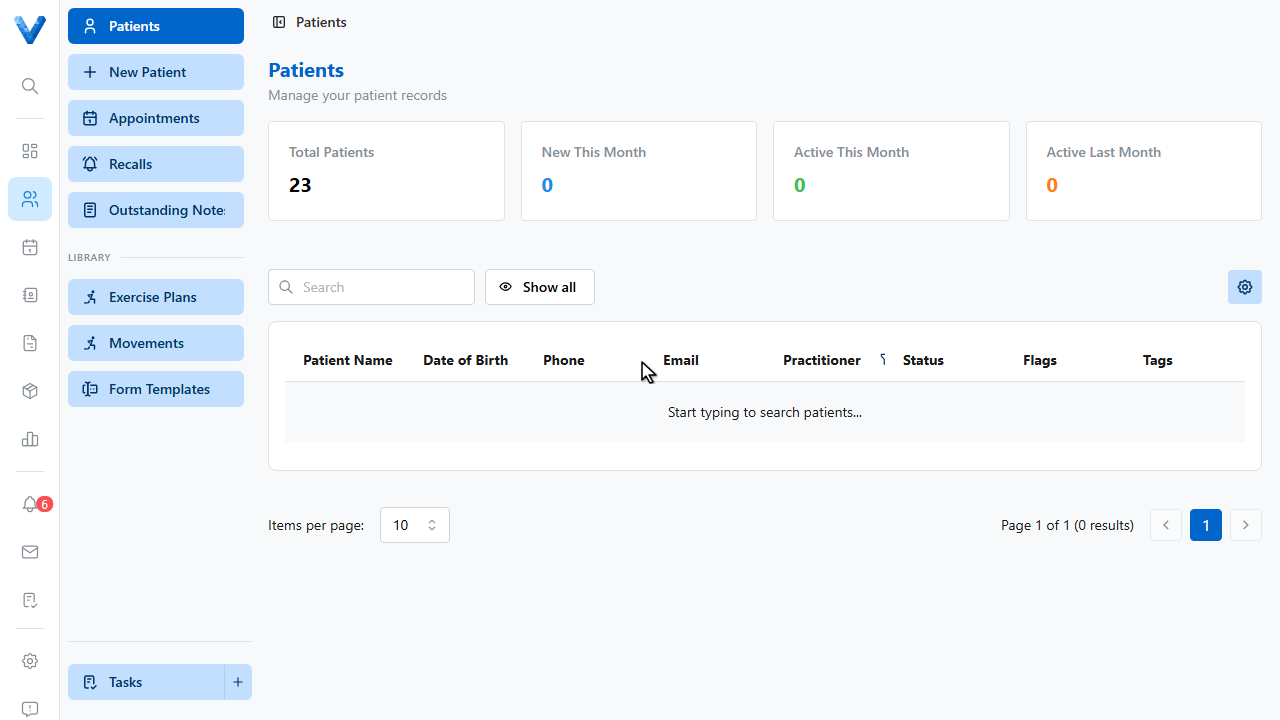
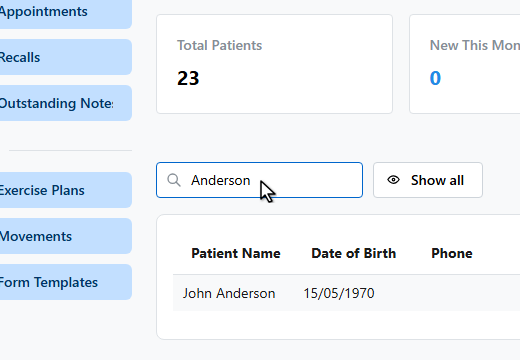
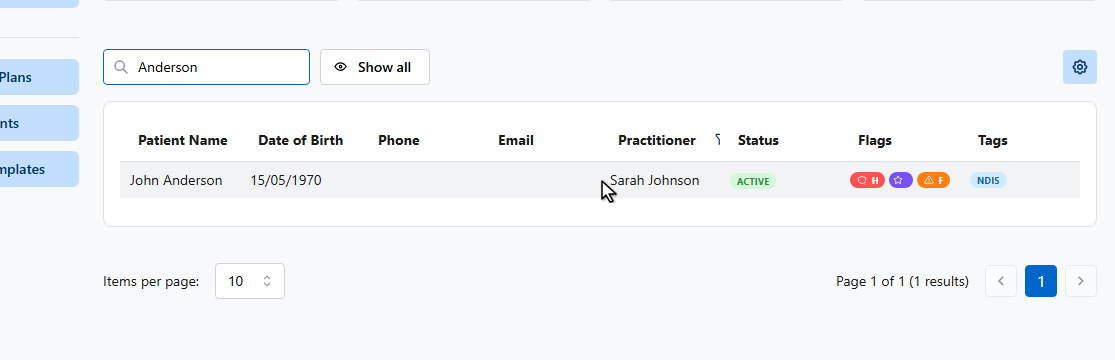
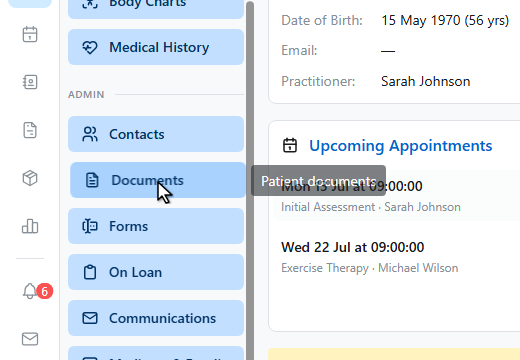
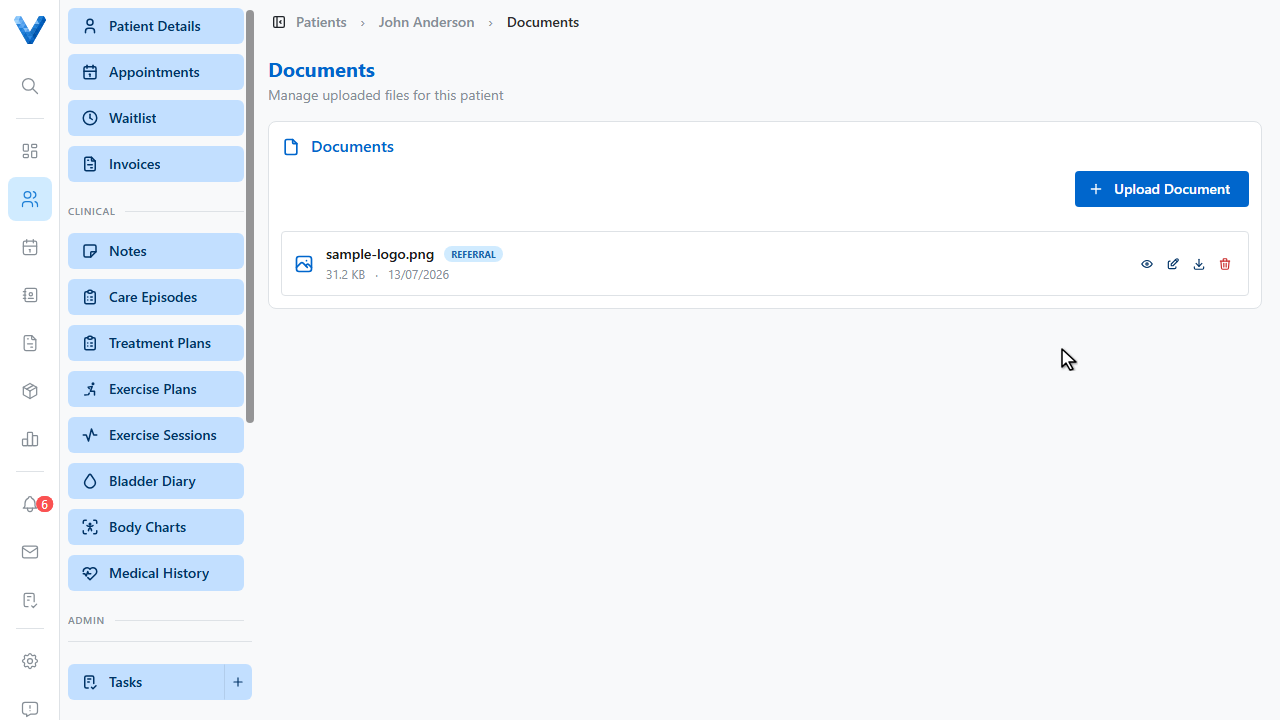
Open the patient, then go to Documents in their sidebar.
2
3
4
5
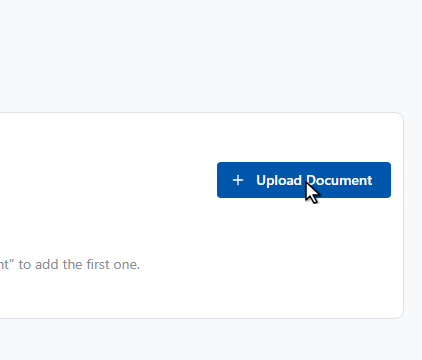
Click Upload Document.
6
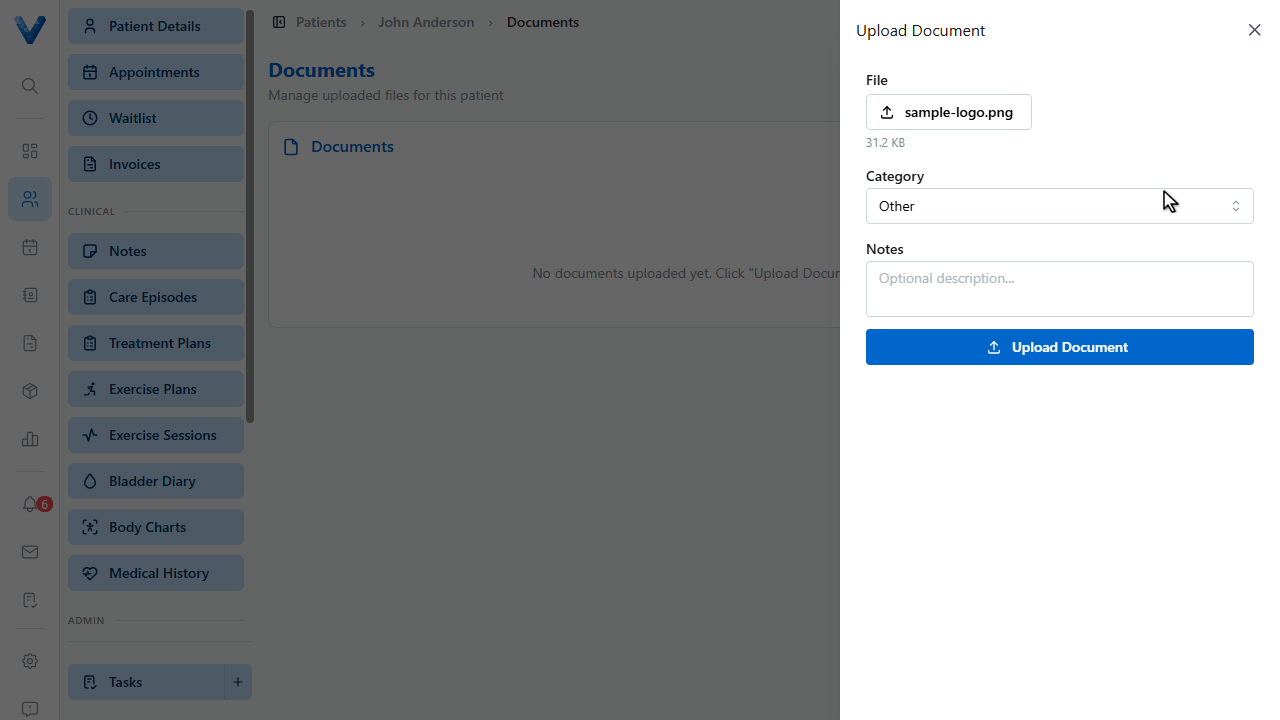
Choose the file — any type works, from P.D.F. referrals to imaging.
7
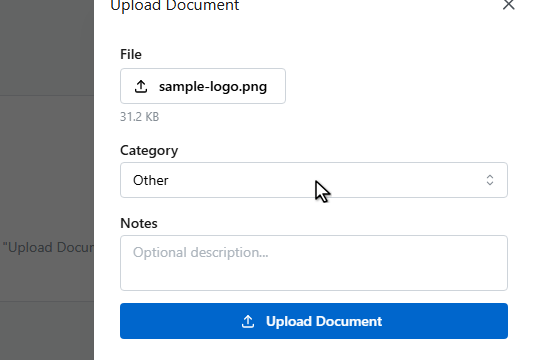
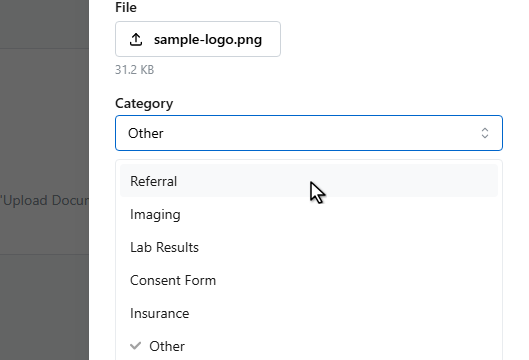
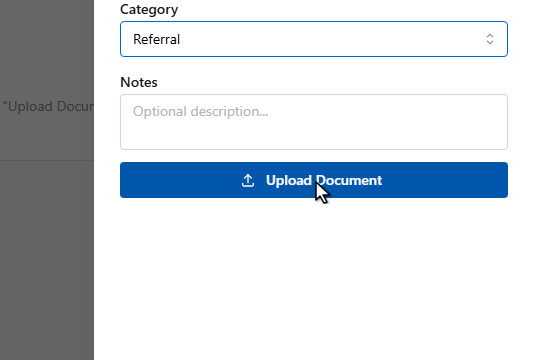
Pick a category — referral, imaging, lab results, consent form, or insurance — so documents stay findable.
8
9
Click Upload Document.
10
The document is on the record — view it inline, download it, or attach it to an email straight from the compose window.
Attach to emails
Documents on the record can be attached to any email composed from the patient’s Communications page — use Attach from patient records in the compose window.