 Volition
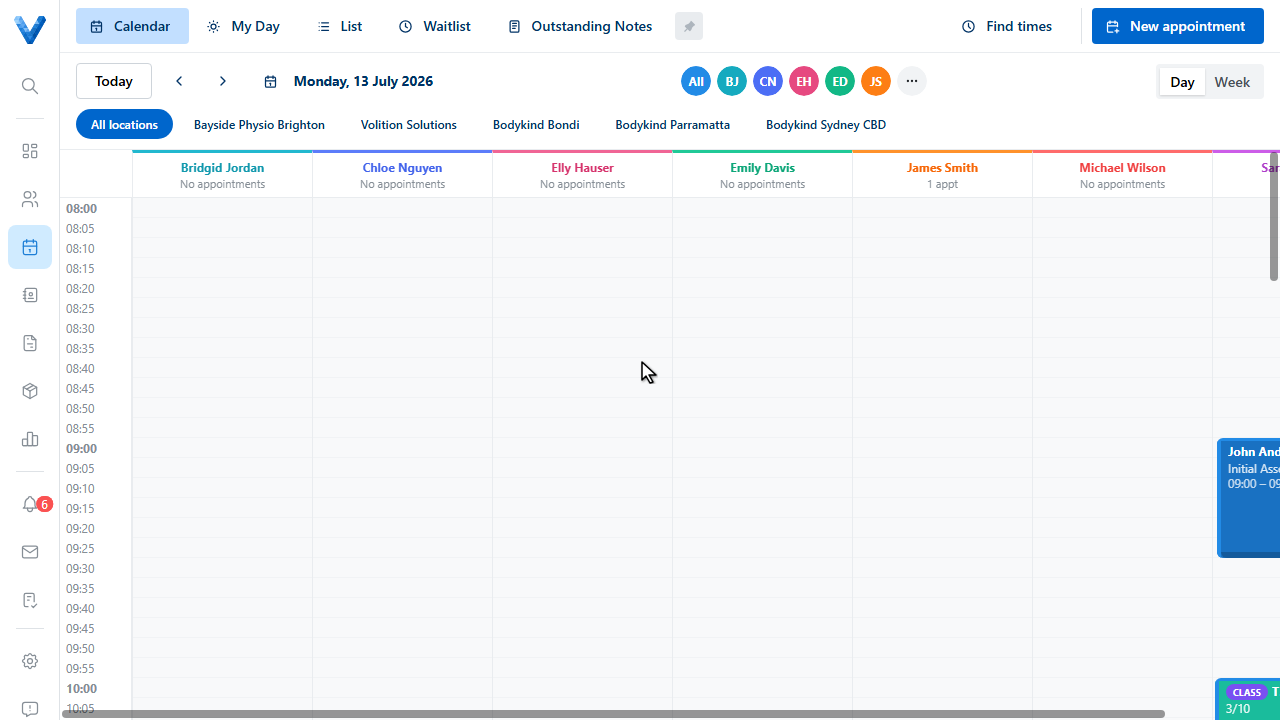
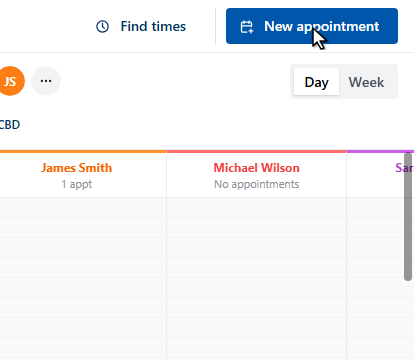
Group classes are booked like any appointment. Open the calendar and click New appointment.
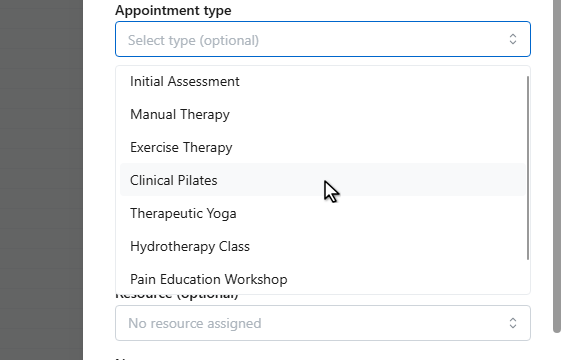
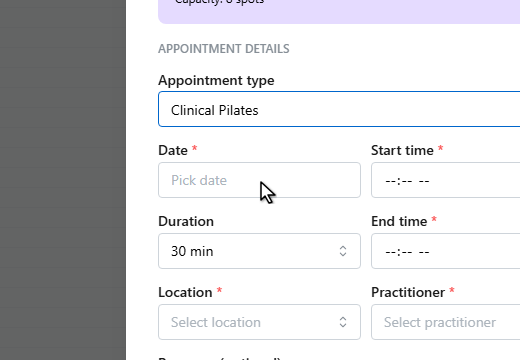
Choose a group appointment type.
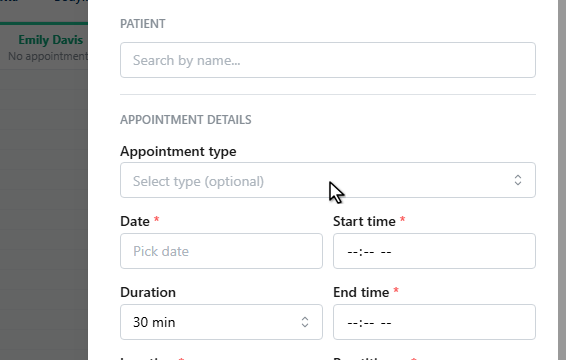
The patient field disappears — participants are added after the class is created, up to its capacity.
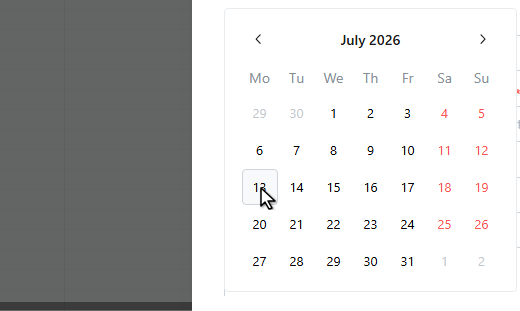
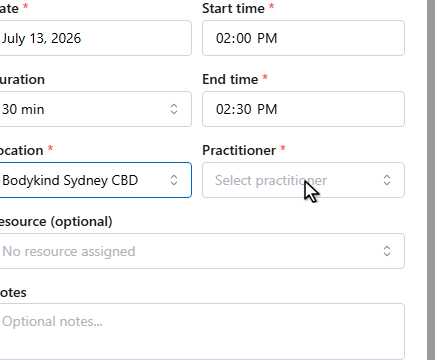
Set the date and time as usual.
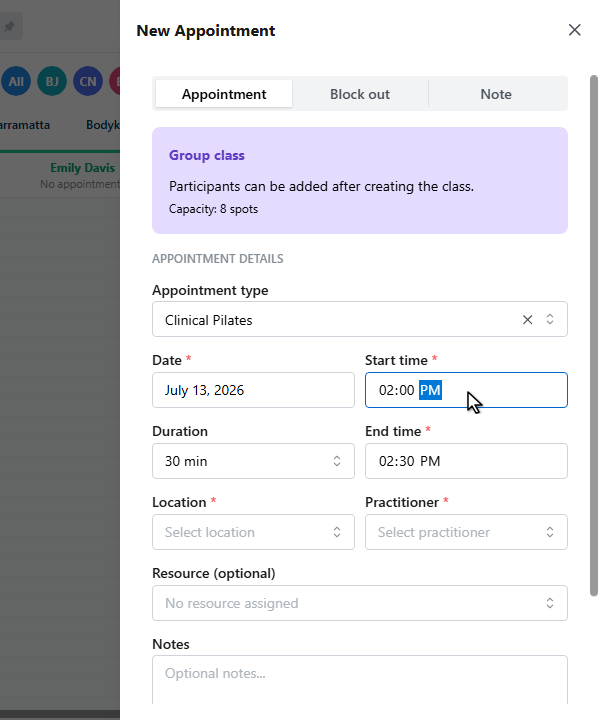
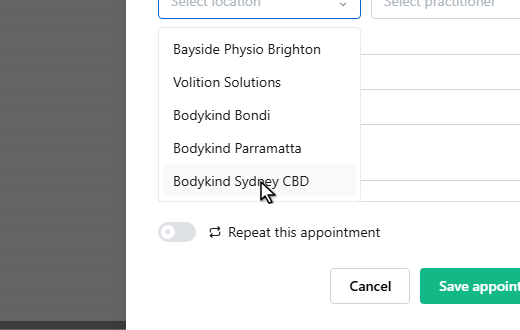
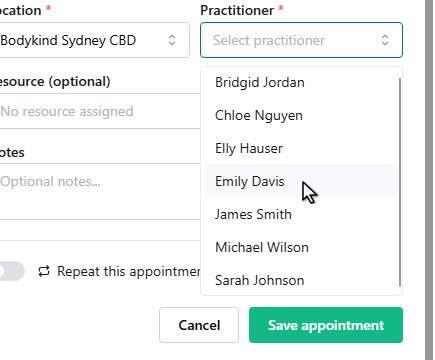
Pick the location and the practitioner running the class.
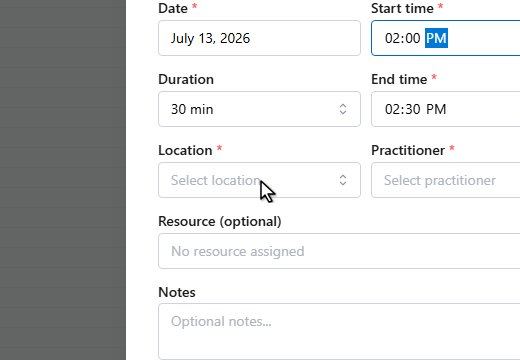
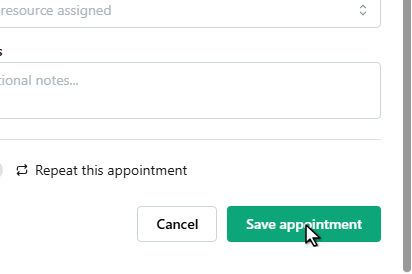
Click Save appointment to create the class.
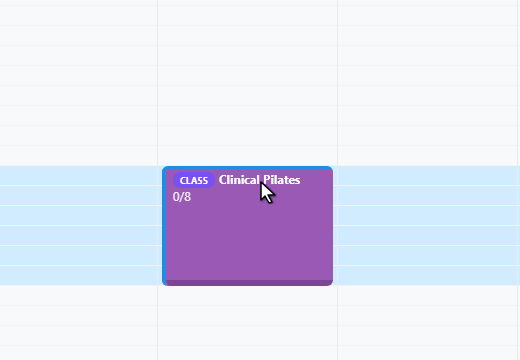
Now open the class to enrol participants.
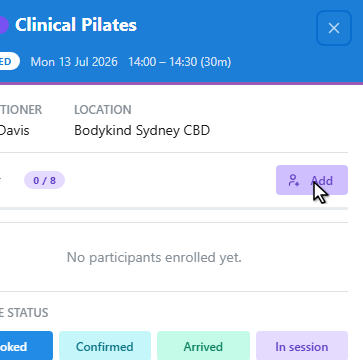
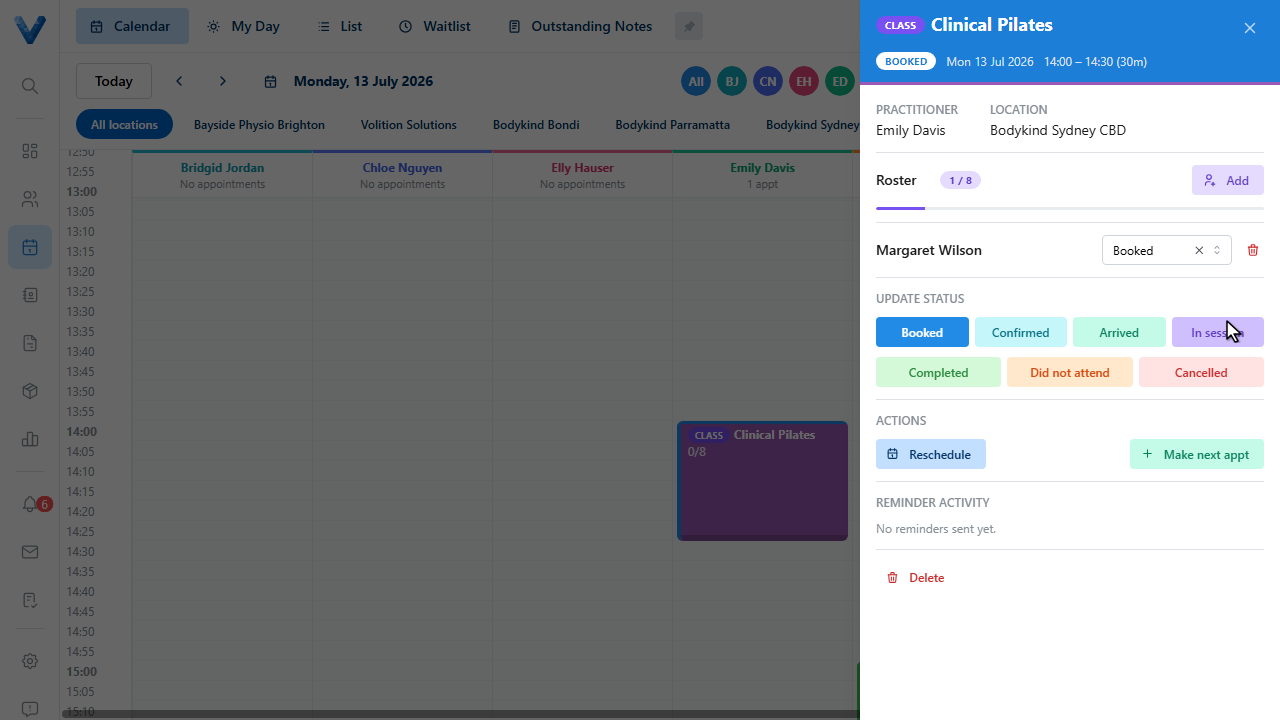
The Roster section shows enrolments against capacity. Click Add.
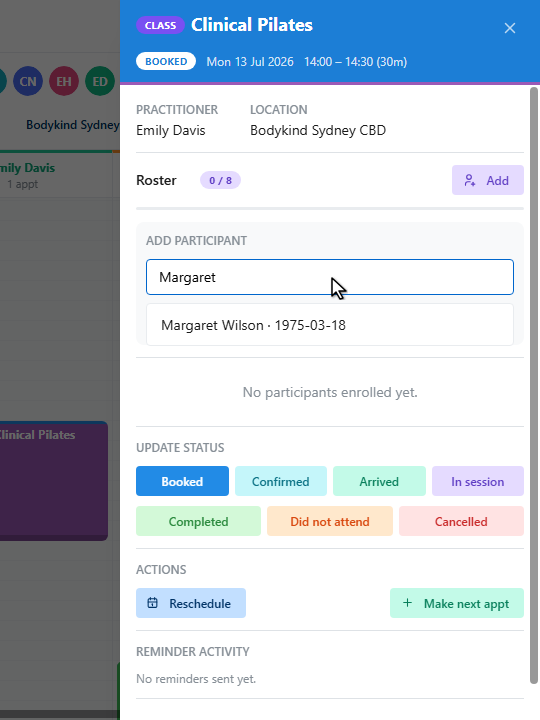
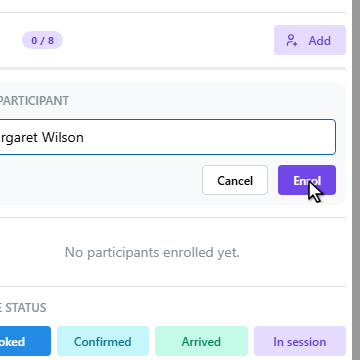
Search for the patient.
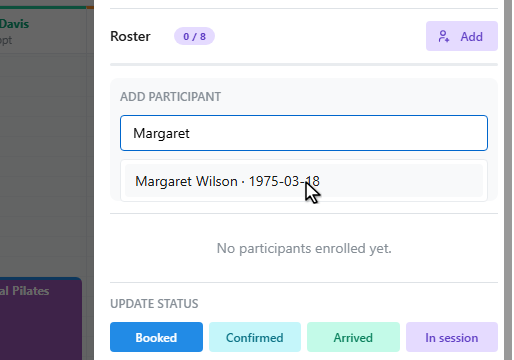
And click Enrol.
The roster updates with each participant, each with their own attendance status. Patients can also enrol themselves through online booking if the type allows it.
If the group type’s Show in public booking portal switch is on, patients can join classes from your online booking page — with Show spots remaining they can see how full each class is.