 Volition
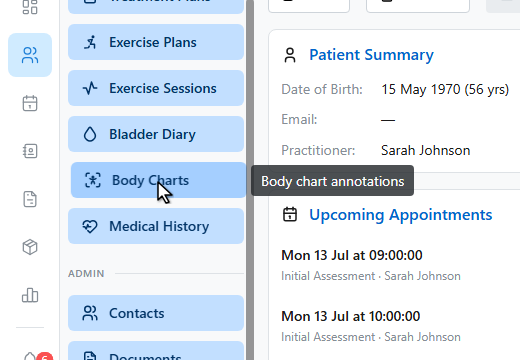
Open the patient and go to Body Charts in their sidebar.
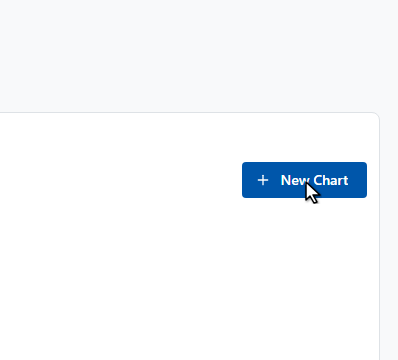
Click New Chart to open the editor.
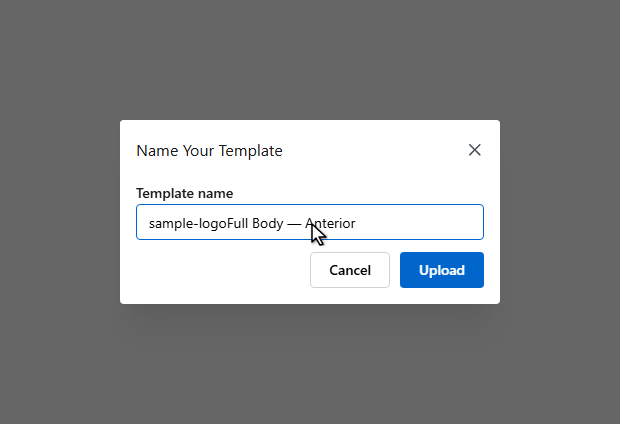
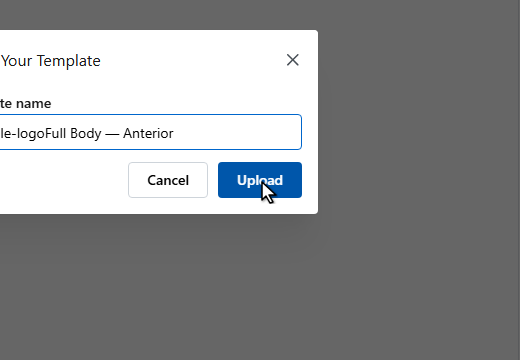
Pick a template from the left panel. The first time, upload your practice’s chart diagrams — they’re saved as templates for the whole team.
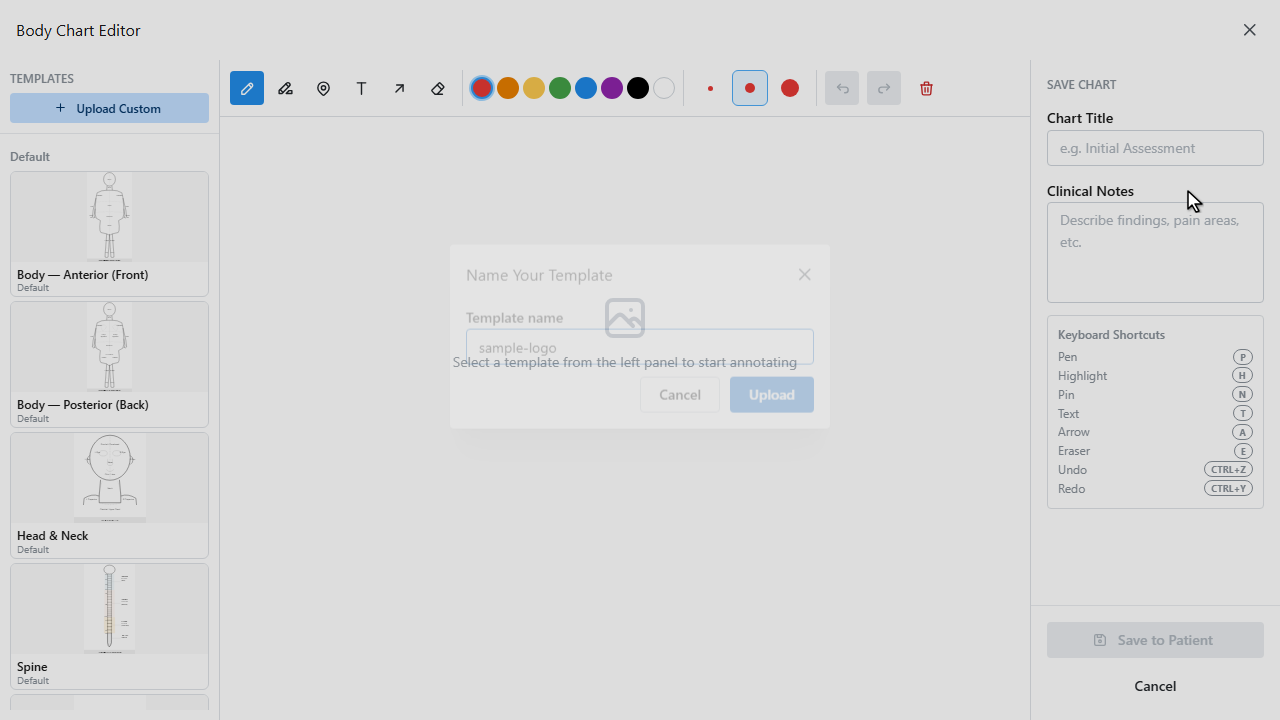
Annotate with the toolbar — pen and highlighter for drawing, numbered pins with labels for specific findings, text labels, and arrows. Everything has undo.
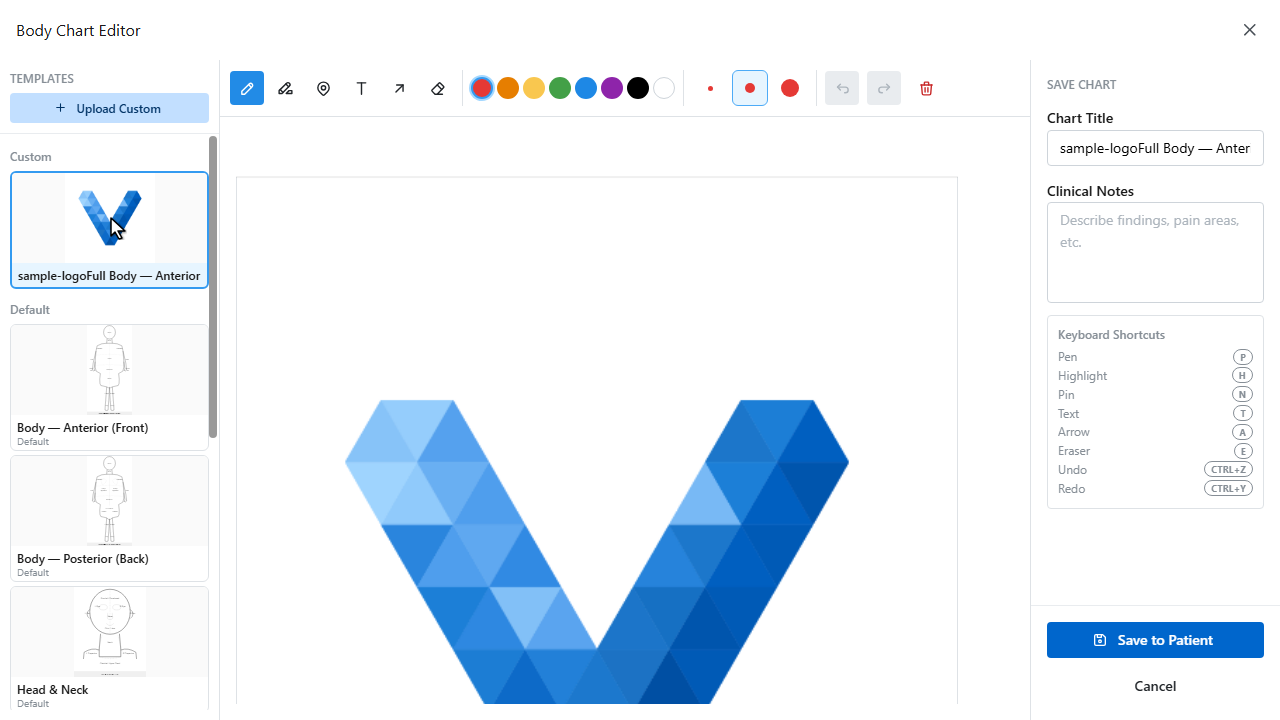
Give the chart a title, and add clinical notes on the right.
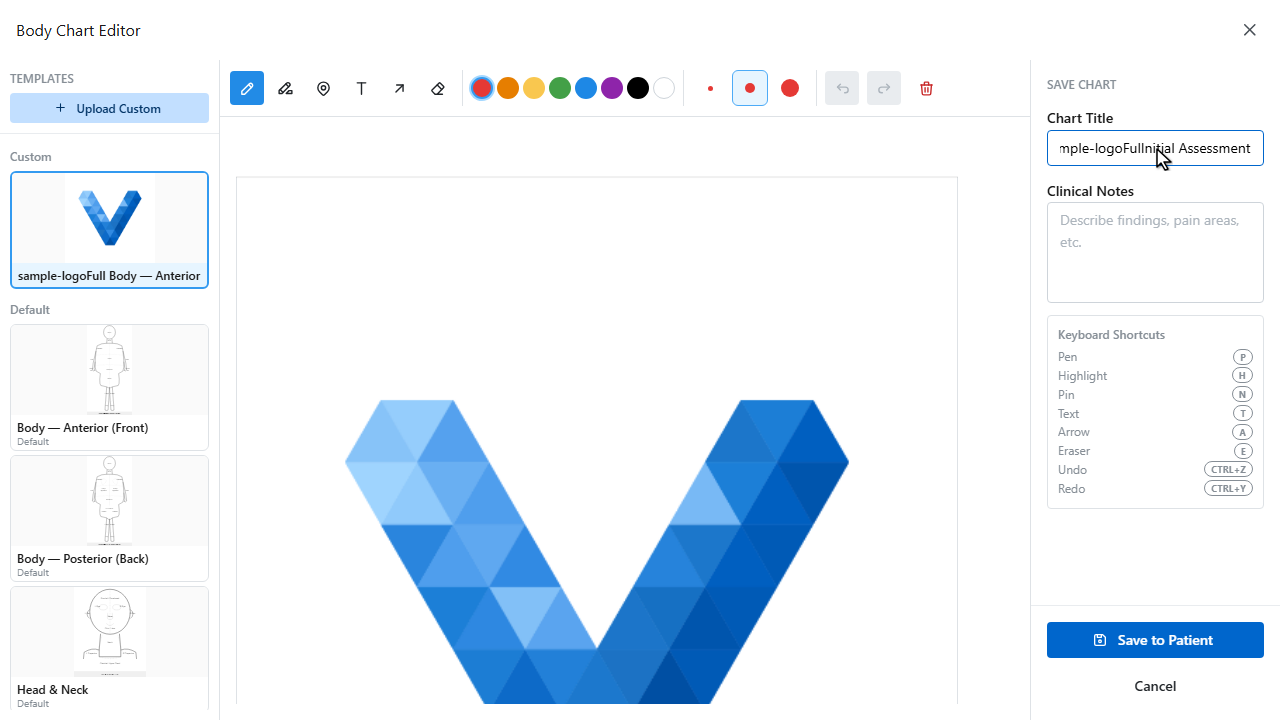
Click Save to Patient.
The chart is saved on the record — view, download, or add follow up charts to track change over time. Body charts can also be embedded inside clinical notes.
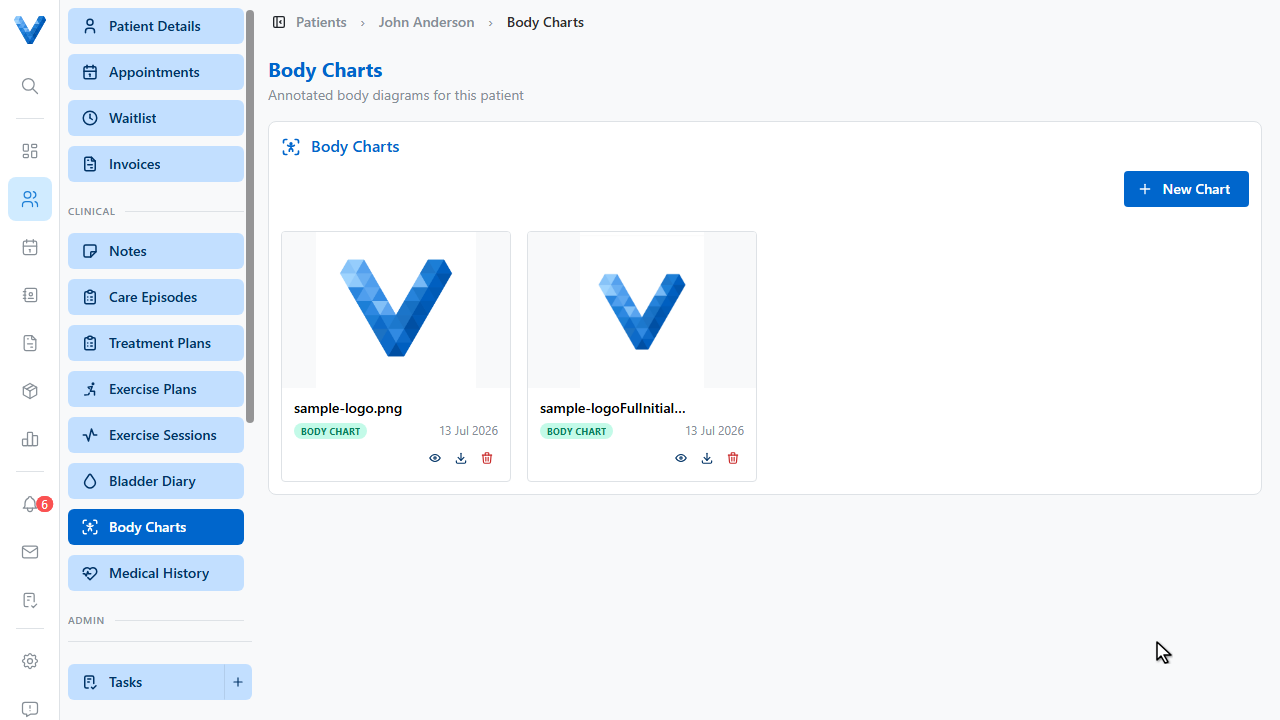
Upload your practice’s chart diagrams once — they’re saved as templates for the whole team. Follow-up charts on the same template make change over time easy to see.