 Volition
1
Tasks keep the team’s follow ups out of sticky notes. Open Tasks and click New Task.
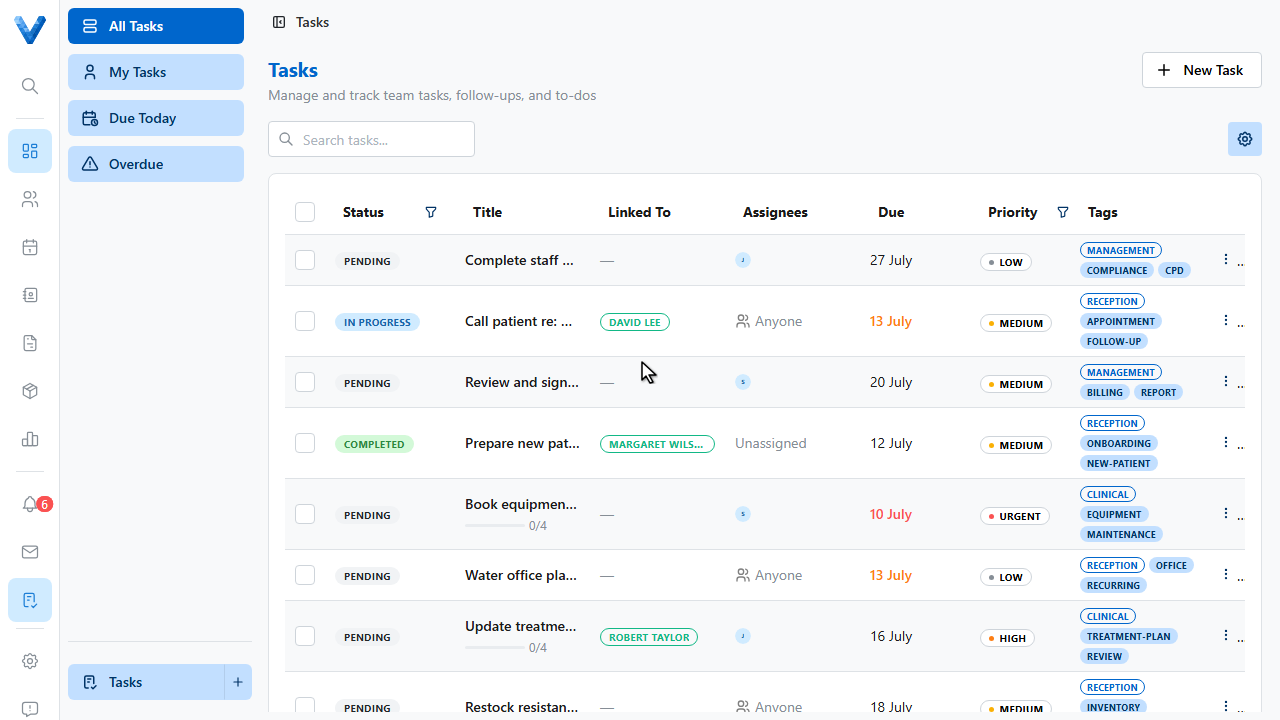
2
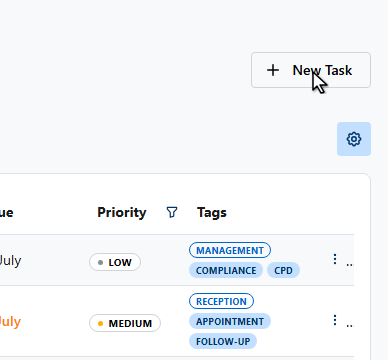
3
Describe what needs to be done.
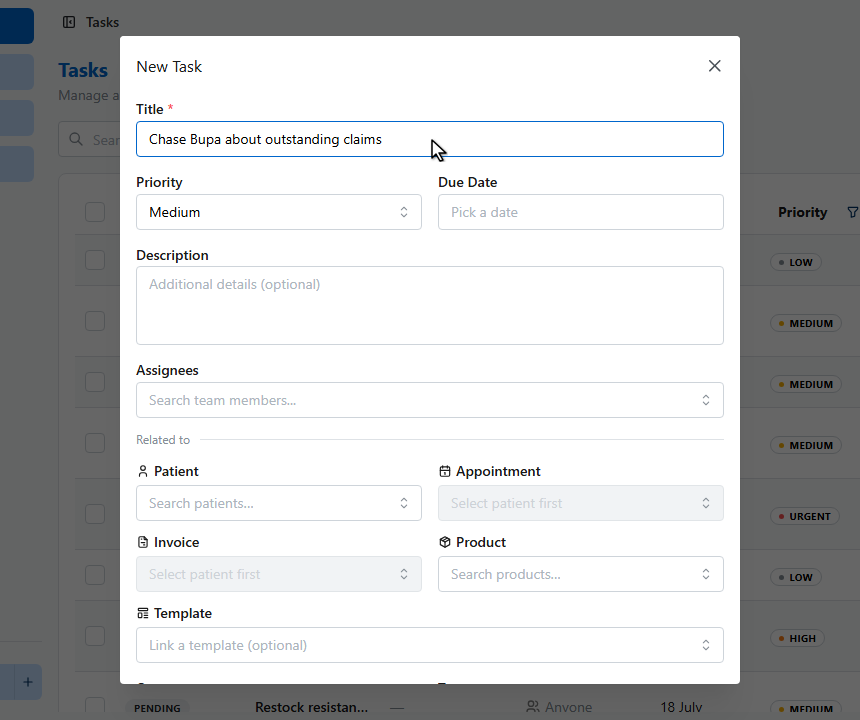
4
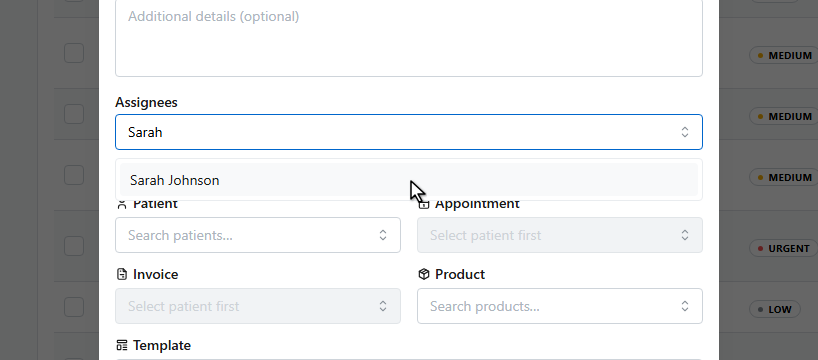
Assign it to team members, or pick Anyone to leave it in an unassigned queue for whoever’s free.
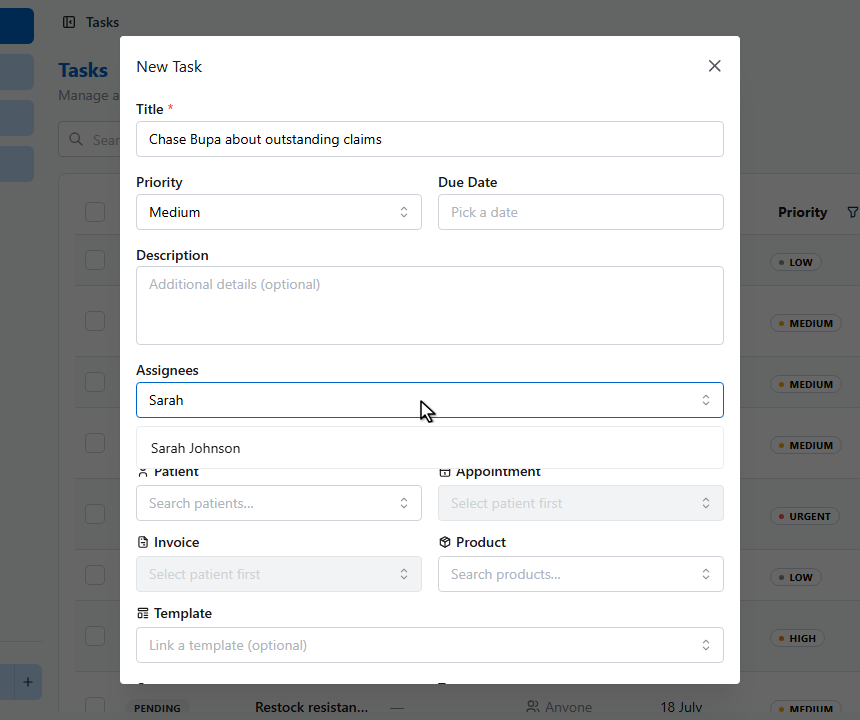
5
6
7
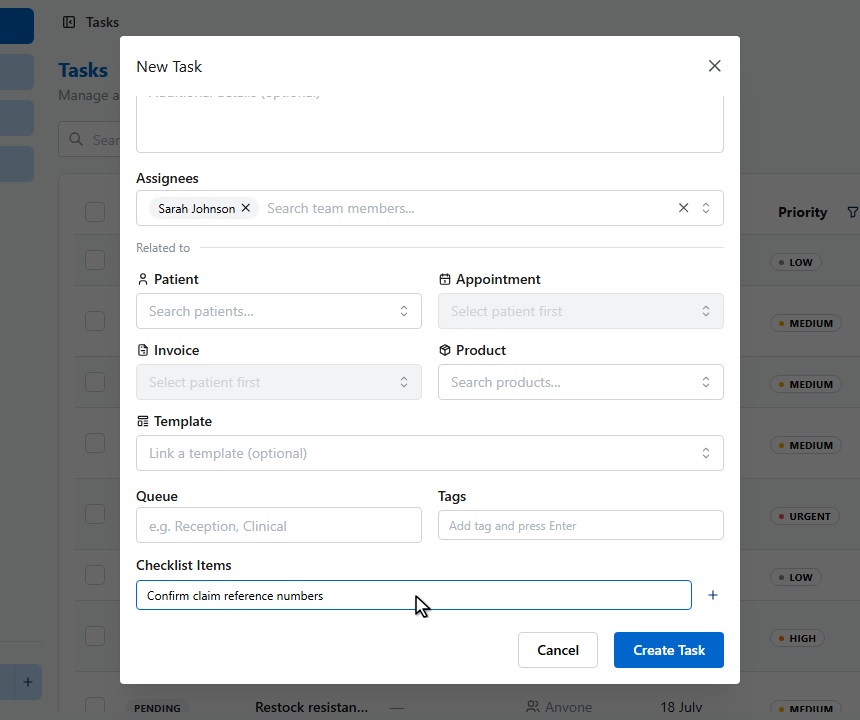
Tasks can be linked to a patient, appointment, invoice, or product, so the context is one click away. Add checklist items for multi step jobs.
8
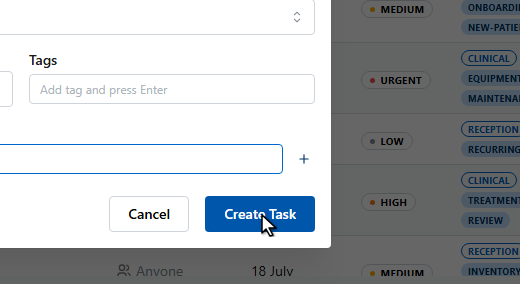
Click Create Task.
9
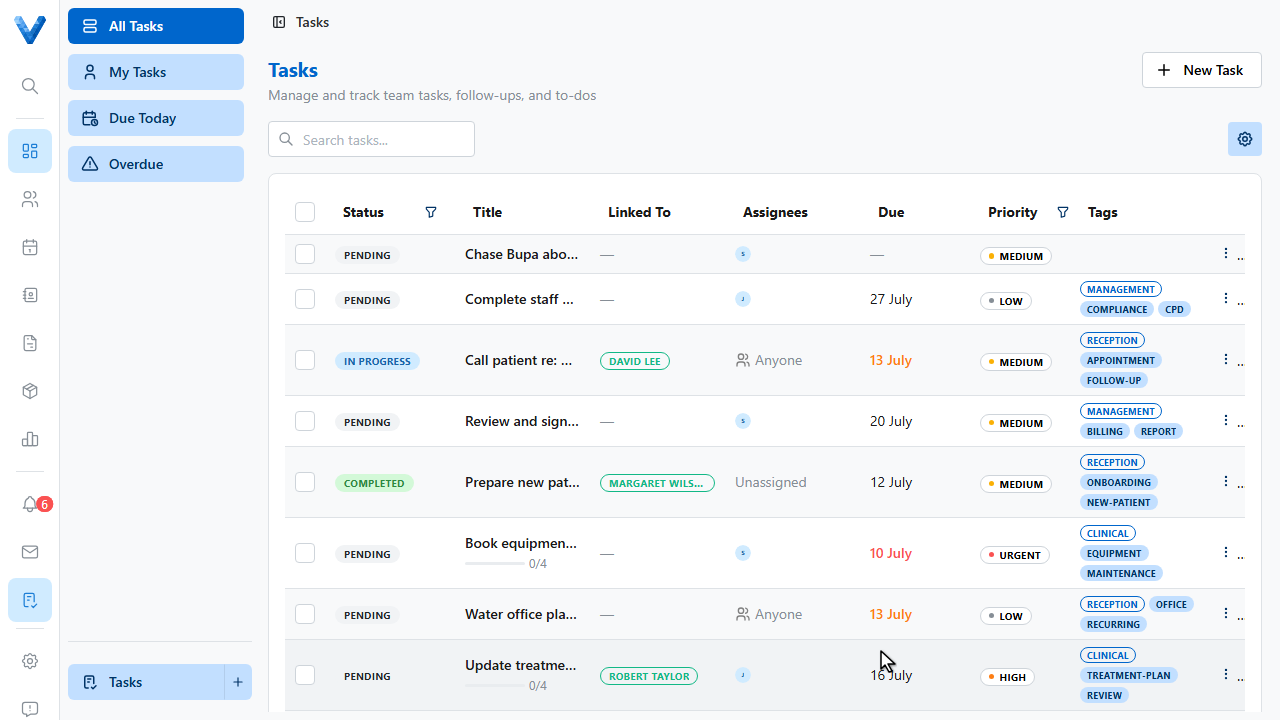
The task appears in the list with its checklist progress. The sidebar filters show everything, just yours, due today, and overdue — and tasks pop up on the dashboard too.
Queues for shared work
Assign a task to Anyone (unassigned queue) with a Queue name like “Reception” — whoever picks it up first owns it, and nothing sits in one person’s inbox while they’re on leave.