 Volition
Tags are org wide labels for filtering and segmenting patients. Create them in Settings, Patient Tags.
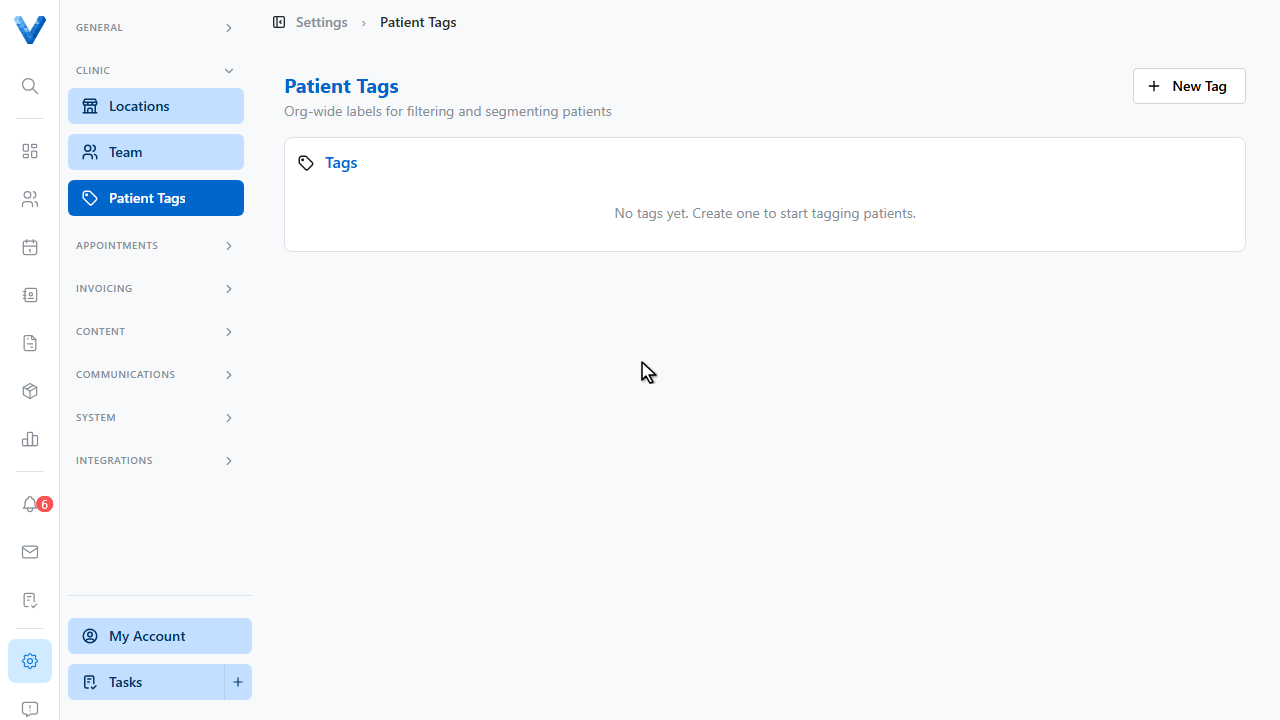
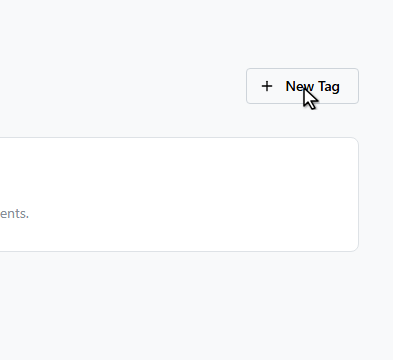
Click New Tag.
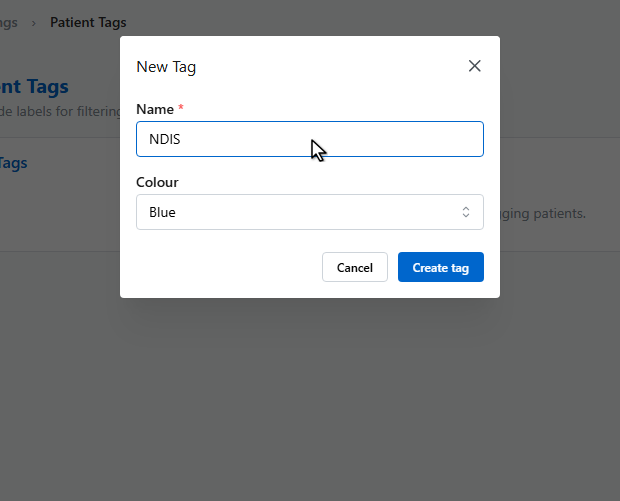
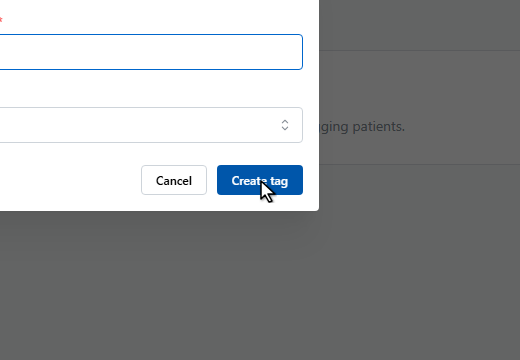
Name it and pick a colour.
Now apply it. Open the patient’s details page.
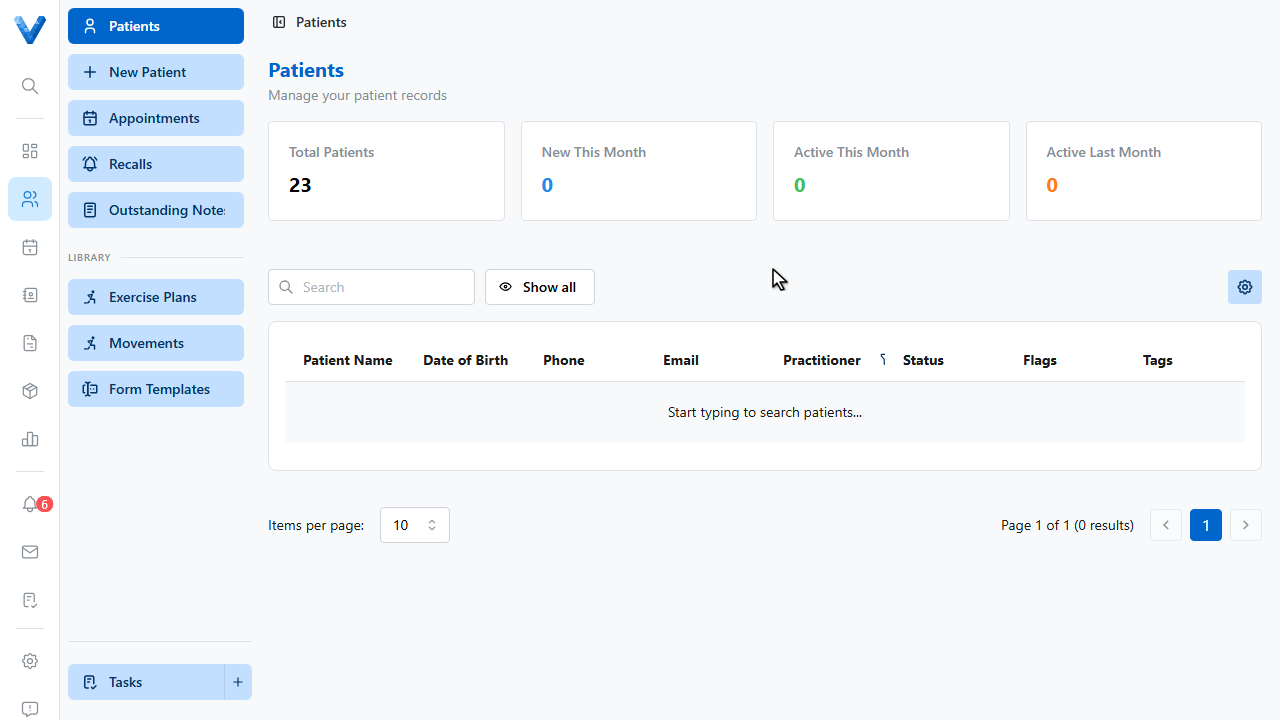
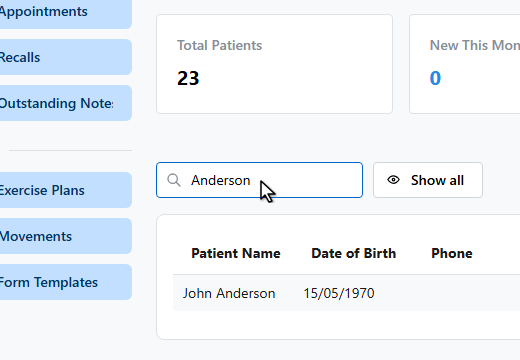
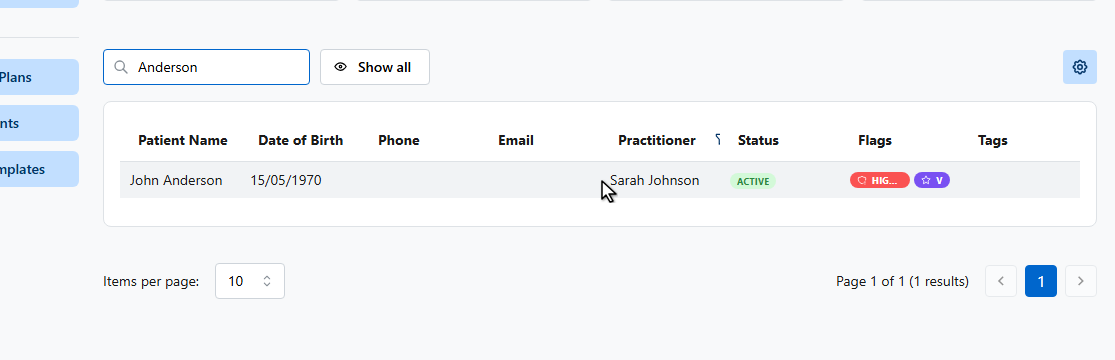
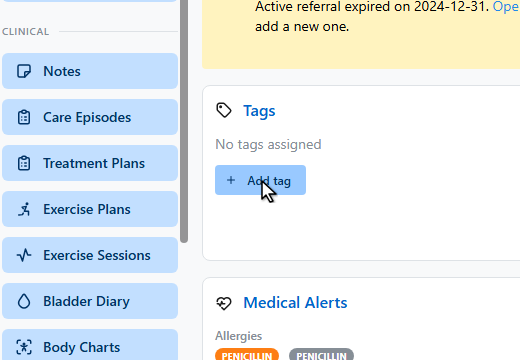
In the Tags card, click Add tag.
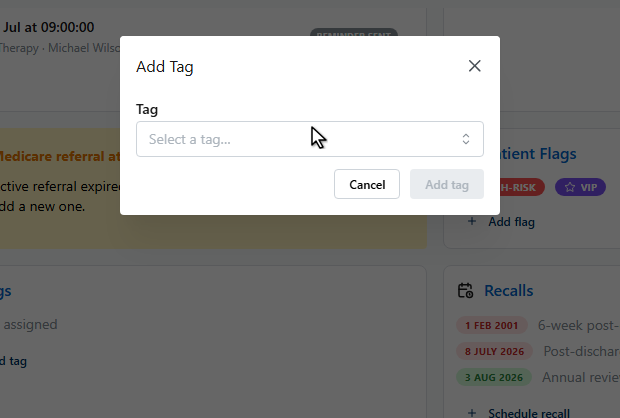
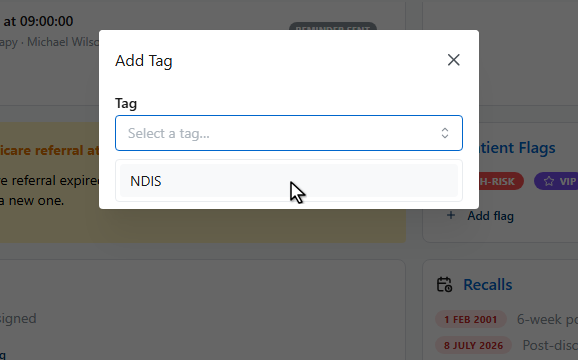
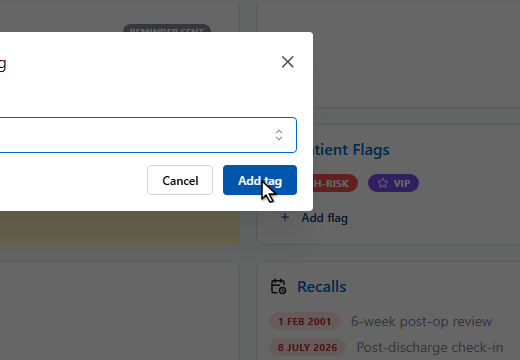
Flags are different — they’re per patient safety alerts. In the Patient Flags card, click Add flag.
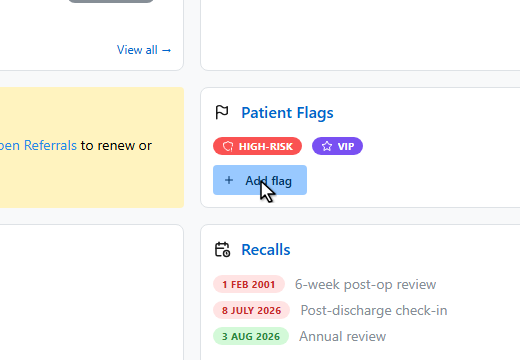
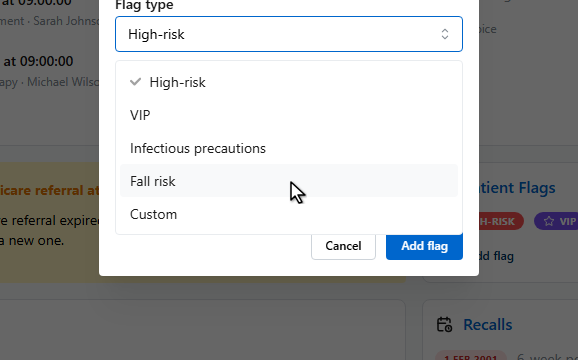
Pick a type — high risk, V.I.P., infectious precautions, fall risk, or custom.

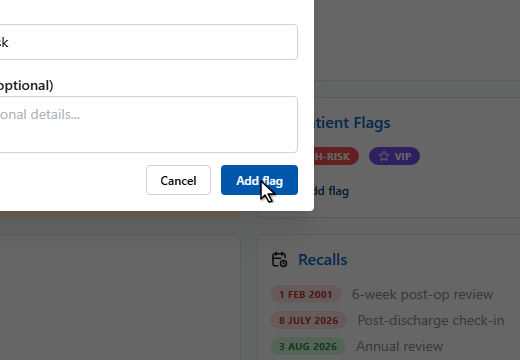
Click Add flag.
Flags follow the patient everywhere — they appear as an alert when opening the patient’s appointments, so nothing gets missed at the front desk.
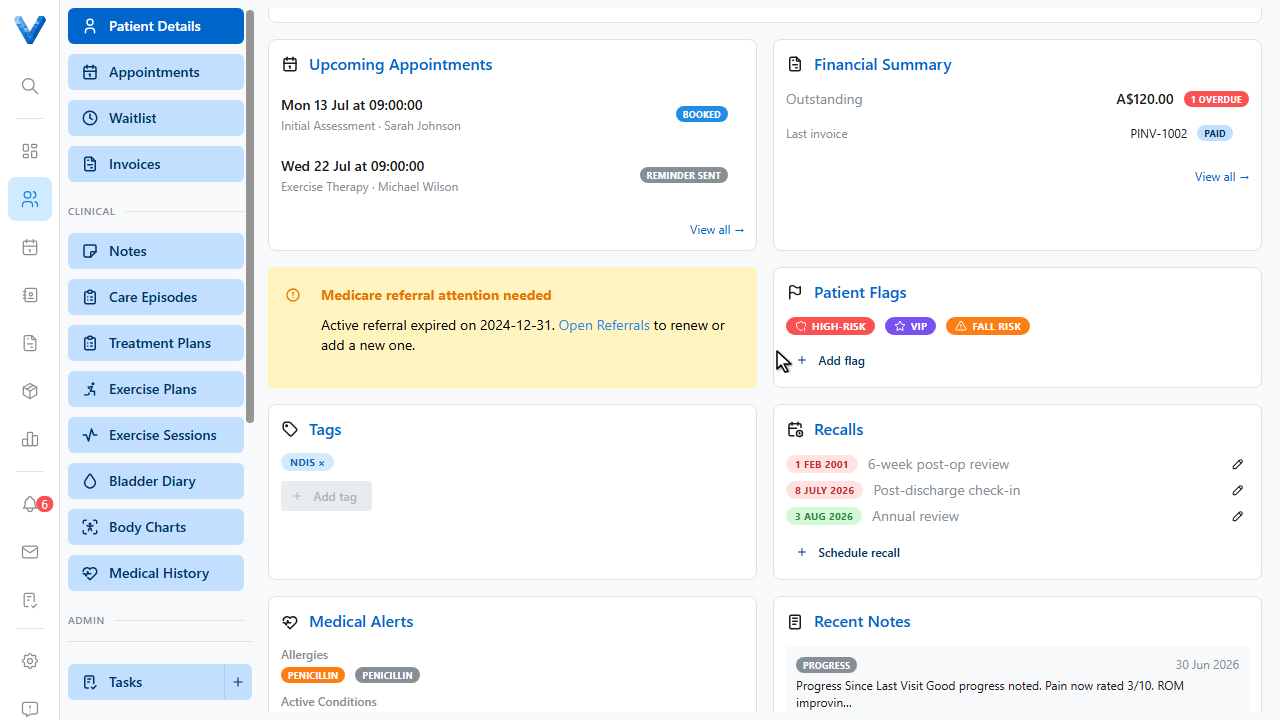
Tags are org-wide labels for filtering and segmenting (NDIS, DVA, chronic pain). Flags are per-patient safety alerts that appear wherever the patient does — including on their appointments at the front desk.