 Volition
1
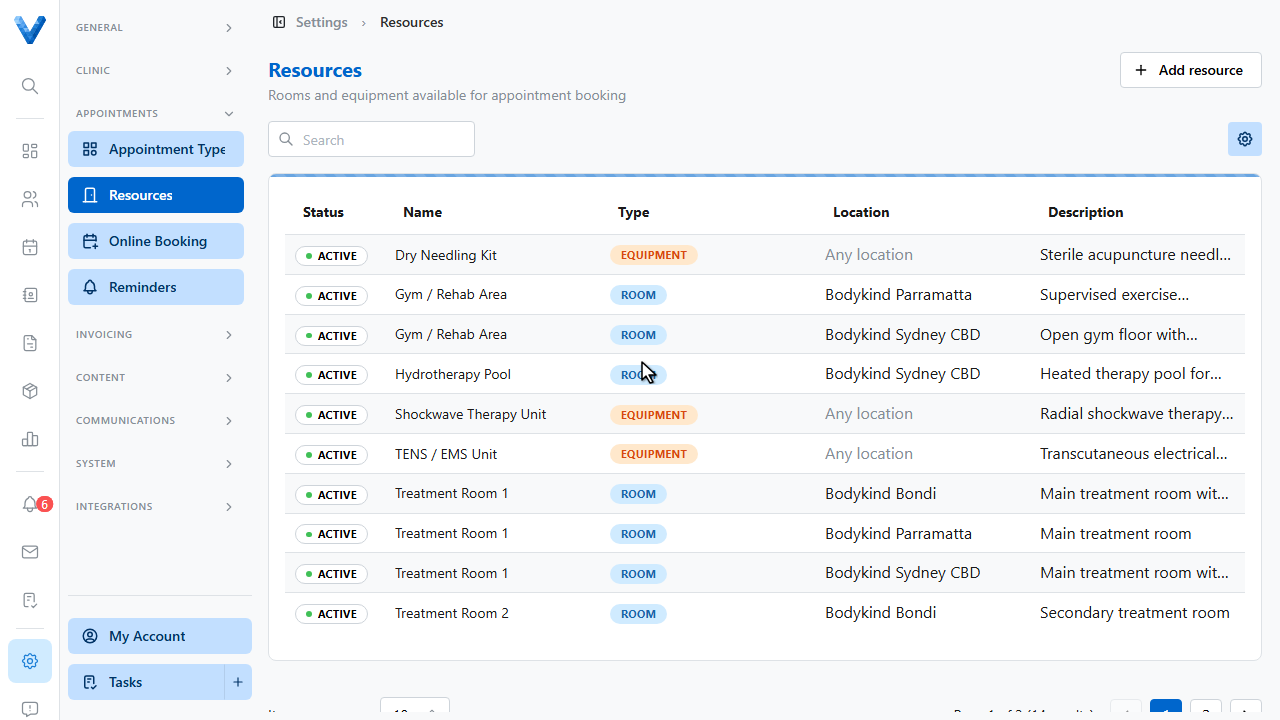
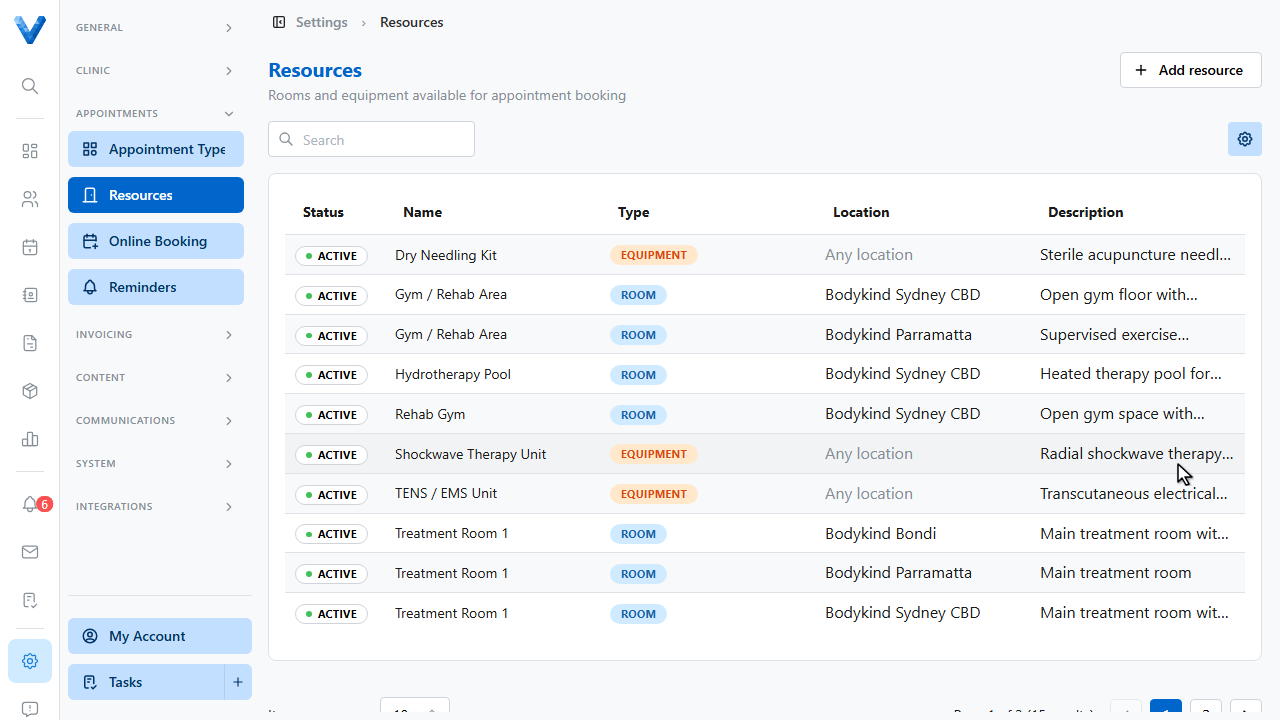
Go to Settings and open Resources. Rooms and equipment added here can be assigned to appointments when booking.
2
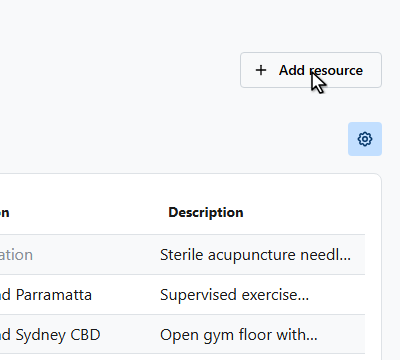
Click Add resource.
3
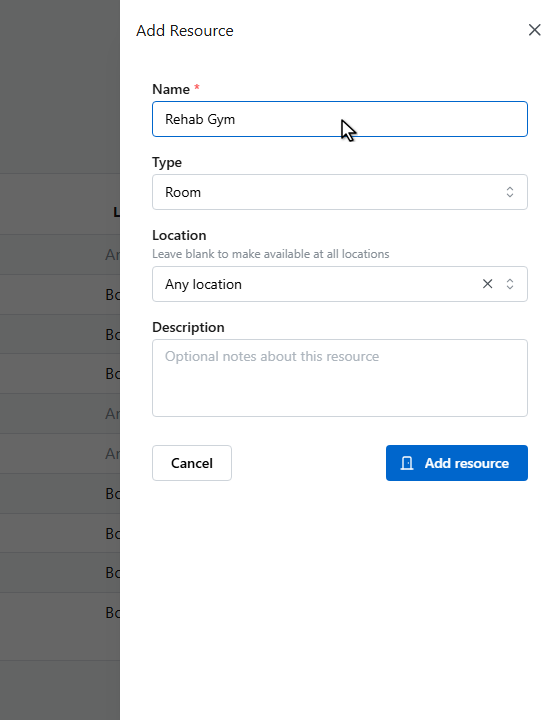
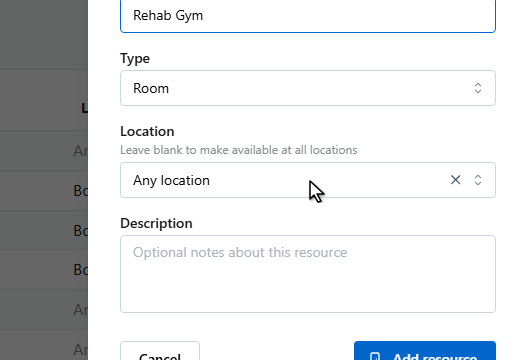
Name the resource.
4
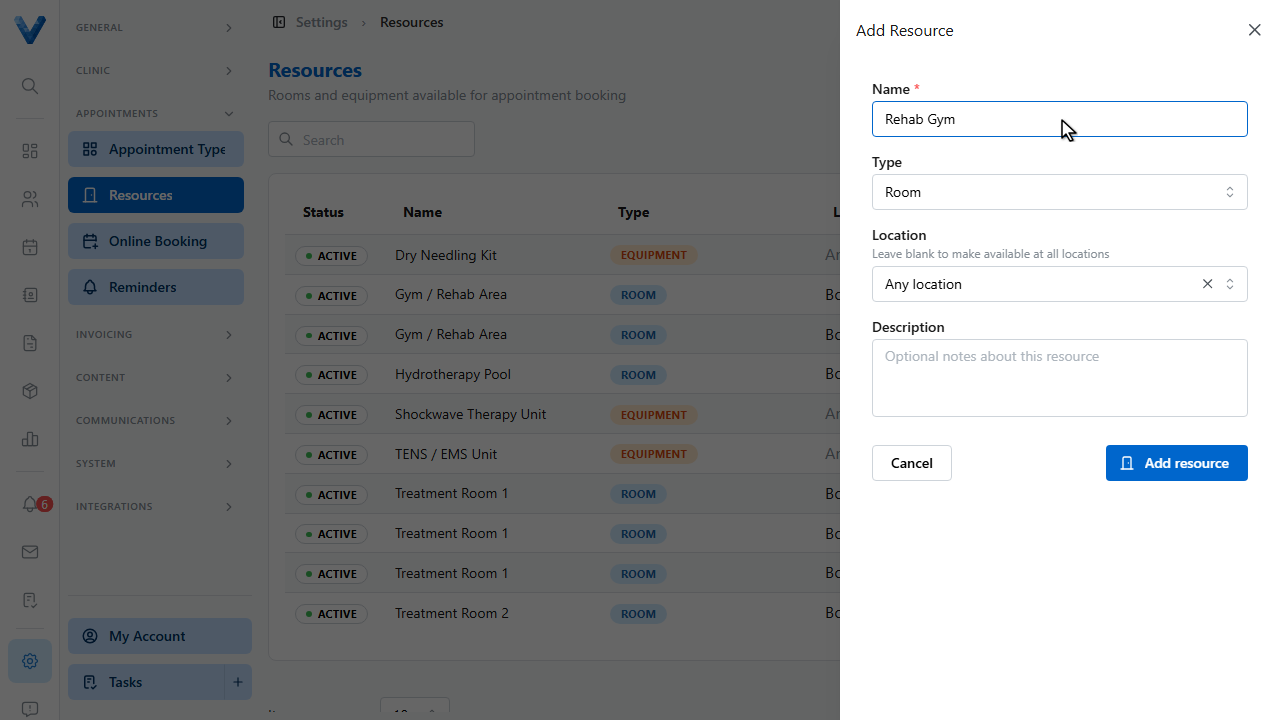
Choose the type, room or equipment.
5
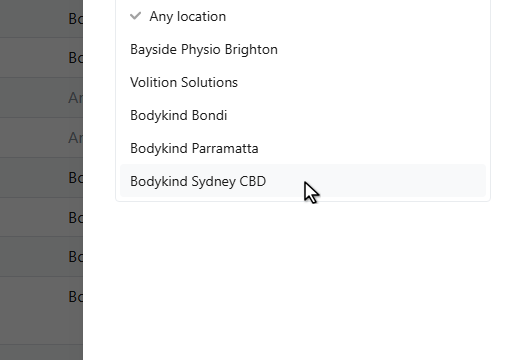
Optionally tie it to a location — leave it blank to make it available everywhere.
6
7
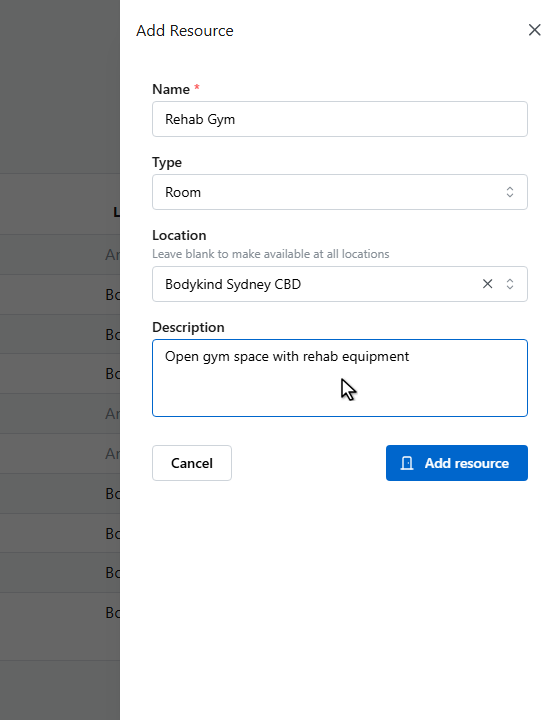
Add an optional description.
8
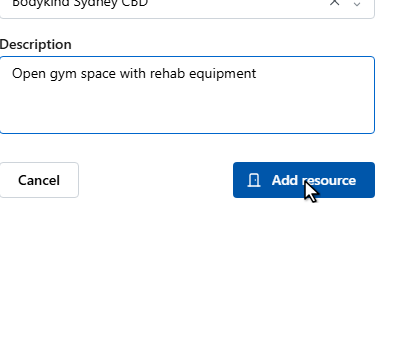
Click Add resource to save it.
9
The resource appears in the list, and can now be assigned when booking an appointment using the Resource field.
Assigning resources
When booking an appointment, use the Resource (optional) field in the New Appointment panel to attach a room or piece of equipment to the booking.