 Volition
1
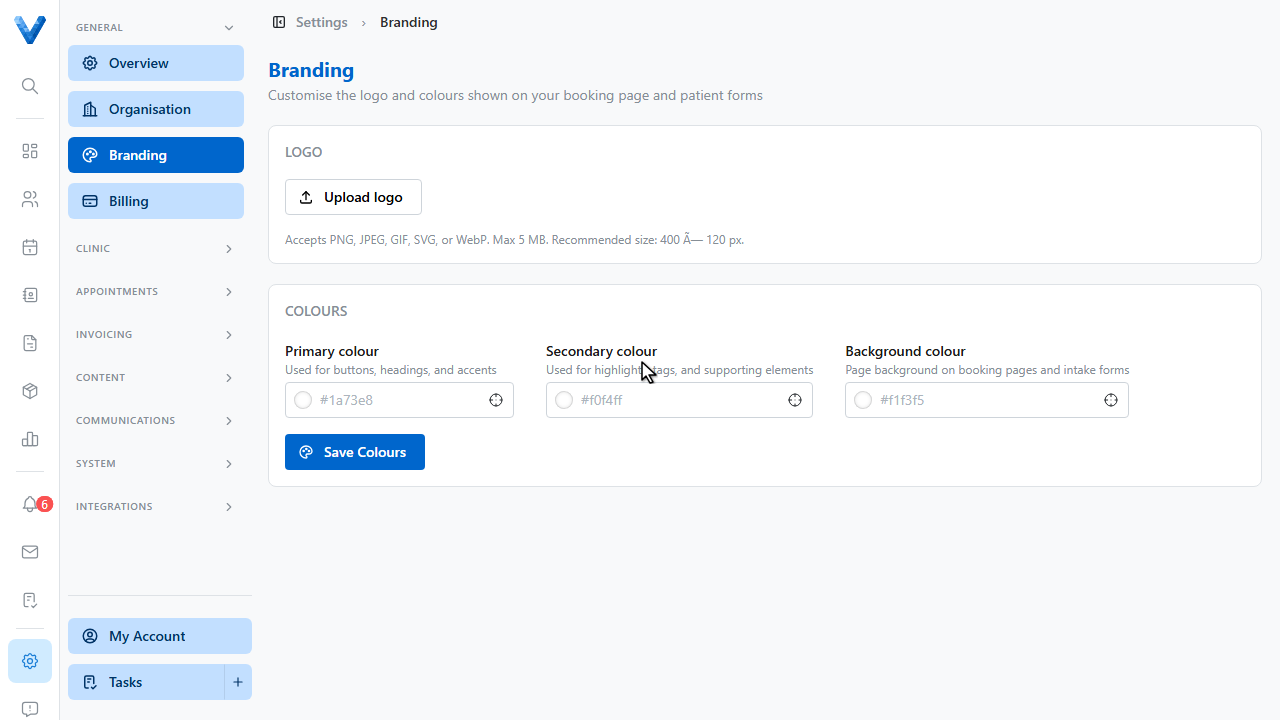
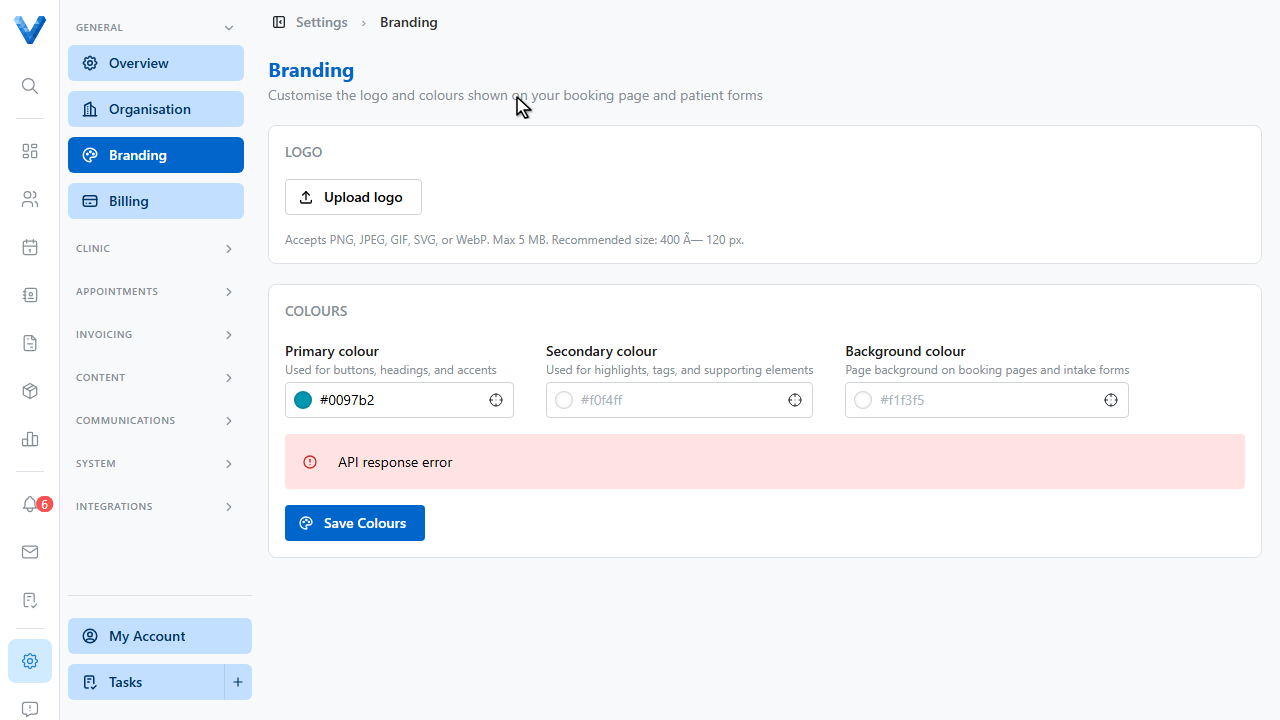
Go to Settings and open Branding. Your logo and colours appear on the online booking page and patient intake forms.
2
Click Upload logo and choose an image. P.N.G., J.P.E.G., S.V.G., and WebP are accepted, up to five megabytes.
3
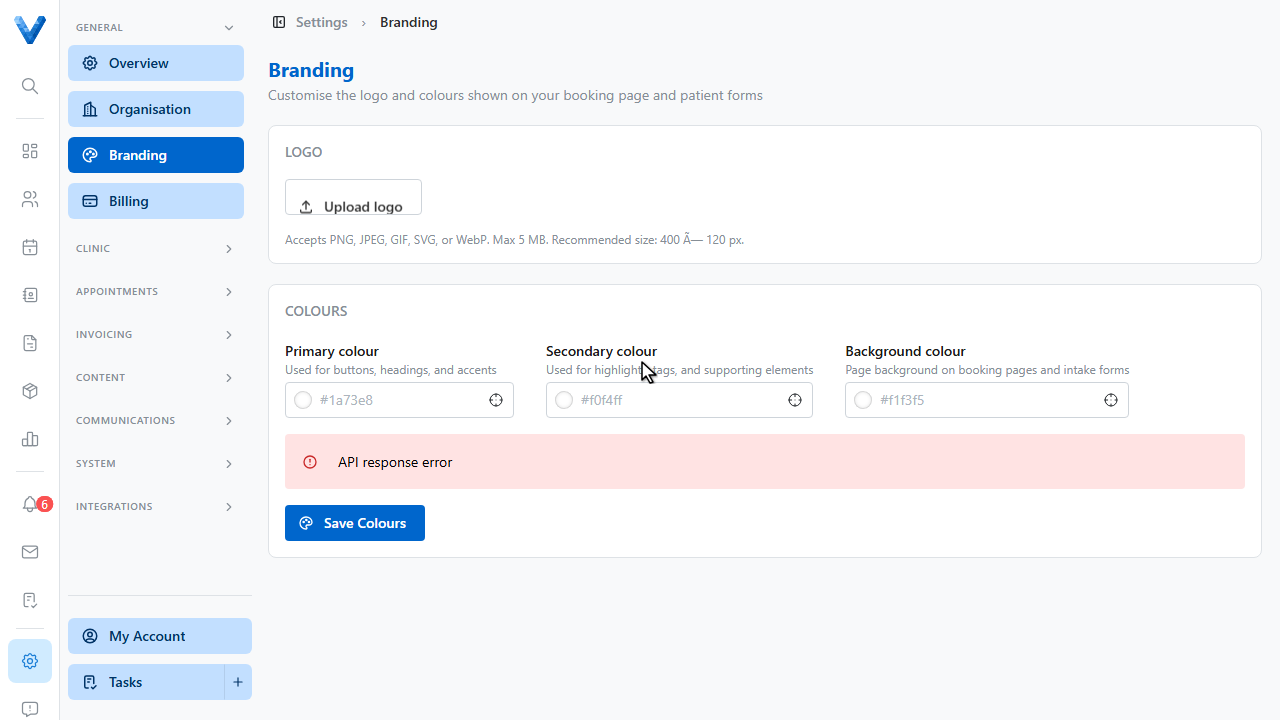
The logo uploads straight away and a preview appears. Use the trash icon to remove it later.
4
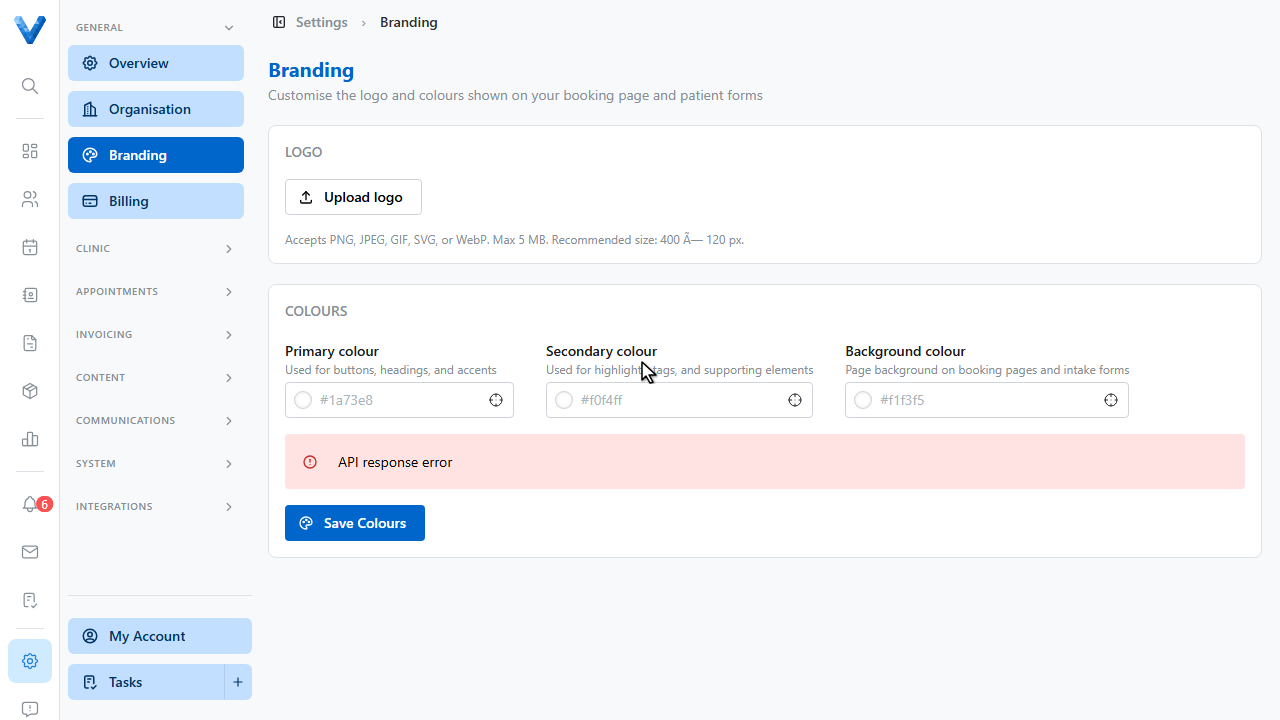
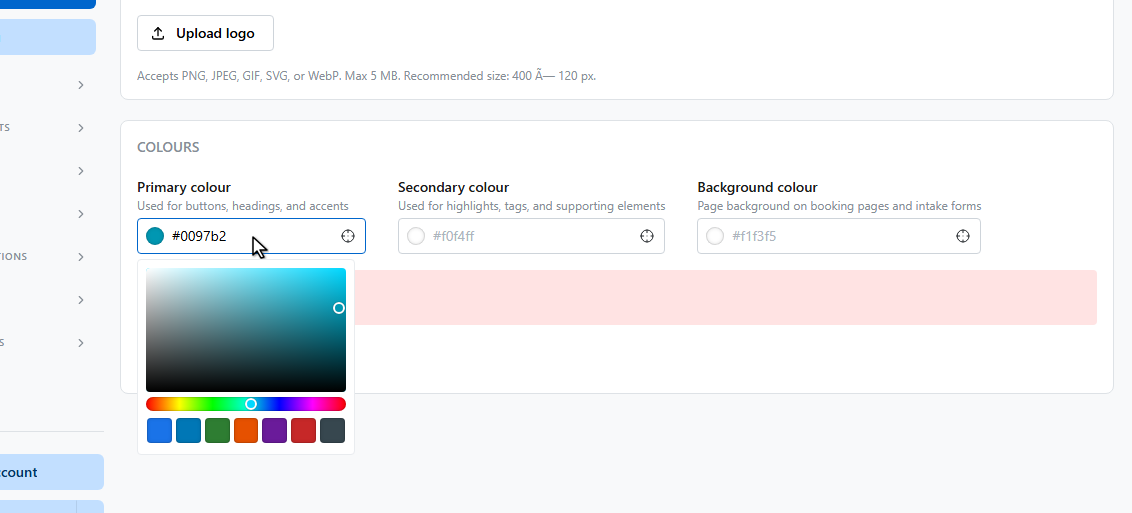
Set your primary colour. It’s used for buttons, headings, and accents.
5
6
The secondary colour is used for highlights and tags, and the background colour sits behind booking pages and intake forms.
7
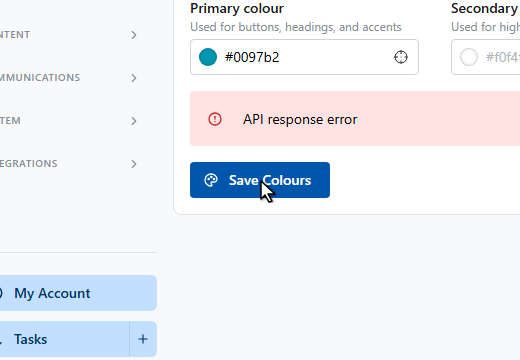
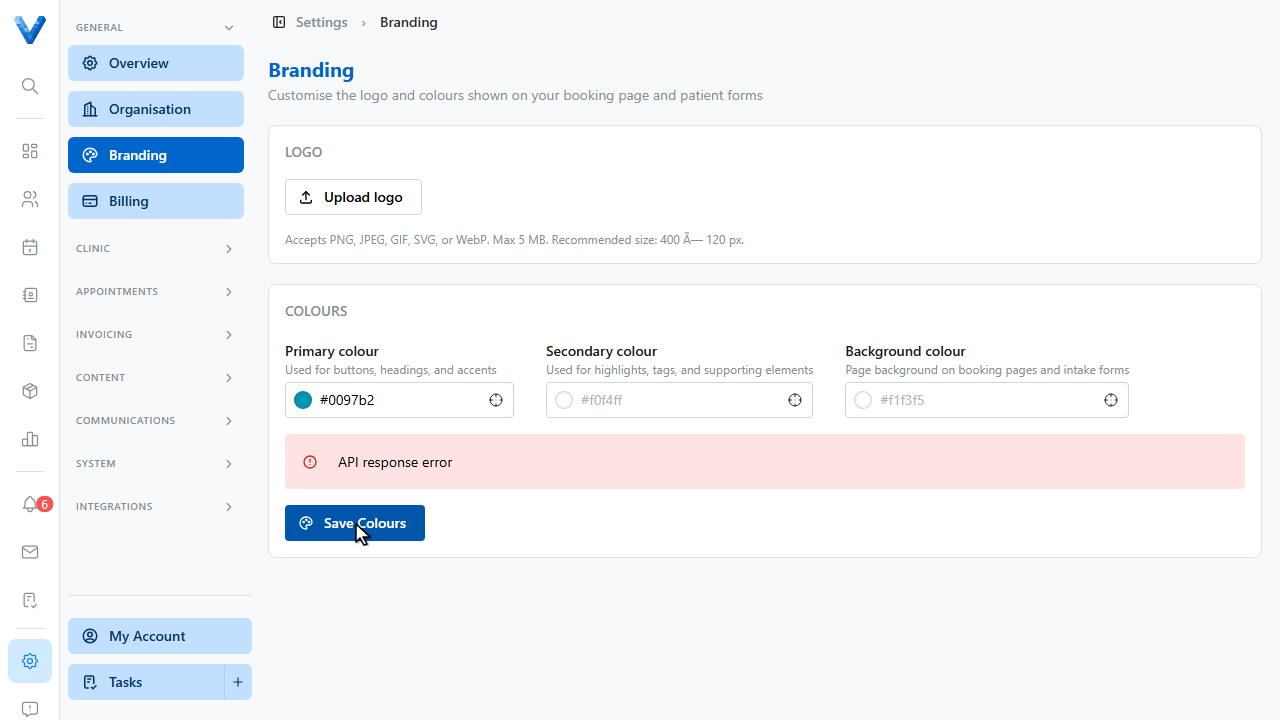
Click Save Colours to apply them.
8
Your branding now flows through to every patient facing page.
Where branding appears
The logo and colours are used on the online booking page, patient intake forms, and form-filling pages. Invoices use the logo too.