 Volition
Go to Settings and open Organisation. These details appear on your invoices and patient communications, so it’s one of the first things to set up.
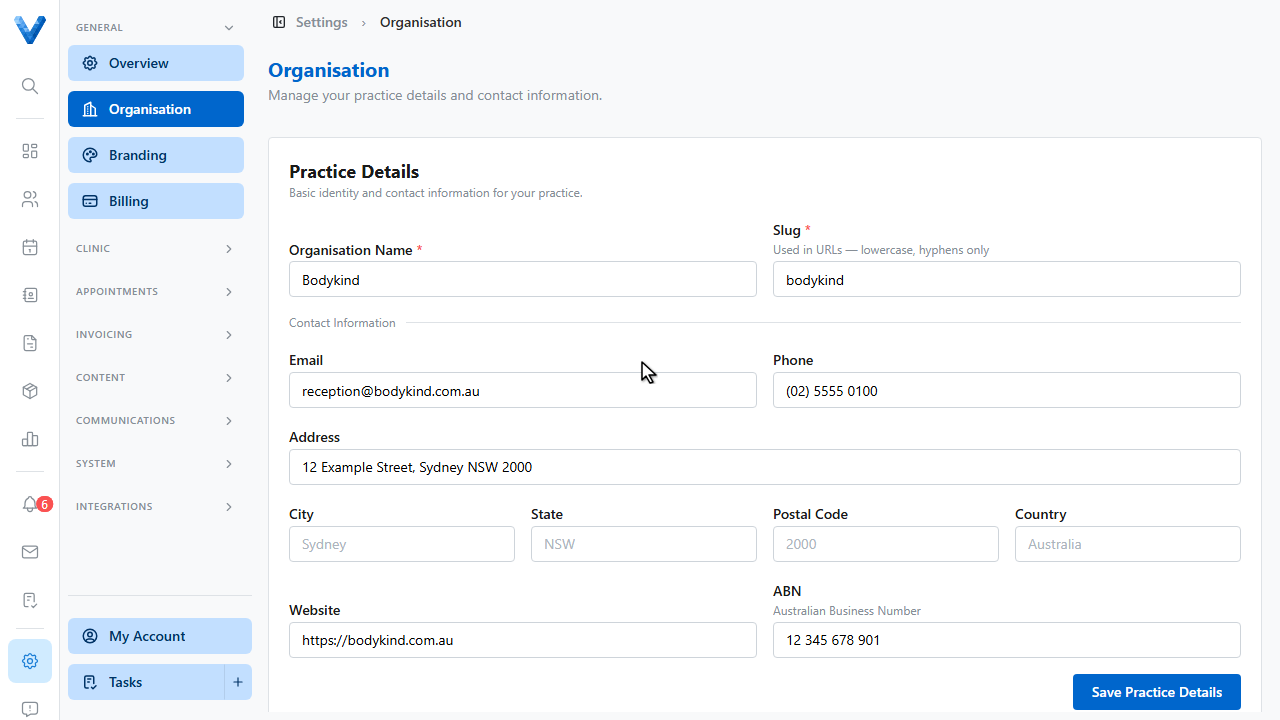
The Practice Details card holds your organisation name, and the slug used in your booking and intake links.
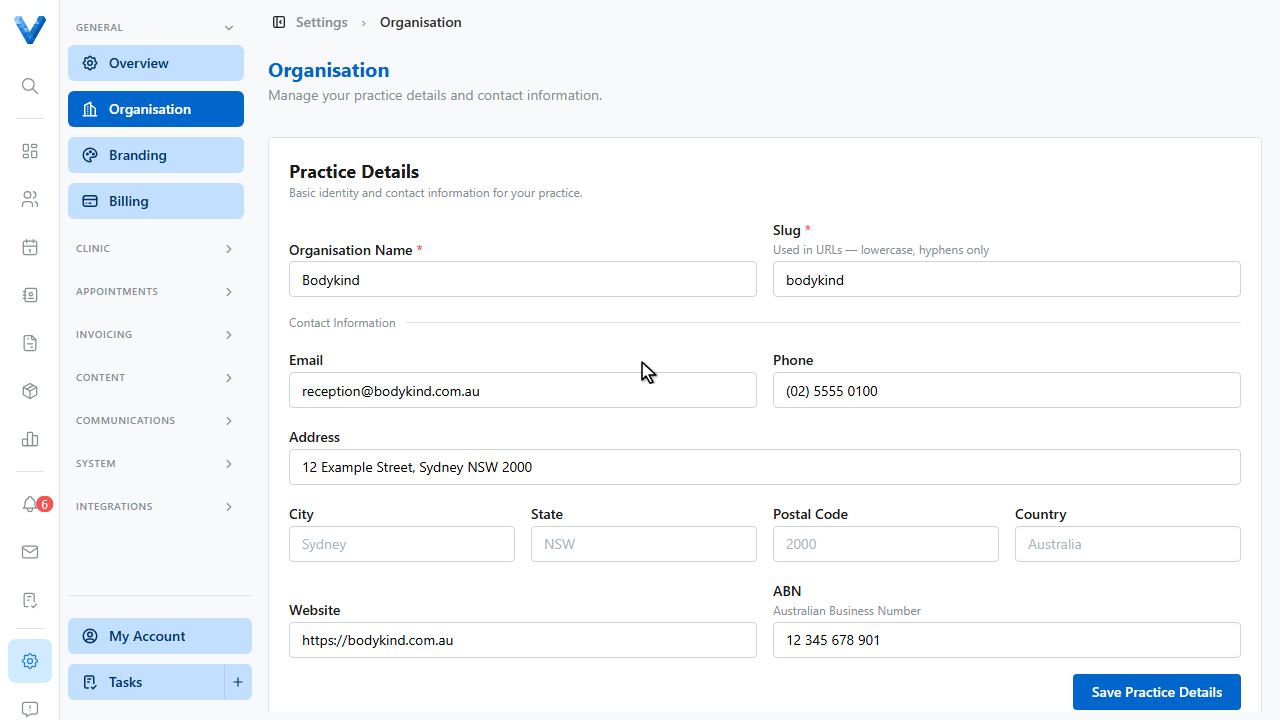
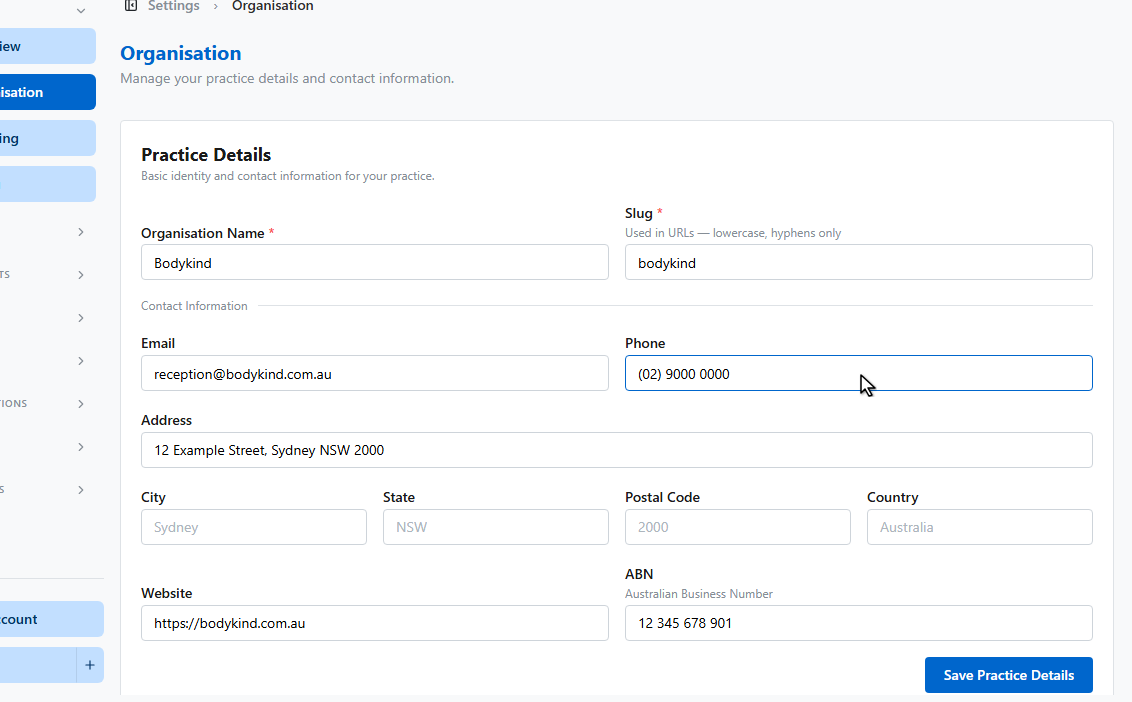
Fill in your contact information, starting with your practice phone number.
Add your website.
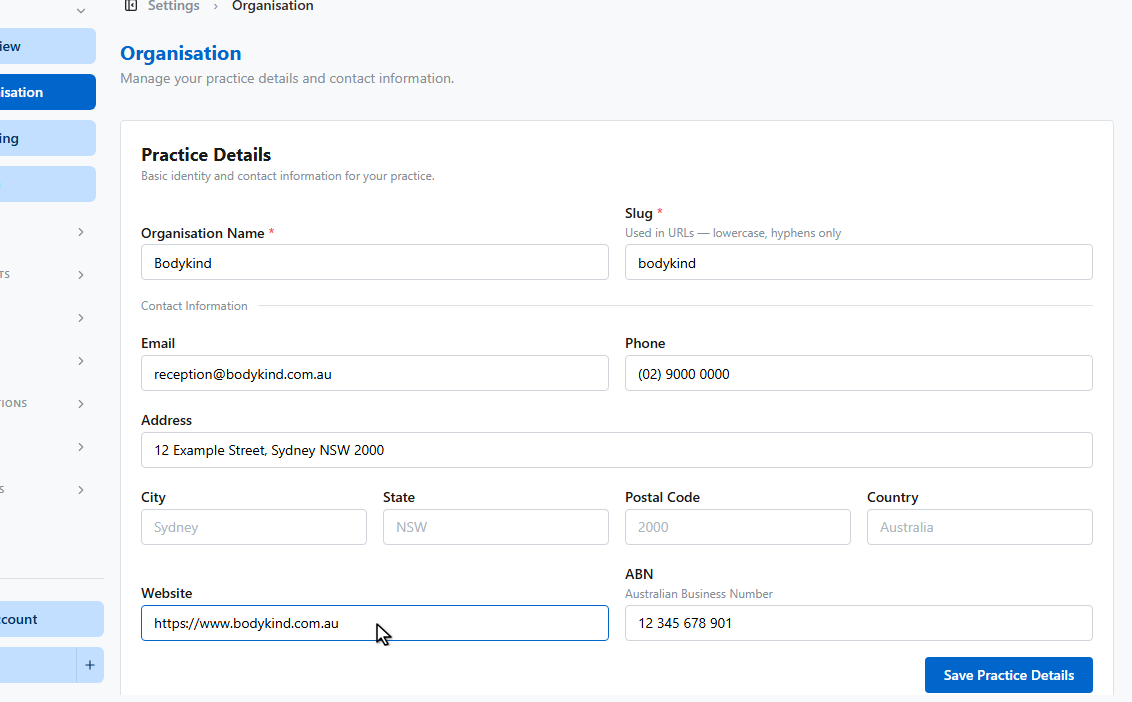
And your A.B.N. It’s printed on every invoice you issue.
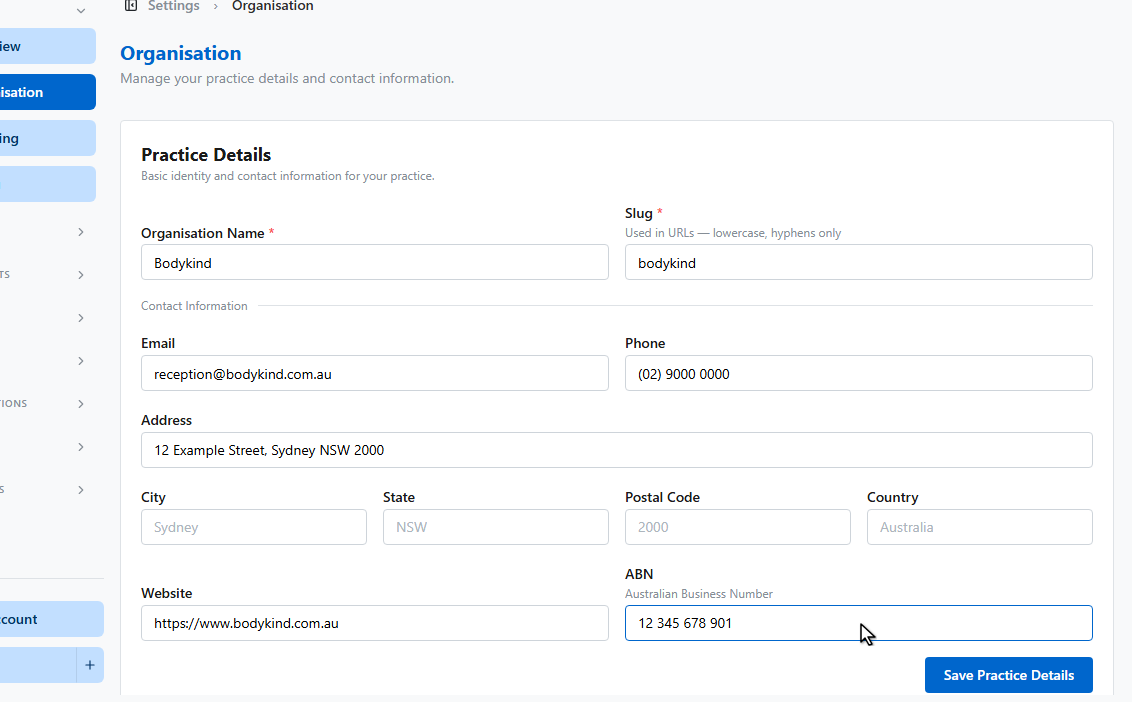
Click Save Practice Details.
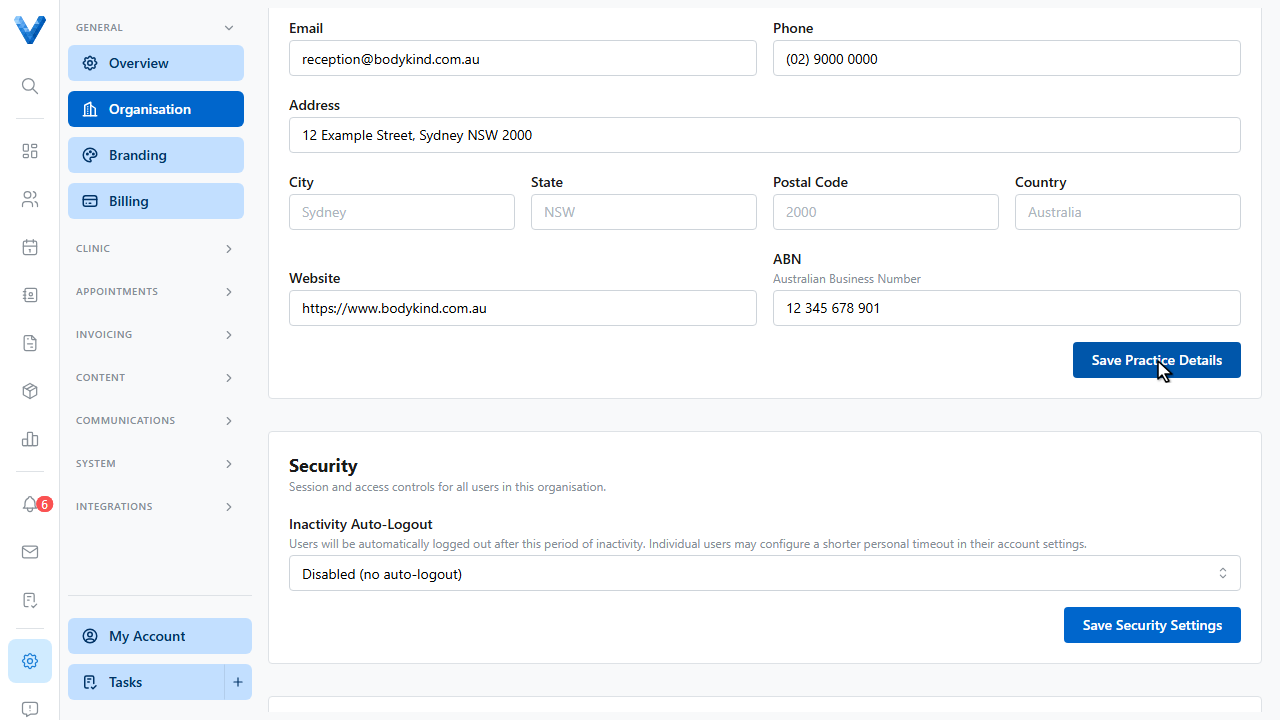
Further down the page you’ll also find security, inventory, and clinical record defaults, each with its own save button.
At the bottom, the Patient Self-Registration link and QR code let new patients register themselves — print the QR code for your front desk.
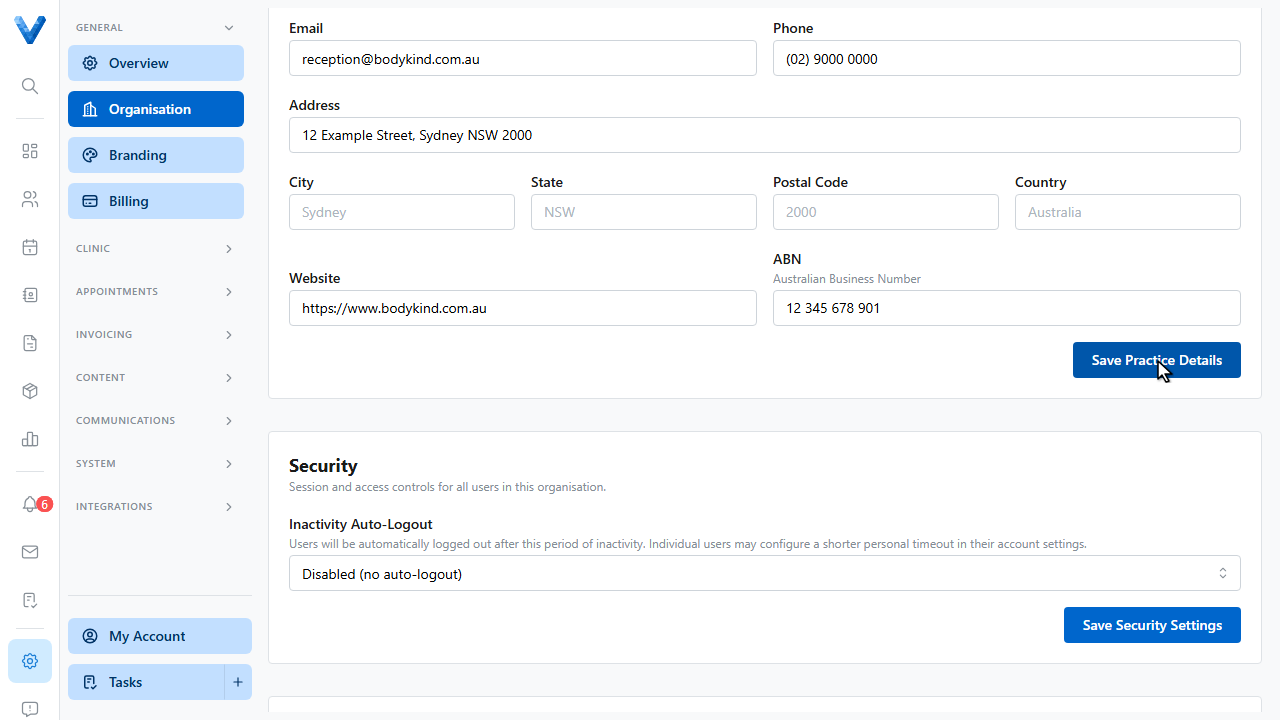
The Slug becomes part of your patient-facing links — online booking lives at
/book/your-slug and self-registration at /intake/your-slug — so pick it once
and avoid changing it after you’ve shared those links.